## Building pages in the block editor
Product: Adesa - Editorial Blog & Culture Magazine WordPress Theme
URL: https://hub.jkdevstudio.com/docs/adesa/blocks-and-patterns/building-pages-in-the-block-editor
Updated: 2026-10-20
Summary: How Adesa pages are made from core blocks, the theme's own blocks and patterns, and where patterns are used across the site.
Every page in Adesa is built in the WordPress block editor. There is no page builder to install: the home page, About, Contact and every post are made from three kinds of pieces, and once you know them you can change any of them yourself.
## Core blocks, with a few extra styles
Paragraphs, headings, images, groups, columns and covers are the blocks WordPress ships. Adesa styles them to match the theme and adds a handful of block styles, picked on the block's **Styles** tab:
:::deflist
Group: Glass, Staggered, Media title
: A frosted panel, a column that offsets every other child, and the large display title with an inline image used in the home page hero.
Paragraph: Muted, Overline, Eyebrow
: Quieter text, and the small label lines above a heading.
List: Inline marks, Arrows
: Items in one row with small marks between them, or a list with arrow bullets.
Image: Line art
: A drawing that sits behind the section as decoration. See [decorative drawings and icons](https://hub.jkdevstudio.com/docs/adesa/blocks-and-patterns/decorative-drawings-and-icons).
:::
Groups, covers, columns, images and media and text blocks also get a **Layout Utilities** panel in the block settings, with **Reveal on scroll** and **Image parallax**. Reveal works only while **Reveal Animations** is on in [[Appearance > Customize > General]].
## The theme's own blocks
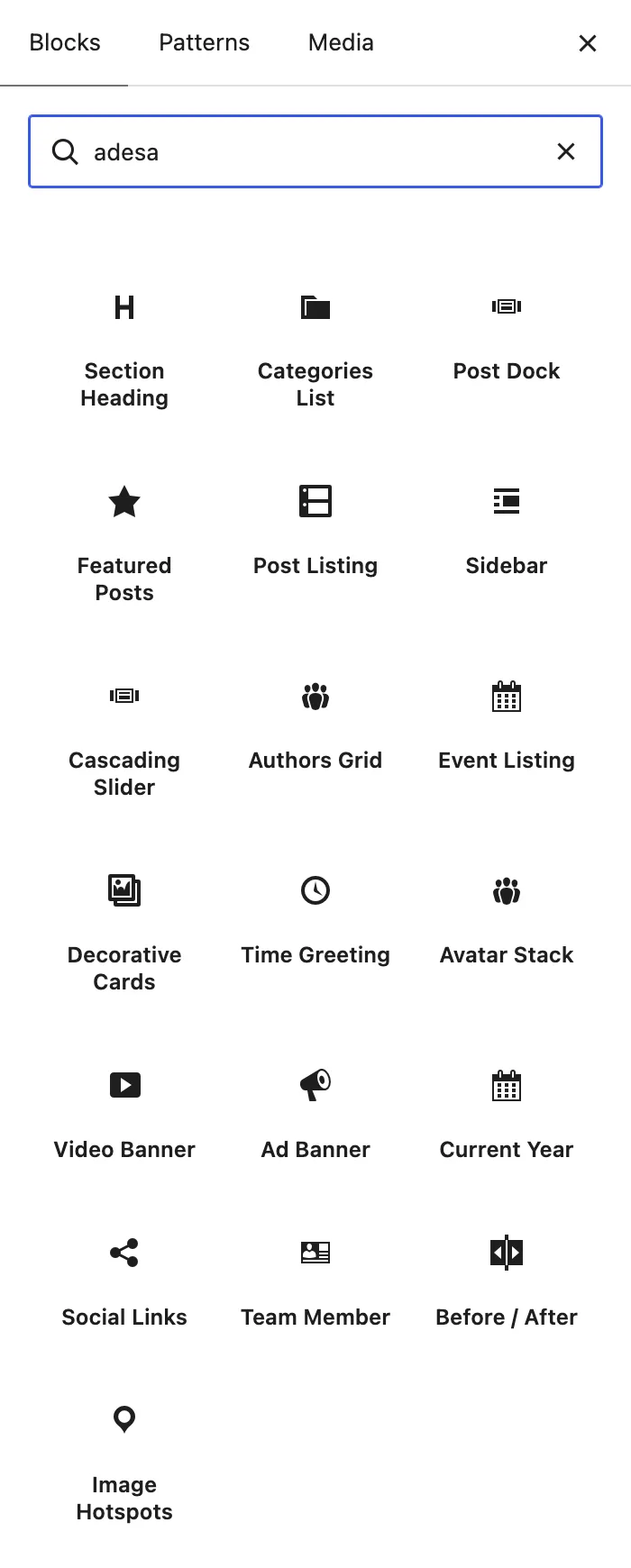
The Pro plugin adds the blocks an editorial site needs and core does not have: post listings, a story ticker, a cascading slider, an author grid, events, ad banners, before and after comparisons and more. Open the inserter and type `adesa` to see them all.
The theme's blocks in the inserter.
Each block keeps its settings in the block sidebar and shows the result on the canvas as you change them. The full list, with what each one is for, is in [the Adesa blocks](https://hub.jkdevstudio.com/docs/adesa/blocks-and-patterns/adesa-blocks).
## Patterns: whole sections, ready to place
A pattern is a group of blocks saved as one piece: a hero, a signup band, a section with a heading and a listing. You insert it from the **Patterns** tab of the inserter and edit it like any other blocks. Changing a placed pattern changes only that page.
Adesa ships two:
:::deflist
Editorial atmospheric hero
: The home page opening: a full-width cover with the site's display title, side notes and a scroll link.
Newsletter signup with image
: A cover with an image and a signup form, used as the call to action above the footer.
:::
A **synced pattern** is different: it lives once, under [[Appearance > Patterns]], and every place that uses it shows the same copy. The footer call to action is the synced pattern **Newsletter signup**. Edit it there and the band changes on every page.
## Where patterns plug into the theme
Beyond pages, Theme Options lets a pattern stand in for a whole part of the site:
- **Single Post** and **Archive** each have a **Template source**. **Block pattern** replaces the built-in layout with a pattern you design.
- **Single Post > Layout > Injected content** places patterns at fixed points in every post, such as after the third block.
- **Footer** picks which pattern runs as the call to action above the footer.
This is how you change those areas without touching template files: design the section as a pattern once, then point the setting at it.
**Build sections from groups.**
Wrap each section of a page in a Group block. The theme spaces groups evenly, and the group is where reveal, parallax and the background styles go.