## Decorative drawings and icons
Product: Adesa - Editorial Blog & Culture Magazine WordPress Theme
URL: https://hub.jkdevstudio.com/docs/adesa/blocks-and-patterns/decorative-drawings-and-icons
Updated: 2026-10-20
Summary: Add, move or replace the drawings behind page sections, the icons beside headings and menu items, and the page header background image.
Availability: Pro only.
The drawings behind page sections, the small icons beside headings and menu items, and the photo behind a page title are all ordinary content. You change each one in the editor, with no code.
## Drawings behind a section
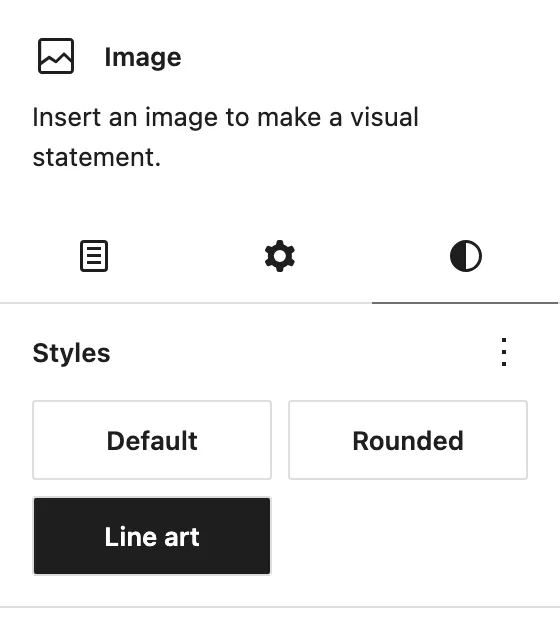
The column, laurel and amphora drawings on the demo pages are Image blocks with the **Line art** style. The style takes the image out of the text flow, places it behind the section at low opacity, and lets it run past the section's edge.
The Line art style on an Image block.
:::steps
### Add an Image block inside the section
Click into the Group block that holds the section and add an **Image** block anywhere in it. Pick a drawing with a transparent background, such as a PNG or WebP line drawing.
### Turn it into line art
On the block's **Styles** tab, choose **Line art**. The image moves behind the section and fades back.
### Pick the side
Use the block toolbar's alignment: **Align left** or **Align right** pins the drawing to that side of the section.
### Move and size it
In the **Dimensions** panel, a negative top **Margin** lifts the drawing so it starts under the section above, and a side margin moves it inward. Set a **Width** to make it larger or smaller than the default.
### Let it drift (optional)
Open **Layout Utilities** and set **Image parallax**. 0 keeps it still, 100 is the default drift, and higher values move it further while the page scrolls.
:::
**Leave the alternative text empty for a drawing that is only decoration.**
Tick **Mark as decorative** in the image settings so screen readers skip it.
The drawings used in the demo ship with the theme in `wp-content/themes/adesa/assets/images/` (for example `antique-column.svg`). To reuse one, choose **Insert from URL** in the Image block and paste its address, such as `https://your-site.com/wp-content/themes/adesa/assets/images/antique-column.svg`.
## An icon beside a heading
The small icons before the sidebar and footer titles belong to the Heading block. Select the heading, open **Title Icon** in the block settings, and pick an image for **Icon**. Only the shape of the image is used, painted in the heading's own color, so a simple one-color drawing works best.
## An icon beside a menu item
Menu icons are set per item in [[Appearance > Menus]]. Open a menu item and find the **Adesa Menu Item** box: **Icon source** chooses between an icon from the built-in set and your own image, and **Icon** or **Icon image** sets it.
## The photo behind a page title
Each page can carry its own header image. Edit the page, scroll to the **Page Header** box, and set **Background image**. **Image opacity** and **Image darkening** keep the title readable on a bright photo, and **Parallax** with **Parallax strength** controls how far it drifts.
Pages without their own image use the default header image from [[Appearance > Customize > Branding]]. Archives and the events page take theirs from **Theme Options**, in the **Page Header** group of the Archive and Events pages.
## Common questions
The drawing covers my text
It sits behind the content, so this usually means the section has no background of its own and the drawing shows through. Lower its **Width**, move it further to the side with a side **Margin**, or pick a lighter drawing.
WordPress will not let me upload an SVG
WordPress blocks SVG uploads by default. Use a PNG or WebP drawing instead, or reuse a drawing from the theme folder with **Insert from URL** as described above.
The heading icon shows as a solid square
The icon image has no transparent background, so its whole shape is filled with the text color. Use a PNG or WebP with transparency.