## Set up the blog
Product: Arche - Interactive Portfolio FSE WordPress Theme
URL: https://hub.jkdevstudio.com/docs/arche/pages-blog-and-patterns/blog
Updated: 2026-10-30
Summary: How the Arche blog lists posts, what a single post shows, and how to change the listing, the pagination and the recent posts in the Site Editor.
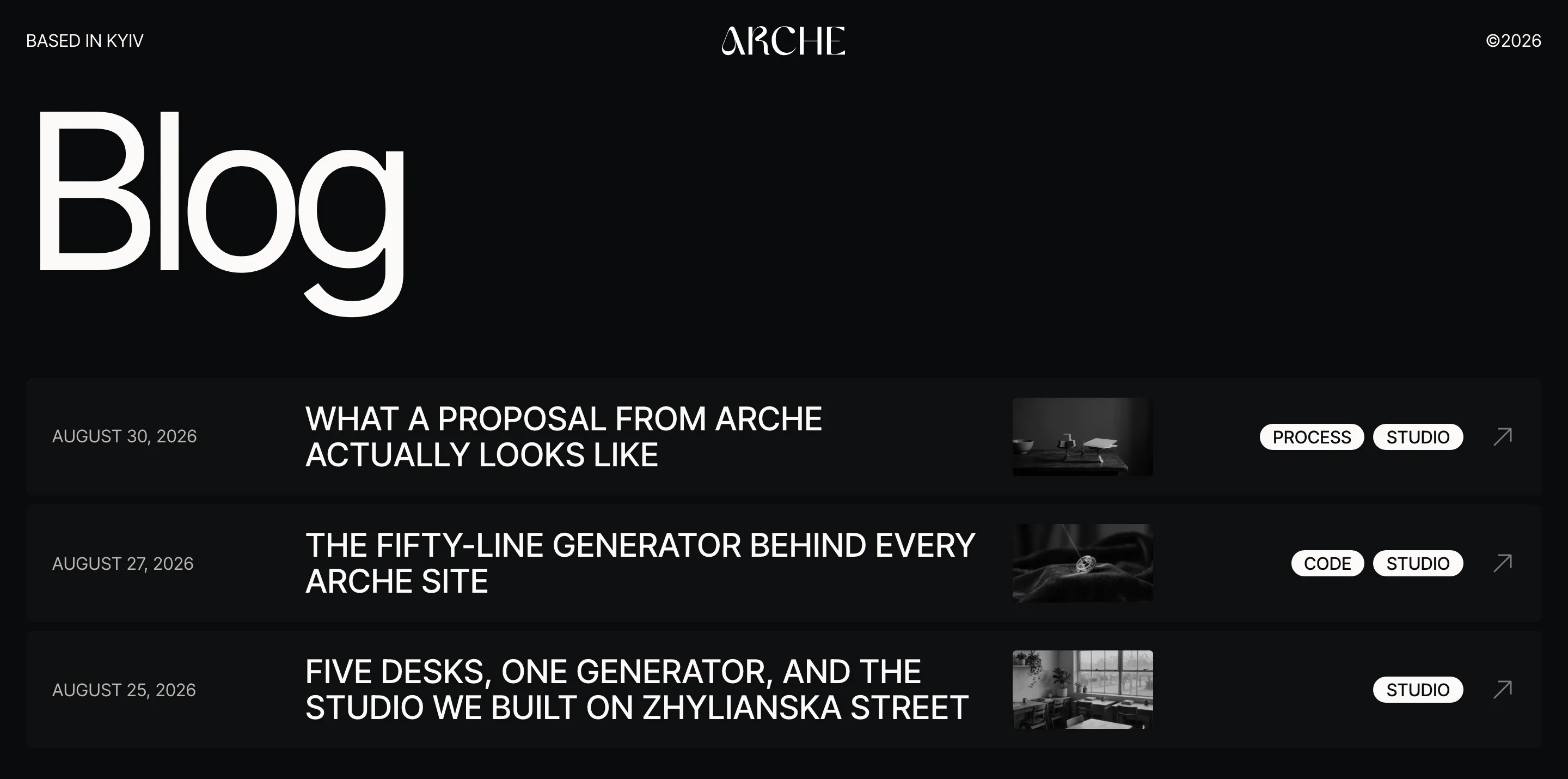
The blog lists your posts as rows: date, title, a faded black-and-white image and up to three categories. Hovering a row brings the image to full color. Everything is edited in the Site Editor, with no settings screen.
The blog listing with post rows.
## Show the blog on its own page
:::steps
### Create an empty page
Add a page called Blog in [[Pages > Add Page]] and publish it.
### Set it as the posts page
Go to [[Settings > Reading]], choose **A static page** and set **Posts page** to Blog.
:::
## What a row shows
- The date, the title and the featured image. A post without an image keeps the column empty, so titles stay in line.
- The first three categories. The rest fold into a **+N** pill that names them on hover.
- A pinned post shows a **Pinned** label after its title.
To change the rows, open [[Appearance > Editor > Templates]], pick **Blog Home** and edit the **Post rows** pattern inside it.
## What a single post shows
Breadcrumbs and the title open the post, with the date under the title. Then come the featured image, the categories and the author on the left, and the text on the right. The excerpt you write by hand opens the text as a lead. Tags and comments follow the text.
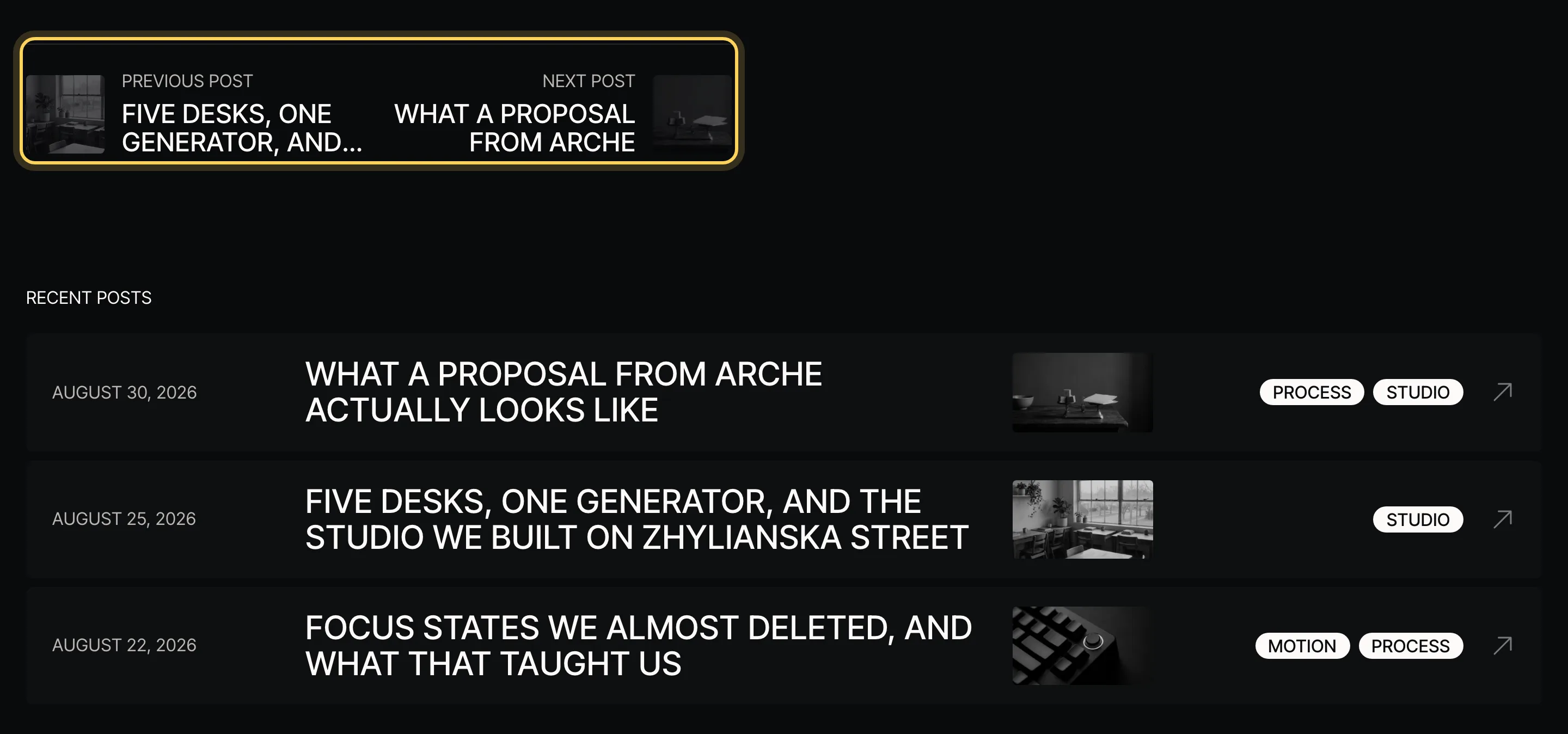
When the text ends, the left column shows links to the previous and the next post, each with a thumbnail. They loop, so the last post leads back to the first. Under the post come the recent posts.
Post navigation and recent posts under a post.
- To remove a part, such as the author or the recent posts, delete its block in the **Single Posts** template.
- To show more or fewer recent posts, select the Query Loop in the recent posts section and change **Items per page**. The open post is left out on its own.
## Change how the pagination works
With Arche Pro, the blog's page numbers change pages without a reload. To pick another way, select the **Pagination** block in the blog template and open **Styles**:
:::deflist
Numbers, no reload
: Page numbers that load the next page in place. The default on the blog.
Load more
: One button that adds the next posts under the list.
Infinite scroll
: The next posts load as the visitor nears the end.
:::
The page numbers themselves have two styles, **Boxed** and **Plain**.
## Breadcrumbs
Posts, pages, archives and search results show breadcrumbs. On pages they sit under the title, on a post above it. When an SEO plugin has breadcrumbs of its own, the theme shows those. Delete the breadcrumbs group in a template to remove them there.