## Add a Google map
Product: Arche - Interactive Portfolio FSE WordPress Theme
URL: https://hub.jkdevstudio.com/docs/arche/pages-blog-and-patterns/map
Updated: 2026-10-30
Summary: Add your Google Maps API key in Theme Options, then place the Map block, set the place, zoom and marker, and paste a map style.
Availability: Pro only.
The Map block shows one place on a Google map with a glass marker. The Contact pattern already has one beside the studio picture.
## Add the API key
The map needs your own Google Maps key.
:::steps
### Create the key
In Google Cloud, create an API key with the **Maps JavaScript API** turned on. Restrict it to your domain.
### Save it in Theme Options
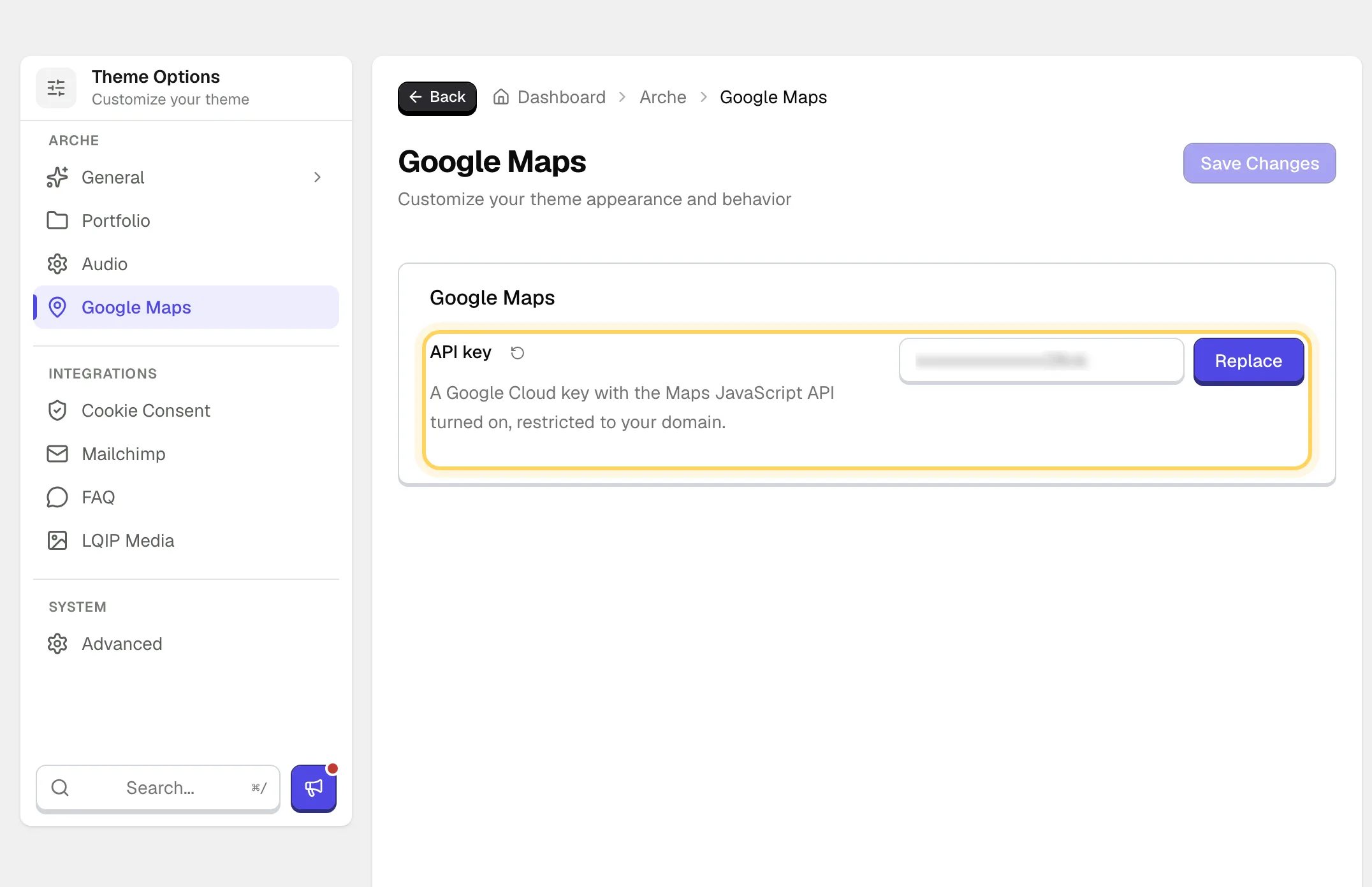
Go to [[Arche Pro > Theme Options > Arche > Google Maps]], paste the key in **API key** and save.
A saved key on the Google Maps page.
:::
The key is stored encrypted, so the field shows it masked with a **Replace** button. Without a key the map shows nothing on the site, and the editor shows a hint.
## Place the map
Insert the **Map** block and set it up in the block sidebar.
:::options
- **Latitude** (number, default: 50.4501): Right-click the place in Google Maps and copy the first number.
- **Longitude** (number, default: 30.5234): The second number from the same right-click.
- **Zoom** (range 1 to 20, default: 14): From the whole world at 1 to a single street at 20.
- **Height** (range 20 to 100 vh, default: 60): How tall the map is, as a share of the screen height.
- **Marker** (toggle, default: on): A glass pin on the place.
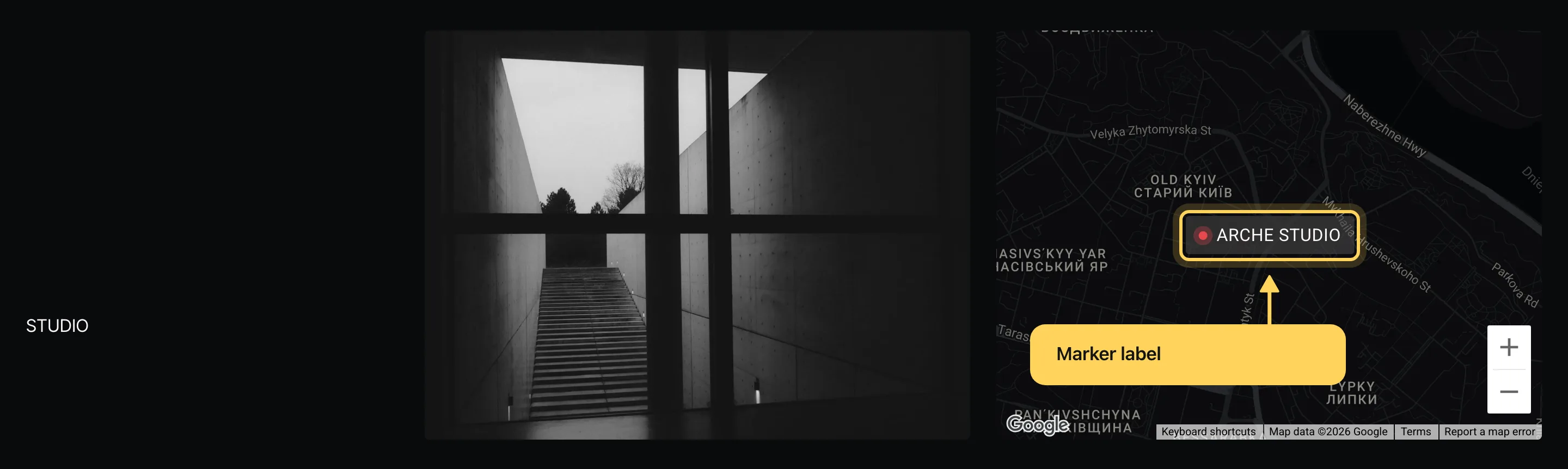
- **Marker label** (text): A few words beside the pin, such as the studio's name. Shown while Marker is on.
- **Map style** (textarea): Paste a style as JSON from the Google Maps styling wizard or Snazzy Maps. Empty keeps the dark Arche style.
:::
The map on the Contact page.
## If the map does not show
The map loads when it comes close to the screen. If Google refuses the key, the block shows a quiet placeholder instead of the gray Google error. Check that the key allows your domain and has the Maps JavaScript API turned on.