## Set up the dock
Product: Arche - Interactive Portfolio FSE WordPress Theme
URL: https://hub.jkdevstudio.com/docs/arche/styles-and-settings/dock
Updated: 2026-10-30
Summary: Pick the dock's menu and what it shows across the site, change it for one page, and use the live search inside the dock in Arche Pro.
Availability: Pro only.
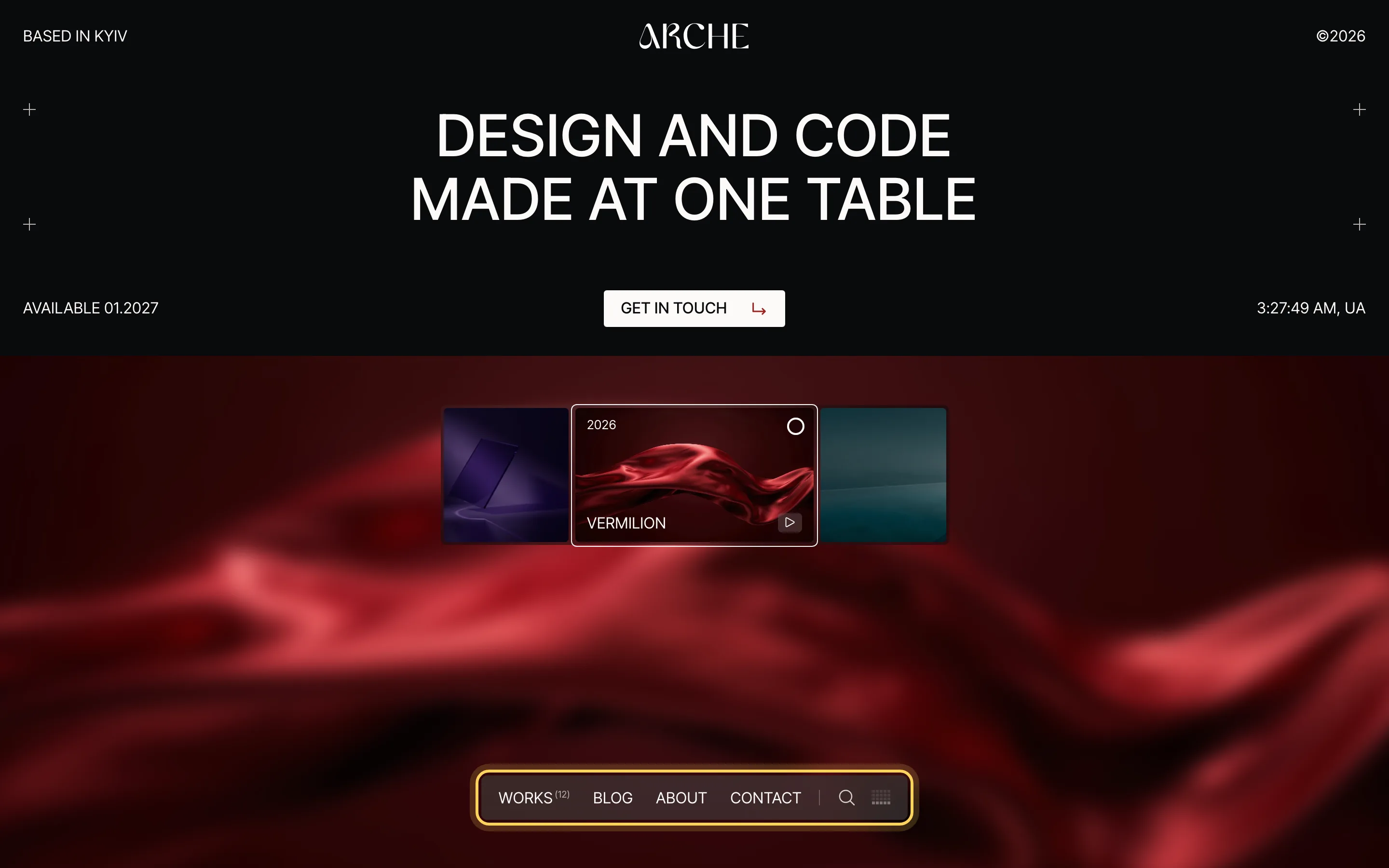
The dock is the glass bar at the foot of the screen. With Pro active it carries the site menu, so the header keeps a short line, the site title and the year. You set the dock up once, in the **Dock** template part.
The dock on the home page.
## Pick the menu and what the dock shows
:::steps
### Open the Dock template part
Go to [[Appearance > Editor > Patterns]], open **All template parts** and pick **Dock**.
### Select the Dock block
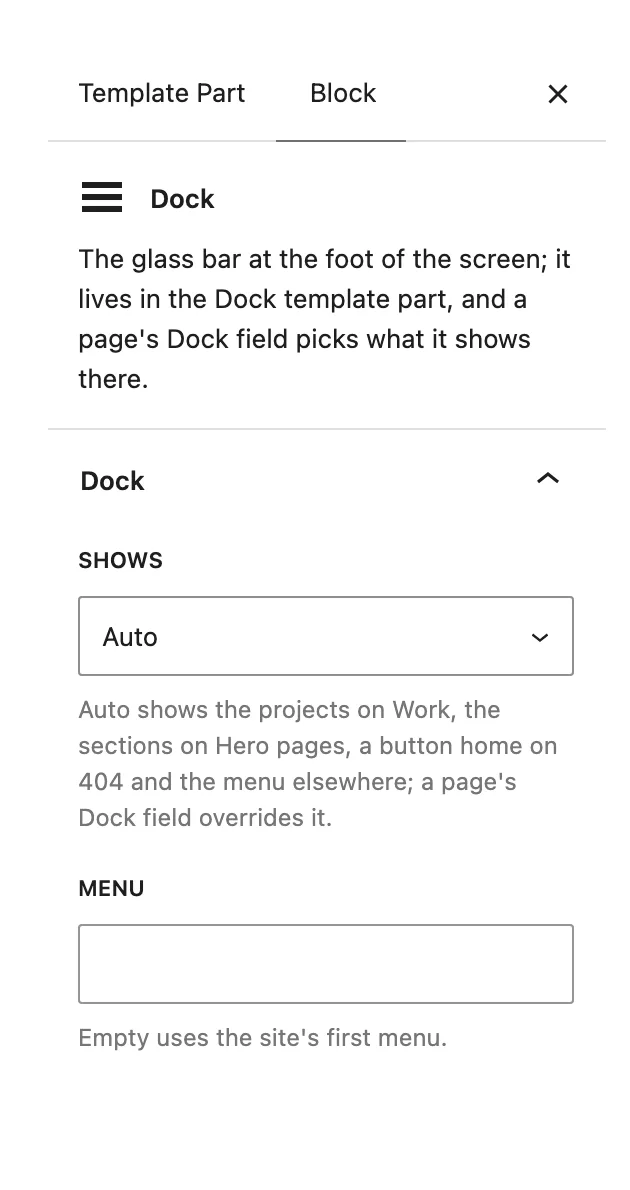
Click the dock in the canvas to open its settings in the block sidebar.
### Choose the menu
In **Menu**, pick one of your navigation menus. Empty uses the site's first menu.
### Choose what it shows
Leave **Shows** on **Auto**, or pick one mode for every page. Save.
The Dock block settings.
:::
## What each mode shows
:::deflist
Auto
: Follows the page: the projects on Work, in project categories and on a page with a Project stack block, the sections on a Hero page, a button home on 404, and the menu everywhere else.
Site menu
: The menu you picked. A menu item that leads to Work shows the number of projects beside it, such as (12).
Page sections
: Arrows and the name of the current section. Each block with an **HTML anchor** (block sidebar, **Advanced**) is a section. Its name is the block's name in List View, else its first heading. The current section is the one that reaches two thirds of the screen, and quick clicks on the arrows keep stepping. With fewer than two sections the dock shows the menu.
Projects
: Steps through the Project stack block on the page: the current project with its number and a round button that opens it. Point at the dock and three round buttons appear beside it: the previous project, the list of all projects and the next project. Without the block the dock shows the menu.
Home button
: One round button to the home page.
:::
## Change the dock on one page
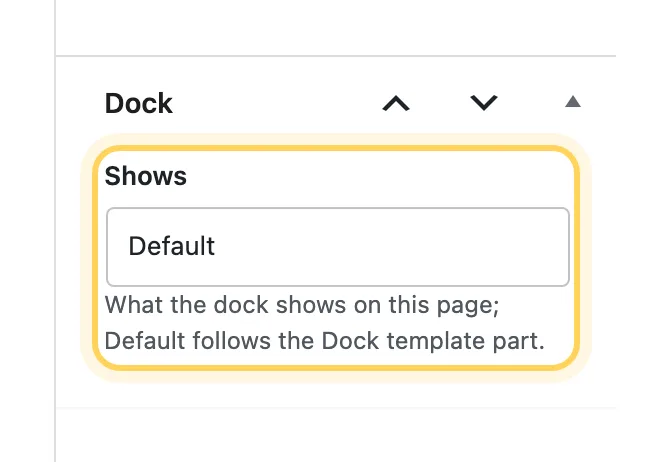
Open the page, post or project in the editor. In the **Page** tab of the sidebar, find the **Dock** box and pick what **Shows** on this page. **Default** follows the Dock template part. **Hidden** removes the dock from this page.
The Dock box of a single page.
## Search inside the dock
The magnifier after the menu turns the dock itself into a search field. Results show above the dock as you type, from two letters on: up to six posts, pages and projects, then **All results**, which opens the search page. The page under the dock stays where it is while results come and go.
- ↑ and ↓ move through the results.
- Esc closes the search.
Search asks your own site only. No outside service is used.
## Submenus
A menu item with a submenu gets a **+** in the dock. The submenu opens as a glass panel above the dock, starting from its own item, and the **+** turns into **-**.
## On phones
Below 600px the dock holds only the menu button. It opens the menu full screen with every submenu open and a search field at its foot. Search and the sound bars leave the dock, and background music stays off.
## Good to know
- Every page except the home page shows a round **×** button beside the dock. It leads home.
- Before a footer the dock parks 50px above it. On a page without a footer it stays 50px above the foot of the screen.
- With reduced motion turned on, the dock stays the site menu with search and the sound bars on every page. Without the motion script it is the plain menu.