## Set the motion of a block

Product: Arche - Interactive Portfolio FSE WordPress Theme
URL: https://hub.jkdevstudio.com/docs/arche/styles-and-settings/motion-and-reveal
Updated: 2026-10-30
Summary: Pick how a block enters as it scrolls into view, give a Cover a parallax background, and turn on the pixel trail, all from the block sidebar.
Availability: Pro only.

Every text and media block enters the screen with the default set on the Reveal tab of [[Arche Pro > Theme Options > Arche > General]]. You can give any of them its own entrance in the block sidebar.

## Pick an entrance for one block

:::steps

### Select the block

Open the page or template in the editor and click the block.

### Open the Reveal panel

In the block sidebar, open **Reveal**.

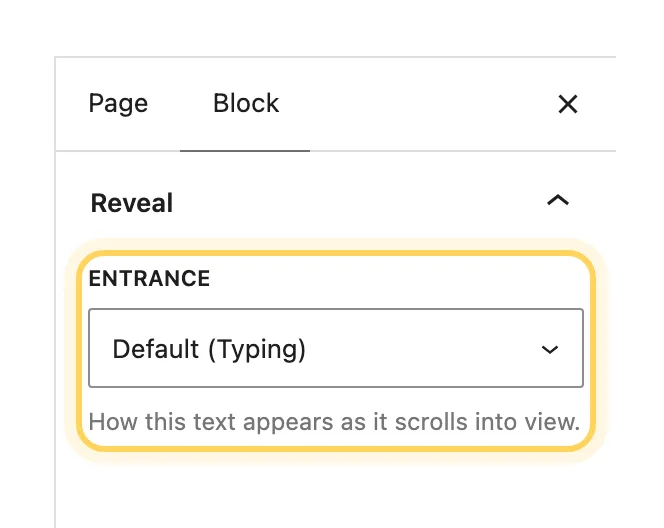
<figure class="doc-figure" data-align="center"><img src="https://hub.jkdevstudio.com/storage/docs/2026/10/5df13ba4-7887-4a82-a709-292e824d05a7.webp" alt="The Reveal panel of a Heading block with the Entrance select set to Default (Typing)"><figcaption>The Reveal panel on a Heading block.</figcaption></figure>

### Choose the entrance

Pick an **Entrance**. **Default** follows Theme Options and names the entrance it uses. **None** turns the entrance off for this block.

:::

The panel shows on the blocks where an entrance works:

<table> <thead> <tr> <th>Block kind</th> <th>Blocks</th> <th>Choices</th> </tr> </thead> <tbody> <tr> <td>Text</td> <td>Paragraph, Heading, List, List item, Quote, Pullquote, Details, Verse, Preformatted, Post Title, Post Excerpt, Post Date, Post Terms, Post Author Name, Query Title, Site Title, Site Tagline, Term Description</td> <td>Typing, Glitch, Characters in random order, Lights up while scrolling, Rises out of a blur, Fades in, None</td> </tr> <tr> <td>Media</td> <td>Image, Post Featured Image, Video, Gallery</td> <td>Picture uncovers, Rises out of a blur, Fades in, None</td> </tr> <tr> <td>Container</td> <td>Group, Columns, Column, Cover, Media &amp; Text</td> <td><strong>Text inside</strong> and <strong>Media inside</strong></td> </tr> </tbody> </table>

## Set one entrance for a whole section

Select a container block such as a Group. Its Reveal panel has **Text inside** and **Media inside**. They apply to every block inside it that has no choice of its own, and the closest choice wins.

<div data-callout="tip">

The text of posts, case studies and pages on the default Page template appears with one fade of the whole block, so long articles stay calm. Pages on the Canvas, Home screen or Hero page templates keep the entrance of each block.

</div>

## Give a Cover a parallax background

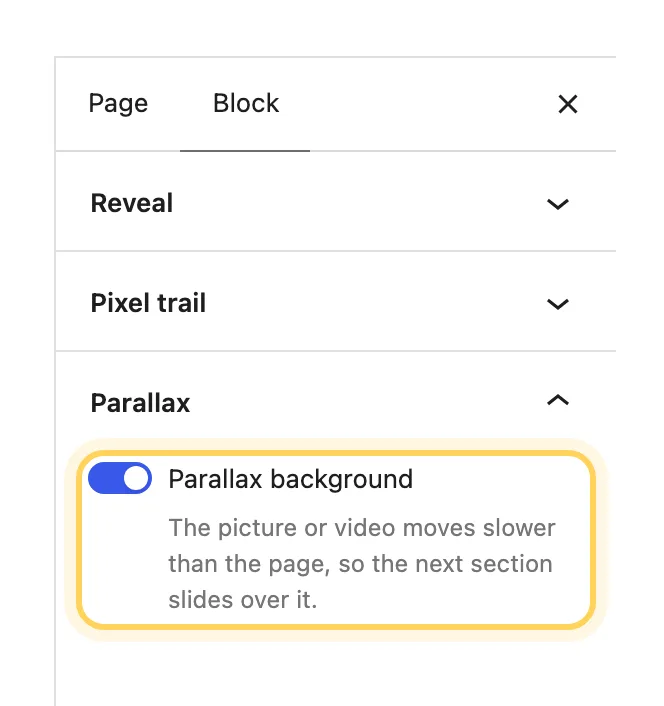
Select a **Cover** or a **Featured Image** block, open **Parallax** in the block sidebar and turn on **Parallax background**. The picture or video then moves slower than the page, and the next section slides over it.

<figure class="doc-figure" data-align="center"><img src="https://hub.jkdevstudio.com/storage/docs/2026/10/baae342f-51b8-4987-86ef-817f07415424.webp" alt="The block sidebar of a Cover with the Reveal, Pixel trail and Parallax panels, and Parallax background turned on"><figcaption>Parallax background on a Cover block.</figcaption></figure>

The demo uses it on the hero of About and Contact, on the 404 page and on the case study cover. A post's own featured image always moves this way on the post's page, with no setting to turn on.

## Turn on the pixel trail for a Group or Cover

Select a Group or a Cover, open **Pixel trail** in the block sidebar and turn it on. Blocks of color light up behind the pointer over this block on desktop. Only these two blocks have the setting.

The size, reach and fade of the trail are set for the whole site on the Pointer tab of Theme Options.

## When a panel is missing

- **Reveal** is gone while **Reveal on scroll** is off in Theme Options.
- **Pixel trail** is gone while **Pointer effects** or **Pixel trail** is off in Theme Options.
- Blocks with motion of their own, such as the Project slider, the Project stack, the dock and the ticker, have no Reveal panel.