## The blog: listings, views and pagination
Product: Auno - Minimal Portfolio FSE WordPress Theme
URL: https://hub.jkdevstudio.com/docs/auno/pages-blog-and-patterns/blog-listings
Updated: 2026-10-26
Summary: How the Auno blog lists posts, the list, grid and exposition views visitors can switch between, the four kinds of pagination and where the post count comes from.
The blog page lists every post as a row: a square thumbnail, the title and the date. Visitors can switch the list to a grid or to one large cover after another, and move through the pages without the page reloading. The page is the **Blog Home** template at [[Appearance > Editor > Templates]].
## What the blog page shows
:::deflist
Title with the post count
: The heading reads Blog (12): the **With post count** style on a Heading adds the number of published posts. Archives use it on their Query Title.
Intro
: A line of text under the title. Edit it in the template.
Topics
: Your categories as a list marked with an arrow, using the **Topics** style.
All posts
: The rows, with the view buttons beside the section title and page numbers under them that swap the posts in place.
:::
How many posts a page holds is set at [[Settings > Reading]] in **Blog pages show at most**.
## List, grid and exposition
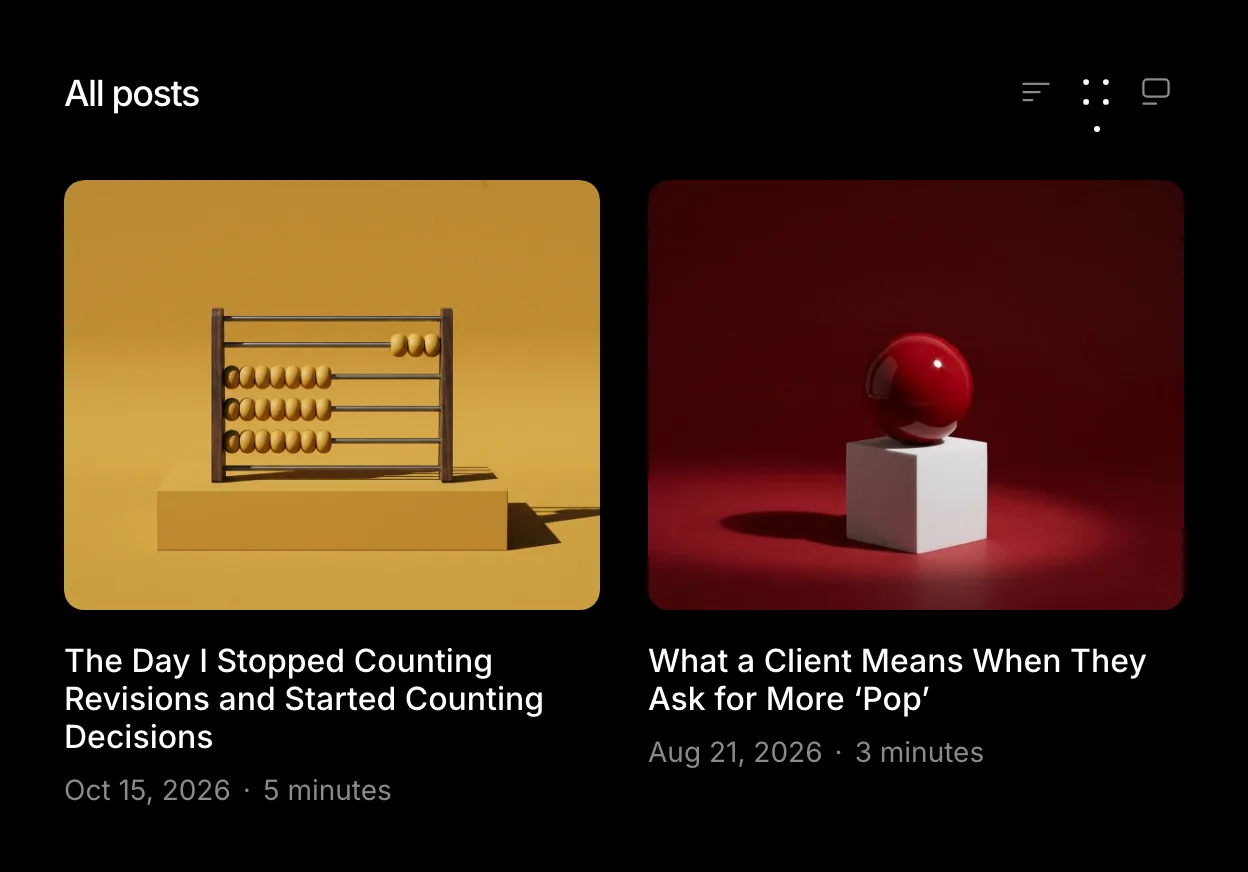
The three buttons beside **All posts** switch the view: **List** (the rows), **Grid** (two columns of cards with large covers, one on phones) and **Exposition** (one post after another, each with a wide cover over its title). The posts glide to their new places as the view changes, and a cover zooms in a little under the pointer in every view. The choice is remembered in the visitor's browser for every listing of posts, and a visitor without JavaScript sees the rows.
The grid view, picked beside the section title.
The buttons come from the **Switchable views** style on the Query block. To use them on another listing, select its Query block and pick the style. Take it off to fix a listing to its built-in view.
With Auno Pro, the same Query block has a **Views** panel: **Opens in** sets the view the listing starts in, and that view's button moves to the front. A view a visitor picks is still remembered over it.
## Pagination
Select the Pagination block under a listing and pick a style in its **Styles** panel:
:::deflist
Default
: Numbered pages that open as ordinary pages.
Numbers, no reload
: Numbered pages that swap the posts in place, without loading a new page. The blog page and the Works archive use it.
Load more
: A button that adds the next posts under the current ones. Its arrow drops out and a second one follows under the pointer.
Infinite scroll
: The next posts arrive as the reader nears the end of the list.
:::
While posts load, the controls read **Loading**, and the whole pagination hides after the last page. The page numbers have their own styles, **Boxed** and **Plain**, on the Page Numbers block. Posts that arrive without a reload take the view the visitor picked, and their pictures load at the size of that view.
## Archives and search
Category, tag and date pages use the **All Archives** template: the archive's name with its count and the same post rows, with numbered pages. Search uses **Search Results**. Both are edited at [[Appearance > Editor > Templates]].
## Questions
The blog page shows nothing, or the wrong posts
Check [[Settings > Reading]]: the page you use for the blog must be set as **Posts page**. The **Blog Home** template draws that page.
Does the view a visitor picks change what others see?
No. The choice is kept in that visitor's browser only. Everyone else starts from the rows, or from the view set in **Opens in**.
Can the blog use Load more instead of page numbers?
Yes. Open the **Blog Home** template, select the Pagination block under **All posts** and pick **Load more** or **Infinite scroll** in its **Styles** panel, then save.