## Add a project
Product: Auno - Minimal Portfolio FSE WordPress Theme
URL: https://hub.jkdevstudio.com/docs/auno/portfolio/add-a-project
Updated: 2026-10-26
Summary: Create a project in Auno Pro: title, lead and cover, the client, year, timeline and live link, a content layout, and where the project then appears.
Availability: Pro only.
A project is one piece of work in your portfolio: a page at `/work/your-project/` with its title, details, cover and story, and a card in the Works grid. Projects come with Auno Pro and are managed at [[Portfolio > All Projects]].
## Create the project
:::steps
### Start a new project
Go to [[Portfolio > Add New Project]]. Type the title: it becomes the page heading and the card's name.
### Write the lead
Open the project's settings sidebar and write the **Excerpt**. It shows under the title on the project page.
### Set the cover
Set the **Featured image**. It is the large cover on the project page and the card in every grid. A landscape image cropped to 5:4 fits both.
### Fill in the details
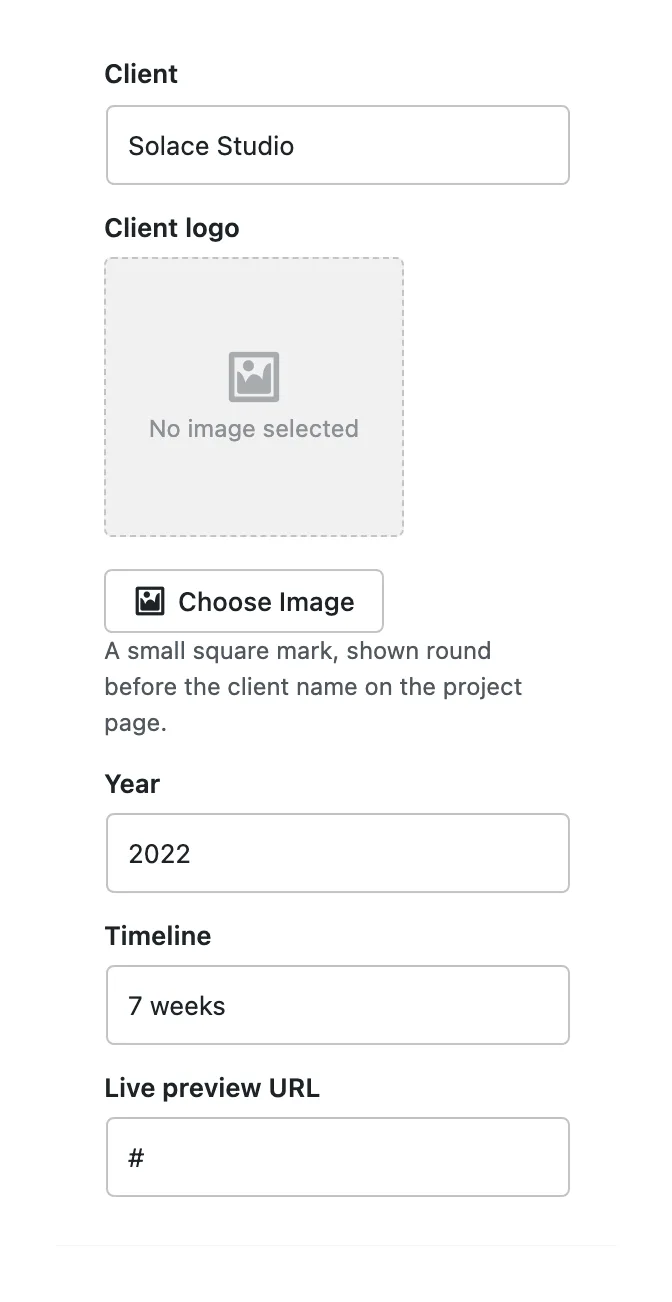
In the **Project** box at the bottom of the sidebar, fill in **Client**, **Year**, **Timeline** (such as 6 weeks) and **Live preview URL**. Add a **Client logo** too: a small square mark shown round before the client's name. Client, Year and Timeline appear as three cards under the title, and the live link becomes the **Live preview** button.
The project's details, in the sidebar.
### Start the content from a layout
Click **Block Inserter**, open **Patterns** and choose **Project layouts**: **Project: story**, **Project: image stack**, **Project: grid** or **Project: split**. Replace the text and images with your own.
### Publish
Click **Publish**. The project appears first in the Works grid and in Selected work on the home page.
:::
To show a gallery or a video in place of the cover, use the **Project media** box under the editor, see [project media: galleries and video](https://hub.jkdevstudio.com/docs/auno/portfolio/project-media).
## Where the project shows up
:::deflist
The project page
: The title, the lead, the **Live preview** button, the detail cards, the cover or its media, and your content. At the sides, arrows lead to the previous and the next project with a thumbnail, looping at the ends. Under it, **Keep exploring** suggests two more projects and links to all of them.
The Works archive
: `/work/`, six projects a page, see [the Works archive and Selected work](https://hub.jkdevstudio.com/docs/auno/portfolio/works-archive).
Selected work
: The six latest projects, in the **Home (with portfolio)** pattern or the **Selected work** pattern on any page.
:::
## Questions
How do I change the order of the projects?
Projects are ordered by their publish date, newest first, and the side arrows follow the same order. Change a project's date in its settings sidebar to move it.
A detail card is empty on the project page
Each card shows its field. Fill in **Client**, **Year** or **Timeline** in the **Project** box, then update the project.
Can I hide the Live preview button?
Leave **Live preview URL** empty, or remove the button from the **Single project** template at [[Appearance > Editor > Templates]].