## Project media: galleries and video
Product: Auno - Minimal Portfolio FSE WordPress Theme
URL: https://hub.jkdevstudio.com/docs/auno/portfolio/project-media
Updated: 2026-10-26
Summary: Give a project a gallery or a video, choose how it shows on the project page and in the grids, and set the badges, hover play and collage of the works cards.
Availability: Pro only.
A project can carry a gallery of images or a video in place of its cover. You choose the format per project in the project editor, and how the grids show these projects on the grid itself. Projects without either keep their featured image.
## Choose the media of a project
Open the project and find the **Project media** box under the editor.
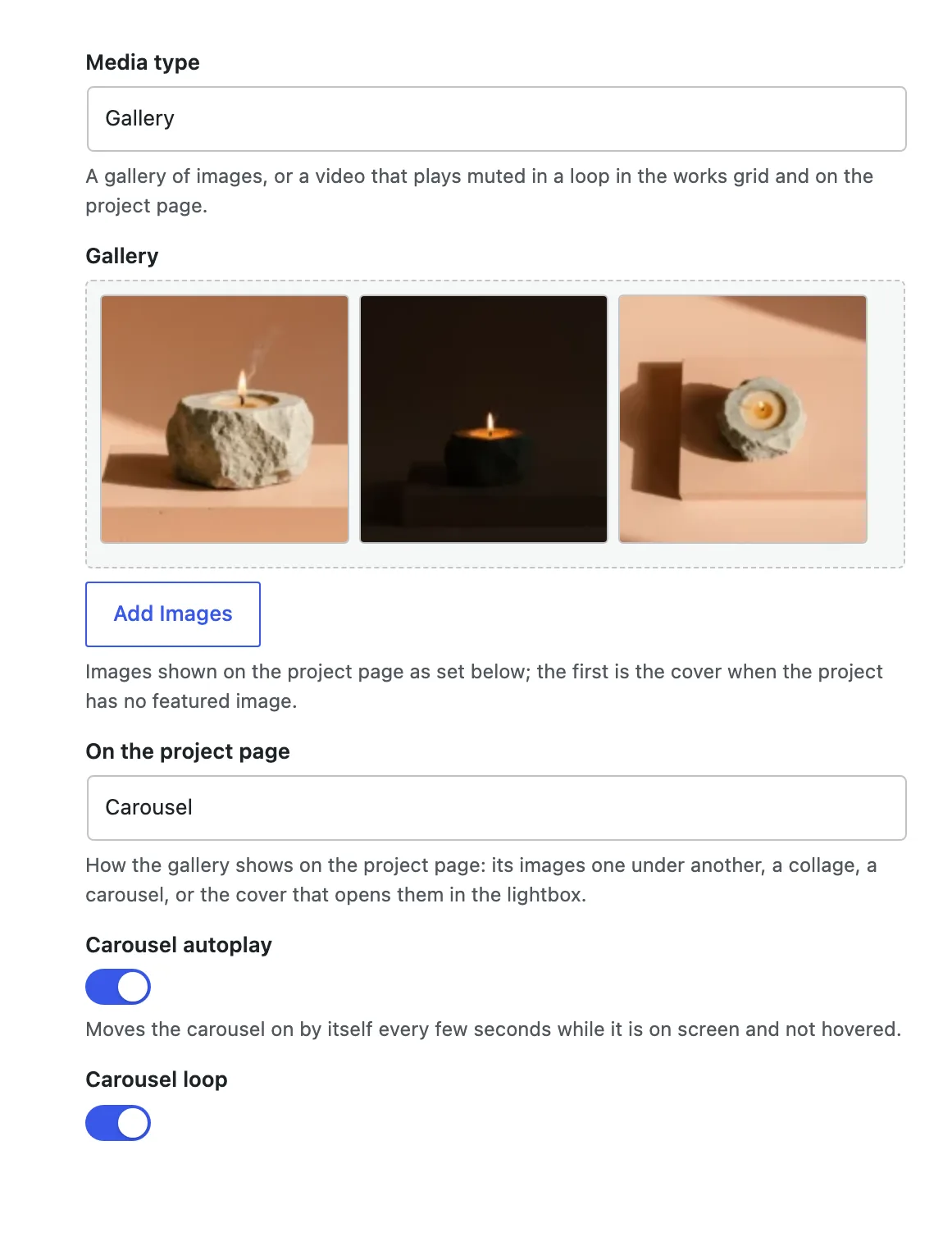
A gallery project set to show as a carousel.
:::options
- **Media type** (default: gallery): **Gallery** for a set of images, **Video** for a clip that plays in place of the cover.
:::
### A gallery
:::options
- **Gallery**: The images, in order. Without a featured image, the first one is the cover.
- **On the project page** (default: one under another): **One under another** places the images under the cover. **Collage** shows every image in one block in place of the cover, laid out by their number. **Carousel** shows one image at a time in the cover's frame. **Lightbox gallery** shows the cover with the viewer button and the number of images beside it, and the button opens every image in the viewer.
- **Carousel autoplay** (default: off): Moves the carousel on every few seconds while it is on screen and not pointed at. Shows only for **Carousel**.
- **Carousel loop** (default: on): Goes from the last image back to the first, and the other way. Shows only for **Carousel**.
:::
The carousel has arrows and a counter such as 1 / 4 over its bottom right corner. It also moves with a swipe, and with the arrow keys once it has focus.
The carousel on a project page.
### A video
:::options
- **Video**: An MP4 or WebM file from the media library. It plays muted in a loop in the grids.
- **Poster**: The still shown before the video plays. Empty uses the featured image.
- **On the project page** (default: in the cover): **In the cover** plays the video where the cover would be. **Lightbox** shows the poster with a round play button, and the video opens in the viewer with its sound.
- **Autoplay** (default: on): Starts the video muted as the page opens; off, it waits for play. Shows only for **In the cover**.
- **Player controls** (default: on): Shows play, progress, time, sound and full screen controls over the video. Shows only for **In the cover**.
:::
Video projects play only while they are on screen. A visitor who asks for reduced motion sees the poster until they press play.
## Choose how a grid shows these projects
Each grid of projects has its own settings: the Works archive, Selected work and Keep exploring can differ. Open the template or page that holds the grid, select its **Post Template** block, and find two panels in the sidebar.
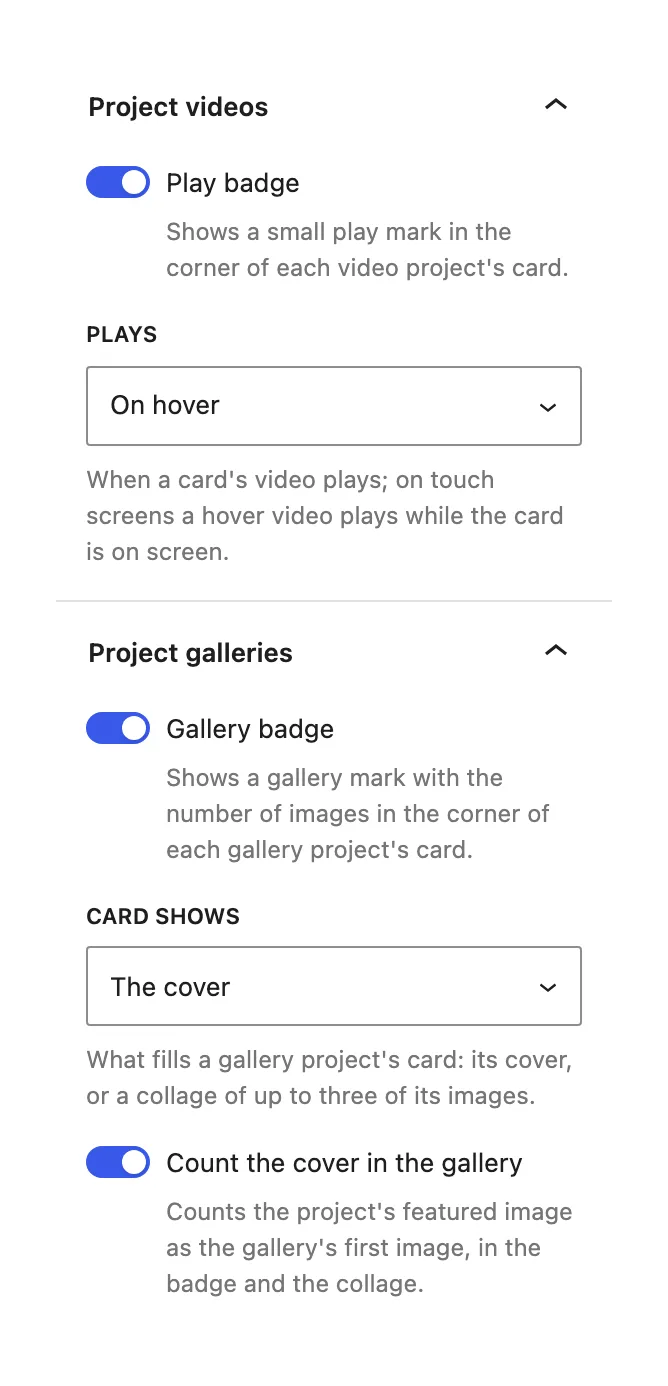
Each grid keeps its own video and gallery settings.
**Project videos**
:::options
- **Play badge** (default: on): A small play mark in the corner of each video card.
- **Plays** (default: on hover): **On hover** plays a card while the pointer or the keyboard focus is on it, and returns it to the first frame after. **By itself, while on screen** plays every video card in view. On touch screens a hover video plays while the card is on screen.
:::
**Project galleries**
:::options
- **Gallery badge** (default: on): A mark with the number of images in the corner of each gallery card.
- **Card shows** (default: the cover): **The cover**, or **A collage** of up to three of the gallery's images in the card's frame.
- **Count the cover in the gallery** (default: on): Counts the featured image as the gallery's first image, in the badge and in the collage.
:::
The Works archive ships with **A collage**; Selected work shows the cover. Cards that arrive on the next page without a reload get the same badges and video playback.
## Questions
Which video size should I upload?
A short loop of a few seconds, 720p, without sound for the grids. The same file plays in the cover and in the lightbox. Keep it small: a grid can show several at once.
My gallery shows one image fewer than I added
When the project has no featured image, the first gallery image becomes the cover. Set a featured image, or turn on **Count the cover in the gallery** for the badge to include it.
I removed an image from the media library
A deleted image drops out of every format on its own: the collage, the carousel and the counts adjust.