## Glow and background music
Product: Auno - Minimal Portfolio FSE WordPress Theme
URL: https://hub.jkdevstudio.com/docs/auno/styles-and-settings/glow-and-music
Updated: 2026-10-26
Summary: Set the soft glow above the header and under the footer, its shape and color, and add a background track with a speaker button, volume and autoplay.
Two touches sit around the content: a soft cloud of color at the top and bottom of every page, and an optional background track behind a round speaker button. Both are off with one switch each.
## Glow
Go to [[Appearance > Customize > Auno Theme > Glow]].
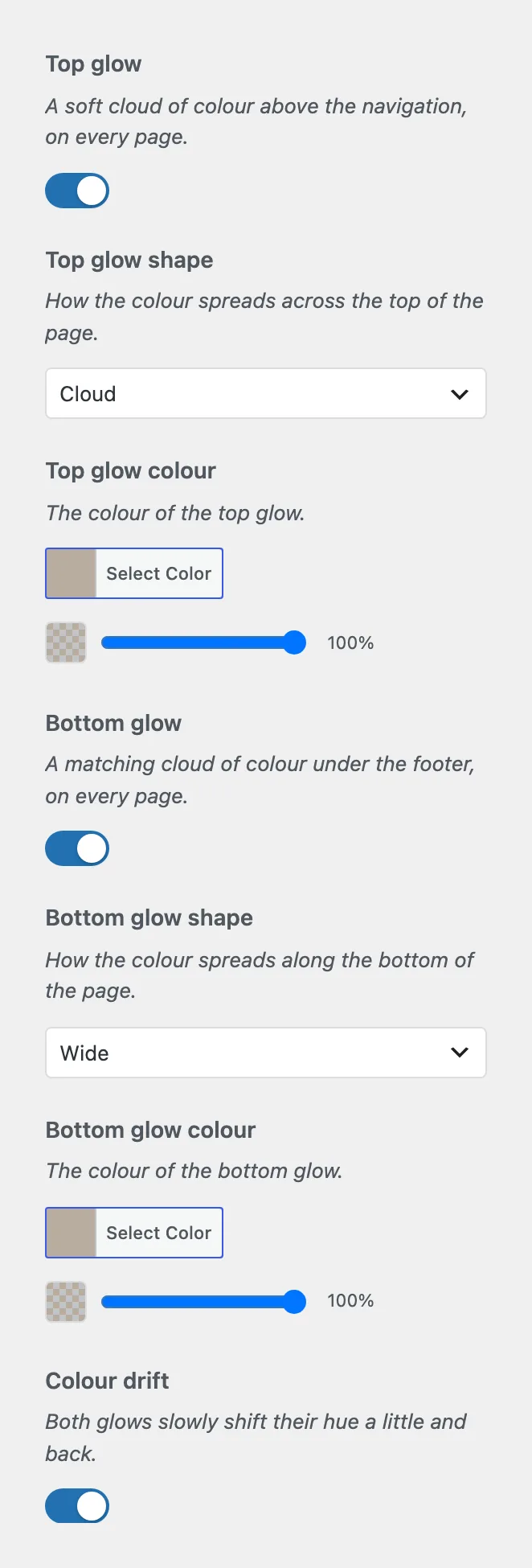
The Glow section of the Customizer.
:::options
- **Top glow** (default: on): A soft cloud of color above the navigation, on every page.
- **Top glow shape** (default: cloud): How the color spreads across the top: **Cloud**, **Wide**, **Split** or **Beam**. Hidden while **Top glow** is off.
- **Top glow colour** (default: #b8ad9f): The color of the top glow. Hidden while **Top glow** is off.
- **Bottom glow** (default: on): A matching cloud of color under the footer, on every page.
- **Bottom glow shape** (default: wide): The same four shapes, along the bottom. Hidden while **Bottom glow** is off.
- **Bottom glow colour** (default: #b8ad9f): The color of the bottom glow. Hidden while **Bottom glow** is off.
- **Colour drift** (default: on): Both glows slowly shift their hue a little and back. Reduced motion stops it.
:::
## Background music
Go to [[Appearance > Customize > Auno Theme > Sound]].
:::options
- **Music toggle** (default: on): A round speaker button at the top left plays and pauses a background track. It shows only once a track is chosen below.
- **Background track**: An MP3, OGG or M4A file from the media library that loops while music is on.
- **Volume** (default: 40): How loud the track plays, in percent.
- **Autoplay** (default: off): Starts the track with the visitor's first click or key press anywhere on the page.
- **Remember the choice** (default: on): A visitor who turned music on hears it again from their first click on the next page.
:::
The settings below **Music toggle** hide while it is off.
## Why the music does not start on its own
Browsers block sound until the visitor has interacted with the page, so no site can start audio the moment it opens. **Autoplay** therefore waits for the first click or key press, and the speaker button is always there to stop it. With **Fade without reloading the page** chosen in [motion and page transitions](https://hub.jkdevstudio.com/docs/auno/styles-and-settings/motion-and-transitions), the track keeps playing from page to page without restarting.
## Questions
Which file format should I upload?
MP3 plays in every browser. Keep the file short and loop friendly; a minute or two at a modest bitrate loads fast and loops without a noticeable seam.
The speaker button does not appear
It shows only when **Music toggle** is on and a **Background track** is chosen. Check both, then reload the site.