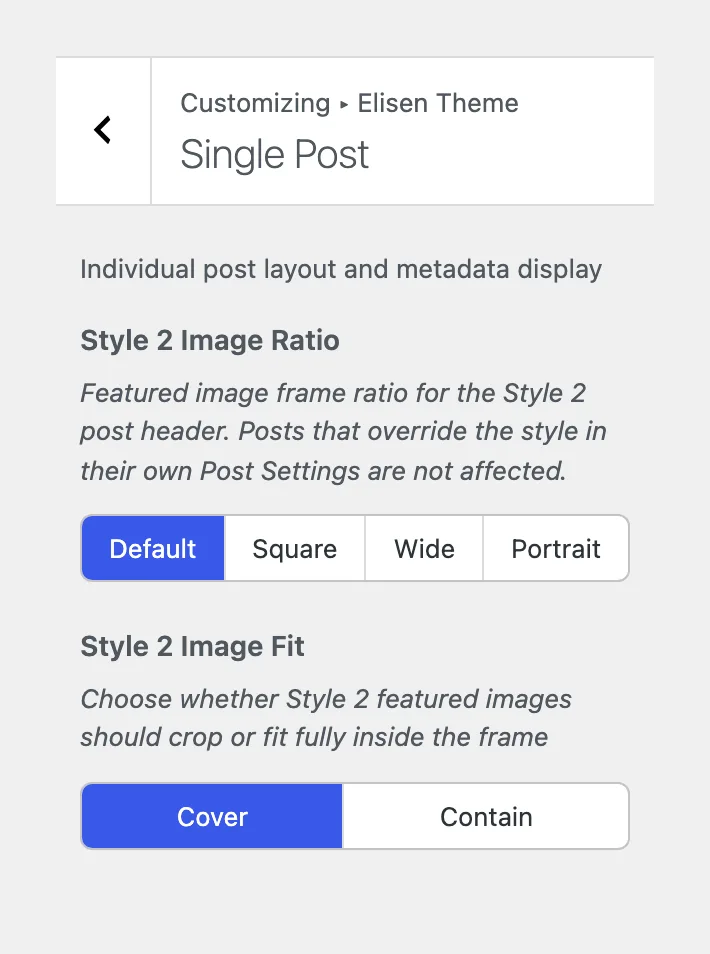
## Single Post
Product: Elisen – Blog & Magazine WordPress Theme
URL: https://hub.jkdevstudio.com/docs/elisen/customizer/single-post
Updated: 2026-11-27
Summary: Choose the featured image ratio and crop behavior for the Elisen Style 2 post header in the Single Post section of the Customizer.
The Single Post section has two settings, and both apply only to the Style 2 post header. Open it at [[Appearance > Customize > Elisen Theme > Single Post]]. The section needs the Elisen Pro plugin with an active license.
The post style itself, Style 1 to Style 7, is chosen in [[Elisen Pro > Theme Options]] under Single Post. A single post can override it with the **Post Style** field in its own **Post Settings** box, described in [Post](https://hub.jkdevstudio.com/docs/elisen/local-options/post).
## Two settings shape the Style 2 featured image
Image ratio and fit for the Style 2 header.
:::options
- **Style 2 Image Ratio** (default: Default): The frame ratio of the featured image in the Style 2 post header. Choose **Default**, **Square**, **Wide**, or **Portrait**. Posts that override the style in their own Post Settings are not affected.
- **Style 2 Image Fit** (default: Cover): Whether the featured image crops to fill the frame (**Cover**) or fits fully inside it (**Contain**).
:::
If a featured image is cut off in the wrong place, **Contain** shows the whole image. Why your images look blurry, cropped, or wrong covers the other causes.