## Pagination styles and category pictures
Product: Enardo - Minimal Blog & Magazine FSE WordPress Theme
URL: https://hub.jkdevstudio.com/docs/enardo/archives-and-listings/pagination-and-category-pictures
Updated: 2026-11-28
Summary: Switch an Enardo listing to page numbers without reload, Load more or infinite scroll, style the numbers, and add a picture to each category with Enardo Pro.
Availability: Pro only.
This is a Pro feature. Enardo Pro adds three ways to page through a listing and a picture for every category. The picture shows on the category's archive, on the topic cards of the home page and on the Categories page.
## Choose how a listing pages
The posts page switches to **Numbers, no reload** as soon as Pro is active: the page numbers swap the posts in place. Archive and search listings keep classic numbered pages until you pick a style.
:::steps
### Open the template
Go to [[Appearance > Editor > Templates]] and open **Blog Home**, **Archive** or **Search**.
### Select the pagination
Click the row of page links under the posts. The block is **Pagination**. Use the block toolbar's parent selector if a single link is selected instead.
### Pick a style
In the block sidebar, choose one of the styles below, then save the template.
:::
:::options
- **Numbers, no reload**: Page numbers that replace the posts without loading a new page.
- **Load more**: One button that adds the next page of posts under the current ones.
- **Infinite scroll**: The next page loads by itself as the reader nears the end of the list.
:::
The numbers themselves have two looks. Select the **Page Numbers** block inside the pagination and choose **Boxed** or **Plain**.
With reduced motion, new posts appear without movement.
To keep classic page loads on the posts page, select its **Query Loop** block and remove the `enardo-post-list` class under **Advanced**, **Additional CSS class(es)**. The listing then stays on numbered pages.
## Add a picture to a category
:::steps
### Edit the category
Go to [[Posts > Categories]] and open a category.
### Set the picture
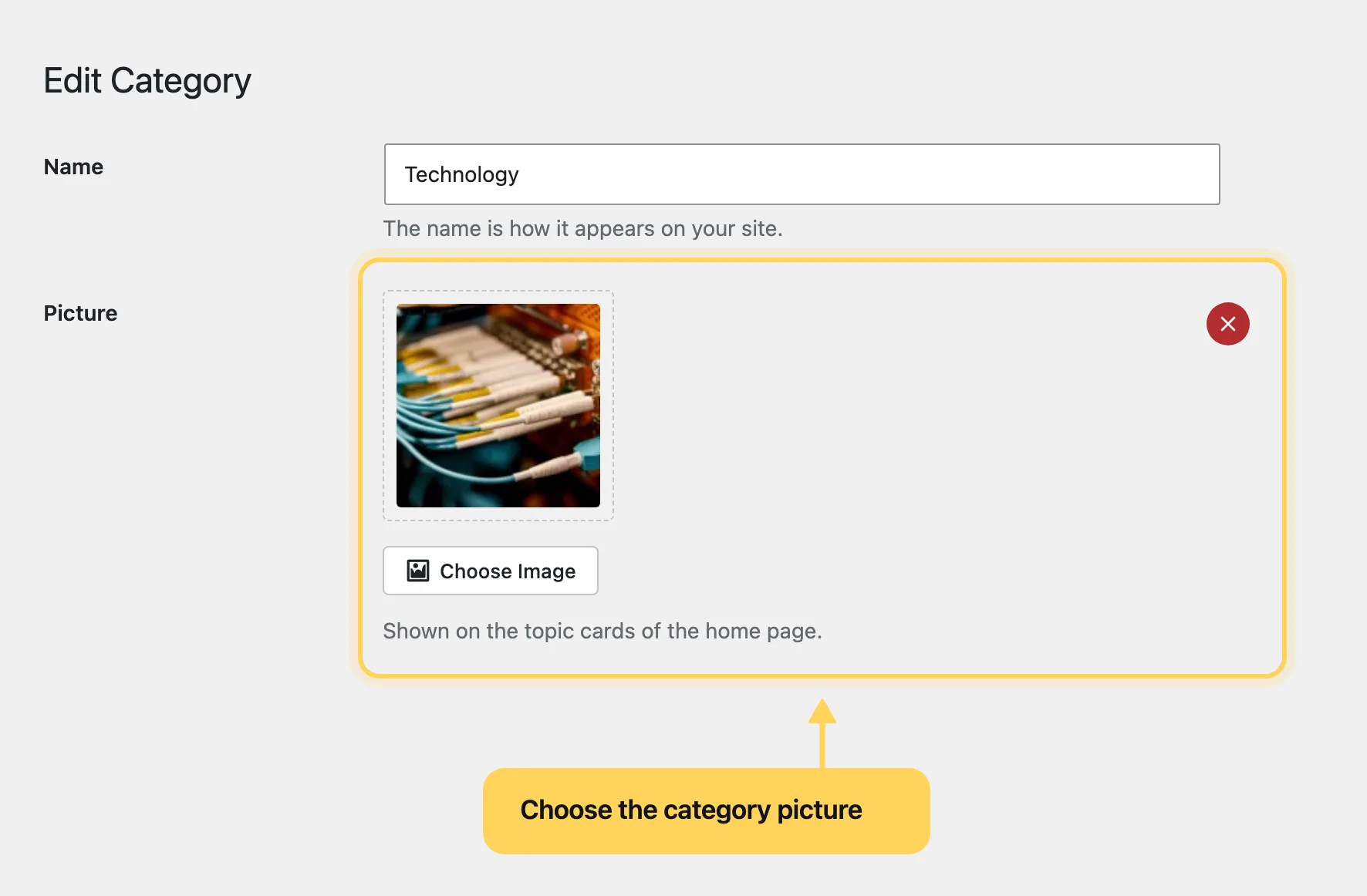
Choose an image for the **Picture** field, then click **Update**.
### Check the archive
Open the category on your site. The picture shows under the description, 200 pixels tall across the column and cropped to fill it.
:::
The Picture field on a category.
A category without a picture shows no image on its archive, and its topic card shows the name and count without one.
## Questions
What kind of picture works best?
The topic cards crop the picture to a square and the archive crops it to a wide strip, so keep the subject near the middle.
I picked Load more and the archive still shows numbers.
Check that you saved the template you edited, then clear any page cache. Each template has its own pagination, so a style picked on **Archive** does not reach **Search** or **Blog Home**.