## Build the About, Authors, and Categories pages
Product: Enardo - Minimal Blog & Magazine FSE WordPress Theme
URL: https://hub.jkdevstudio.com/docs/enardo/blocks-and-patterns/page-patterns
Updated: 2026-11-28
Summary: Create the About, Authors, Categories, Privacy policy and Terms pages from Enardo Pro's page patterns, and see which parts fill themselves with live counts.
Availability: Pro only.
This is a Pro feature. Enardo Pro ships ready pages in the **Enardo pages** pattern category. WordPress offers them as soon as you create a new page, and most of what they show fills itself from your site.
:::steps
### Create the page
Go to [[Pages > Add New Page]]. In the window that offers patterns for the new page, pick **About**, **Authors**, **Categories**, **Privacy policy** or **Terms and conditions**.
### Choose the template
For About, Authors and Categories, choose **Page without title** in the page's **Template** panel. These three carry their own heading, so the regular **Page** template would show the title twice. Privacy policy and Terms and conditions keep the regular **Page** template, which shows the page title.
### Replace the sample text
Type over the texts and swap the pictures, then publish.
:::
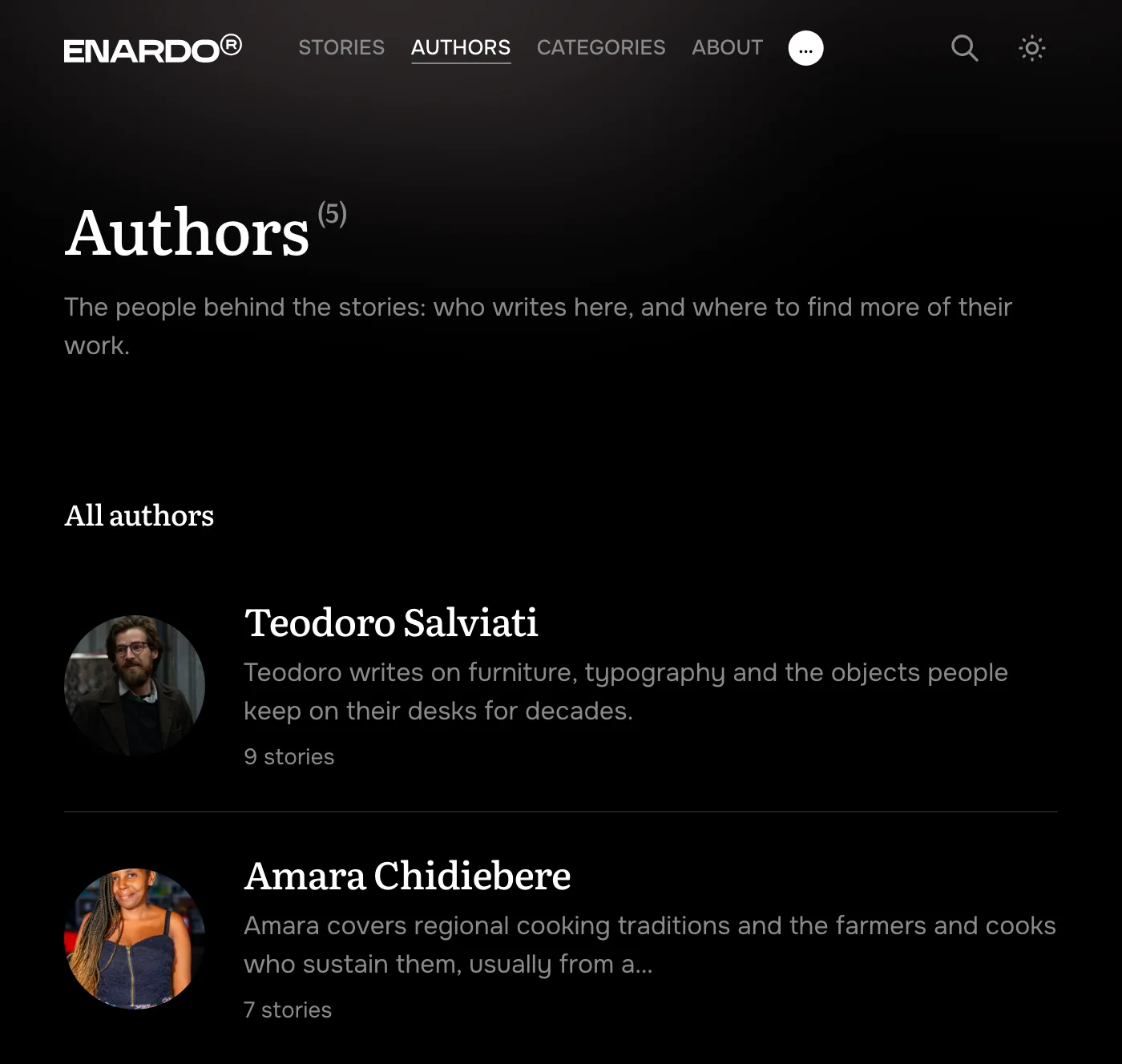
The Authors page.
## What each page shows
:::deflist
About
: A heading and lead, one wide photo and two smaller ones, three paragraphs, a row of four live counts, a pull quote and two email buttons, then **Browse by topic**.
Authors
: The title with the number of authors, a lead, then the [Authors block](https://hub.jkdevstudio.com/docs/enardo/blocks-and-patterns/pro-blocks), one row per author.
Categories
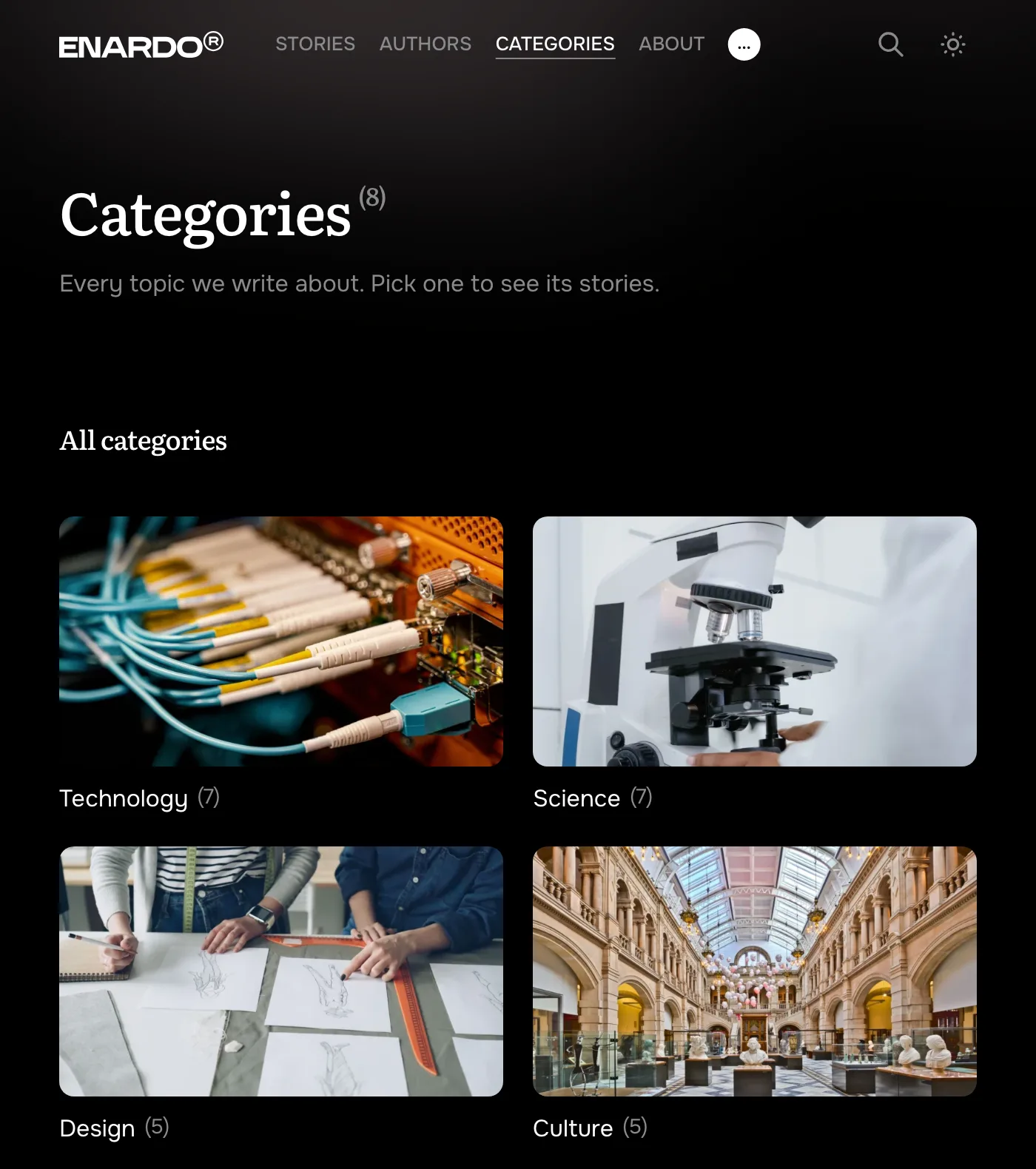
: The title with the number of categories, a lead, then every category with posts as a card with its picture, name and post count, two in a row.
Privacy policy and Terms and conditions
: A starting text in plain words for you to adapt. It is not legal advice.
:::
The Categories page.
## The counts fill themselves
The four numbers on About are worked out each time the page loads, so they never go stale:
- **Stories**: your published posts.
- **Authors**: people with at least one published post.
- **Topics**: categories that have posts.
- **Publishing since**: the year of your oldest post.
The numbers beside the Authors and Categories titles come from the same counts.
The About pattern's email buttons point to sample addresses at example.com. Change both links before you publish.
## Link the pages
Add the new pages to the header menu. A long list, such as single categories, can go into the three-dot menu: see [Keep an item in the More menu](https://hub.jkdevstudio.com/docs/enardo/header-and-footer/header).
The footer links to **Privacy** and **Terms** by itself once the pages exist. Choose the privacy page at [[Settings > Privacy]], and give the terms page the slug `terms`. See [The footer](https://hub.jkdevstudio.com/docs/enardo/header-and-footer/footer).
## Questions
The Categories page leaves out a category.
It shows only categories that have at least one post.
Where do the category pictures come from?
From the **Picture** field of each category. See [Pagination styles and category pictures](https://hub.jkdevstudio.com/docs/enardo/archives-and-listings/pagination-and-category-pictures).