## Shop settings
Product: Exquil – Beauty Salon eCommerce Theme
URL: https://hub.jkdevstudio.com/docs/exquil/theme-settings/shop-settings
Updated: 2026-11-27
Summary: Set the Exquil WooCommerce shop: card style, grid columns, the filters sidebar, load more and infinite scroll, the product page, and related products.
The shop layout is set at [[Appearance > Customize > Exquil Theme > Shop]]. The section appears while WooCommerce is active and has five tabs. The shop banner and the brands page are in Theme Options, see [Theme Options: content and effects](https://hub.jkdevstudio.com/docs/exquil/theme-settings/theme-options-content).
## Catalogue
:::options
- **Shop Style** (default: Default): The look of product cards. **Minimal** is a lighter card.
- **Grid Columns** (default: 4): Product columns in the shop grid.
- **Items Offset** (default: 15): Space between product cards, in pixels.
- **Grid Items** (default: 12): Products per page.
- **Newest Items Threshold** (default: 3): How many days a product keeps its **New** label after it is published. To show the label on an older product, turn on **New label** on that product, see [Options on pages, posts, products, and menu items](https://hub.jkdevstudio.com/docs/exquil/theme-settings/page-options).
:::
## Filters
The filters come from the widgets you place in the **Shop filters sidebar** widget area at [[Appearance > Widgets]].
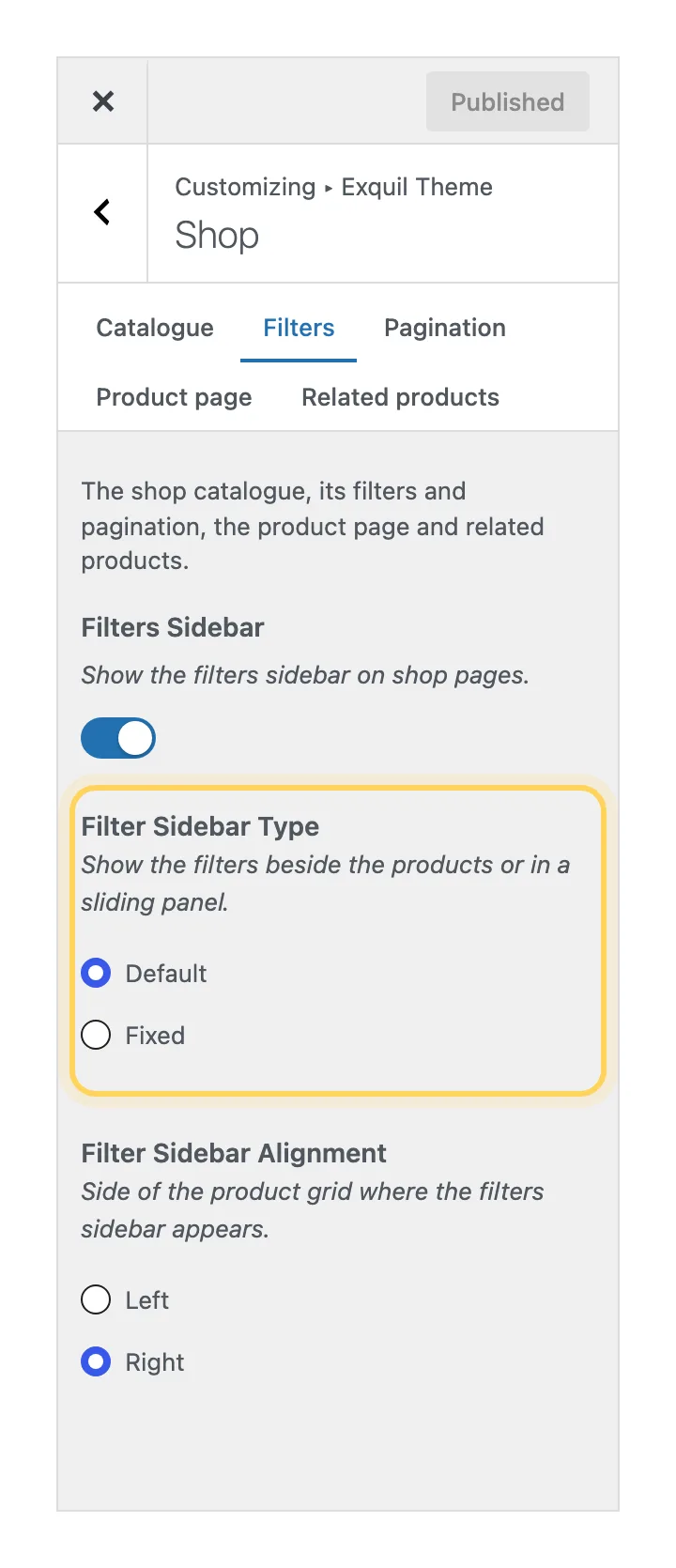
Filter Sidebar Type on the Filters tab.
:::options
- **Filters Sidebar** (default: on): Shows the filters on shop pages. The other filter settings are hidden while it is off.
- **Filter Sidebar Type** (default: Fixed): **Fixed** puts the filters in a sliding panel opened by a button. **Default** shows them beside the products.
- **Filter Sidebar Alignment** (default: Left): The side of the grid the filters sit on. Shown only for the **Default** type.
- **Filter Toggle Type** (default: Default): The look of the button that opens the panel. Shown only for the **Fixed** type.
:::
## Pagination
:::options
- **Pagination Type** (default: Default): **Default** shows page links, **Load More** a button, and **Infinite Load** loads the next products as the visitor scrolls.
- **Pagination Alignment** (default: Left): Left, center, or right.
:::
## Product page
:::options
- **Product Summary Alignment** (default: Right): The side of the image the title, price, and cart button sit on.
- **Image Ratio** (default: Square): **Square** or **Vertical** product images.
- **Hover Zoom** (default: on): Zooms the image under the pointer.
:::
## Related products
Each list has a switch and a limit. The limit is hidden while its switch is off.
:::options
- **Related Products** (default: on): Related products below the product summary. **Related Items Limit** defaults to 5.
- **Upsells Products** (default: on): The upsells you set on a product. **Upsells Items Limit** defaults to 5.
- **Cross-Sells Products** (default: on): Cross-sells on the cart page. **Cross-Sells Items Limit** defaults to 5.
:::
Zoomed or product images look blurry or cropped
The theme uses its own image sizes, and images uploaded before the theme was active do not have them yet. Regenerate the thumbnails, as described in [Why your images look blurry, cropped, or wrong](/knowledge-base/tutorial/wordpress-image-sizes).