## Menu item options and mega menus
Product: Fabula - News & Magazine WordPress Theme
URL: https://hub.jkdevstudio.com/docs/fabula/header-and-footer/menu-item-options-and-mega-menus
Updated: 2026-11-28
Summary: Give a Fabula Pro menu item a mega menu layout, a category sub menu of recent posts, or a label with an icon, and choose what the sub menu cards show.
Availability: Pro only.
Every item in your menu gets a **Menu Item Options** group with Fabula Pro. It turns a top-level item into a mega menu, a category item into a menu with a panel of recent posts, or any item into one with a label.
## Set the options on an item
:::steps
### Open the menu
Go to [[Appearance > Menus]] and expand the menu item you want to change.
### Switch on what you need
Use the **Menu Item Options** fields below, then save the menu.
### Check the header
Open your site and hover the item. The header itself must be on. See [Menus and the header](https://hub.jkdevstudio.com/docs/fabula/header-and-footer/menus-and-the-header).
:::
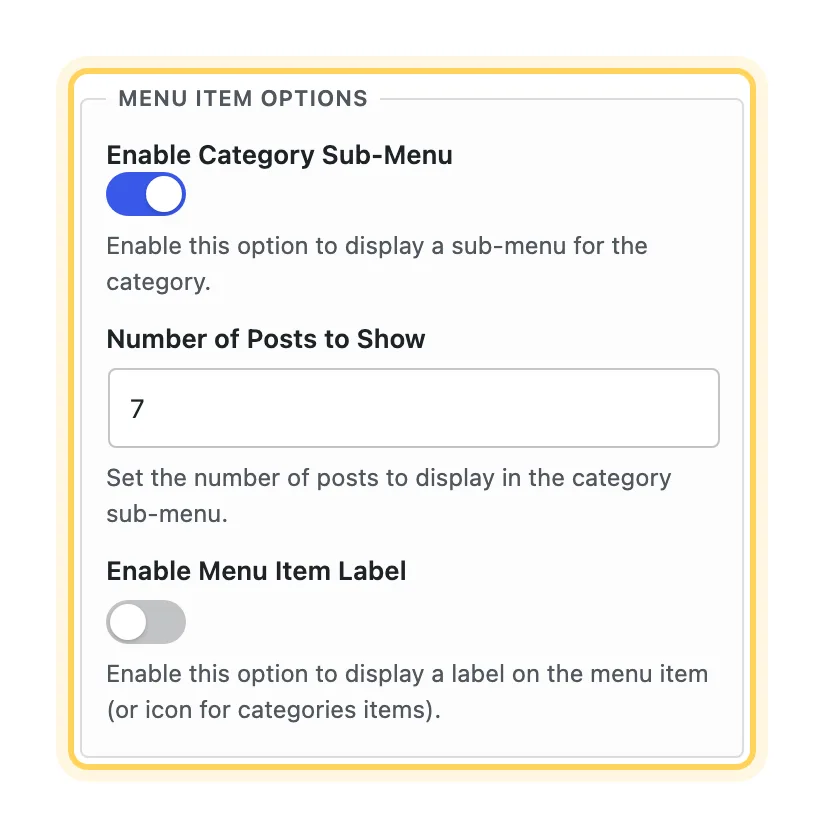
Menu Item Options on a category item.
:::options
- **Megamenu** (default: off): Uses the mega menu layout for this item. It applies to top-level items only.
- **Enable Category Sub-Menu** (default: off): Opens a panel of posts under a category item.
- **Number of Posts to Show** (default: 12): How many posts the panel loads, from 1 to 100. It appears while **Enable Category Sub-Menu** is on.
- **Enable Menu Item Label** (default: off): Adds a label to the item, or an icon when the item is a category.
- **Label Icon** (default: empty): An icon class name. It appears while the label is on.
- **Label Text** (default: empty): The label's words. It appears while the label is on.
- **Label Text Color** (default: empty): The label's color. It appears while the label is on.
:::
## How the category sub menu works
The panel belongs to menu items that link to a category and sit at the top level of the menu. A link to a page, or a category inside a drop-down, does not get one.
The posts are not part of the page when it first loads. The first time a visitor moves the pointer over the item, the theme fetches the posts in the background and fills the panel. It fetches once per page view, so the next hover opens instantly.
What each card shows is set at [[Fabula Pro > Theme Options > Navigation]], on the **Category Sub Menu** tab. Everything there is off by default except the title.
:::options
- **Show Thumbnail**, **Show Category Label**, **Show Post Date**, **Show Author**, **Show Bookmark Button**, **Show Post Activity**, **Show Review Score** (default: off): Each one adds that detail to the cards.
- **Category Label Style** (default: Style 1): `Style 1` to `Style 6`. It appears while **Show Category Label** is on.
- **Title Tag** (default: H6): The heading level of each card title, `H1` to `H6`.
- **Show Comments Count**, **Show Likes Count**, **Show Views Count** (default: off): They appear while **Show Post Activity** is on.
:::
A category item can also show an icon you set on the category itself. An icon set on the menu item wins over the one set on the category.
## Labels
A label is a small text and icon badge beside a menu item, such as a "New" tag. It shows on items that are not categories. On a category item the same switch adds the icon in front of the name, and the label text is not used.
The free theme has a lighter panel for category items. See [Category menu panel and post counts](https://hub.jkdevstudio.com/docs/fabula/header-and-footer/category-menu-panel-and-post-counts).