## Set up comments on posts
Product: Fabula - News & Magazine WordPress Theme
URL: https://hub.jkdevstudio.com/docs/fabula/the-single-post/comments
Updated: 2026-11-28
Summary: Turn comments on or off for Fabula posts, use the native WordPress comments, and with Fabula Pro collapse them behind a button or switch to Disqus or Facebook.
Fabula shows the native WordPress comments under every post. WordPress decides whether a post accepts comments, and the theme draws the list and the form. Fabula Pro adds a switch for the comments block, a collapsed view, and Disqus or Facebook comments.
## Turn comments on or off
Comments follow WordPress settings, with or without Pro.
- **Site-wide default:** [[Settings > Discussion]]. **Allow people to submit comments on new posts** sets the default for new posts.
- **One post:** open the post, find the **Discussion** panel in the editor sidebar, and switch comments on or off.
A post whose comments are closed and that has none shows a **Comments are closed** notice in place of the form.
## What the theme shows
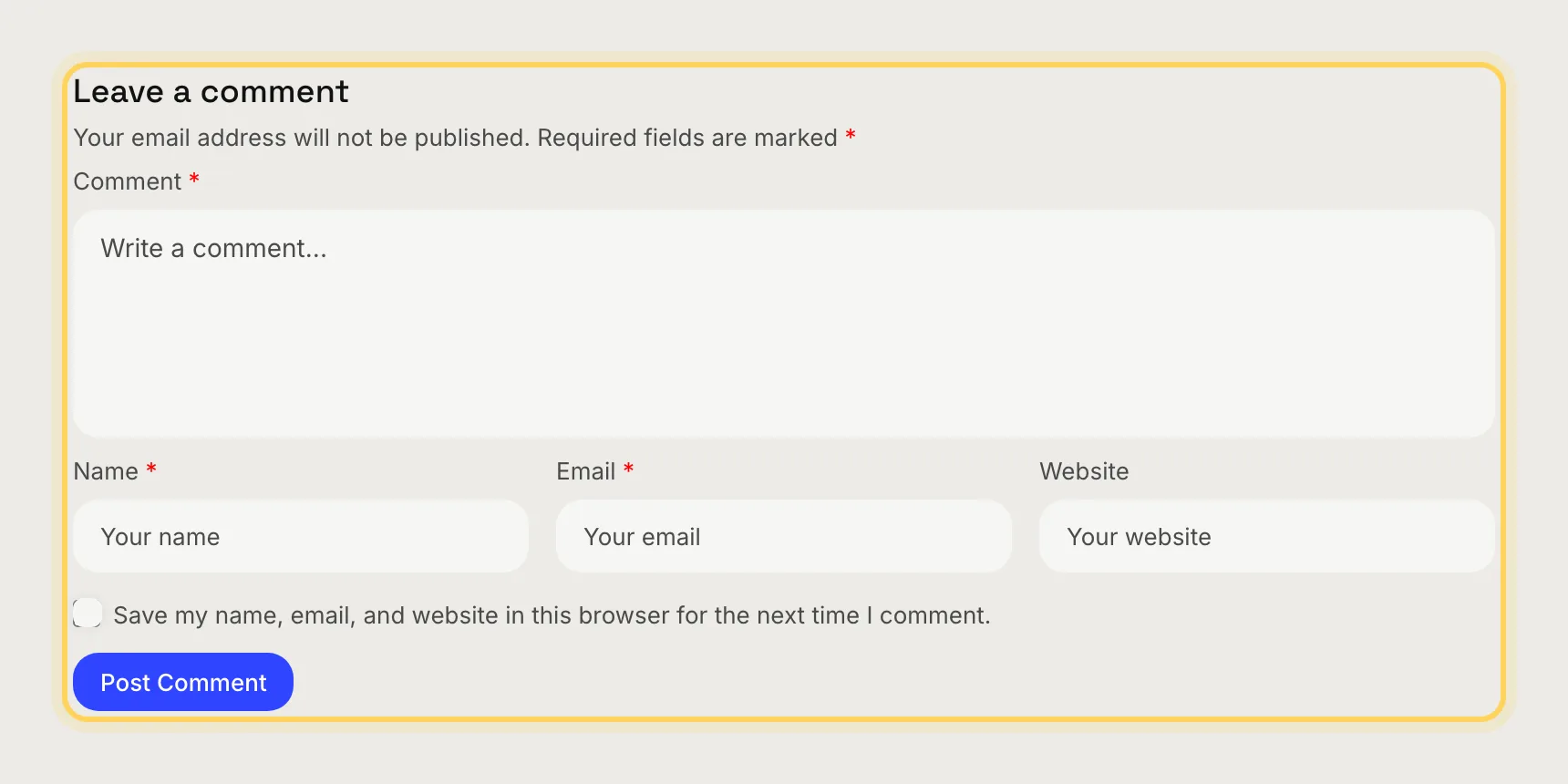
The form is titled **Leave a comment**. Existing comments appear as a list below it, with avatars when **Show Avatars** is on in [[Settings > Discussion]]. A post with many comments splits them into pages with page numbers underneath.
The comment form under a post.
## Fabula Pro: show and shape the comments block
With Pro active, the comments block is **off** by default. A post shows no comments until you turn on **Display Post Comments**.
:::steps
### Open the single post settings
Go to [[Fabula Pro > Theme Options > Single Post]] and open the **General** tab.
### Show the block
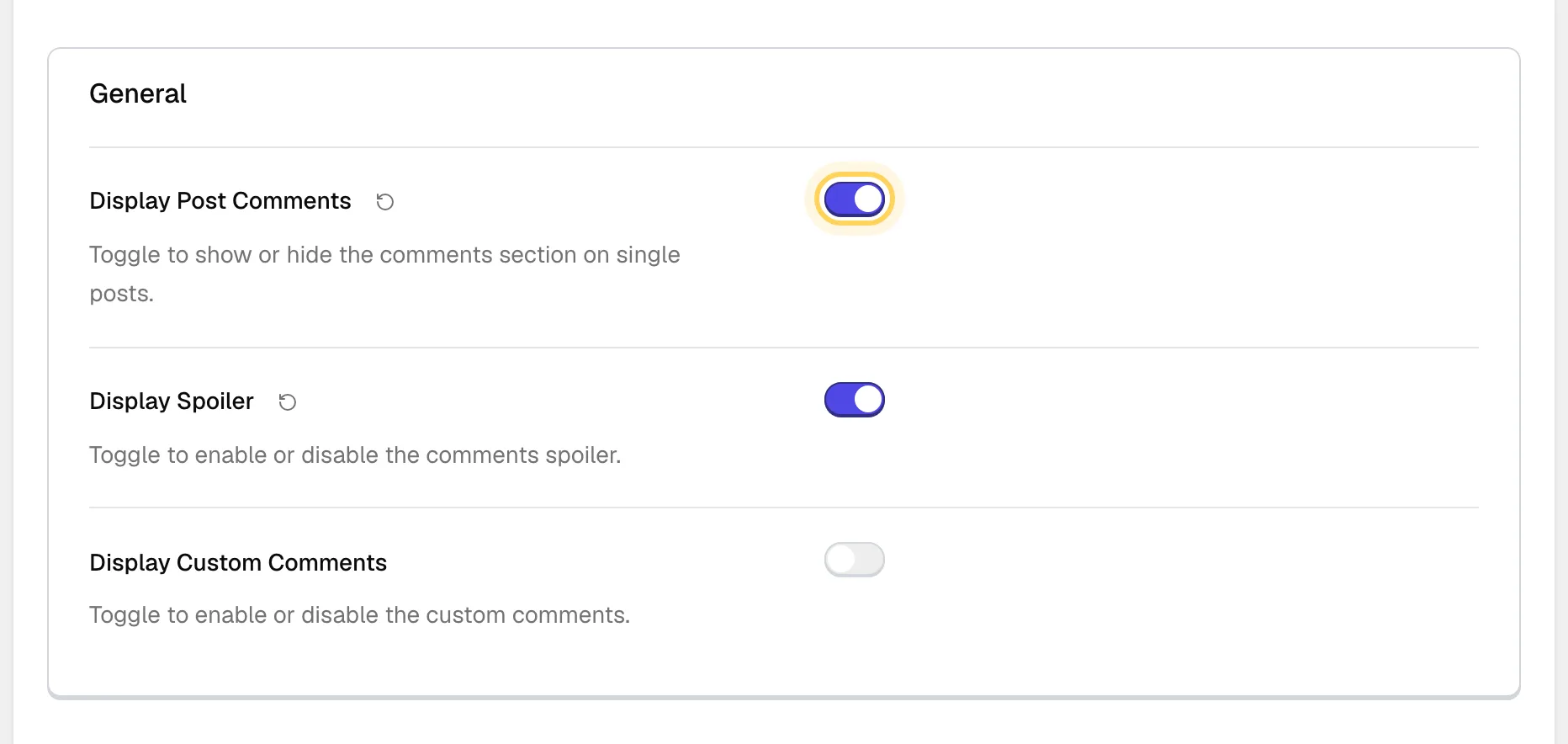
Turn on **Display Post Comments** (default: off). The comments show in the area under the post.
The comment switches on the General tab.
### Collapse the list if you like
Turn on **Display Spoiler** (default: off) to hide the comments behind a **Show Comments** button with the comment count. A second click shows **Hide Comments**. The collapsed view applies to the native comments only.
:::
**Display Comments Counter** on the **Meta** tab (default: on) shows the number of comments in the post activity block.
## Fabula Pro: Disqus or Facebook comments
To replace the native comments with a third-party service, use the **General** tab.
:::steps
### Switch to custom comments
Turn on **Display Custom Comments** (default: off). The native comments no longer show.
### Choose a service
Turn on **Display Disqus Comments** or **Display Facebook Comments**. Both default to off. If both are on, Disqus shows.
### Enter the ID
For Disqus, enter the shortname of your Disqus site in **Disqus App ID**: the part before `.disqus.com` in your site's Disqus address. For Facebook, enter your app's ID in **Facebook App ID**. Facebook comments show only when the ID is filled in.
:::
The comments themselves live with Disqus or Facebook, so moderating them happens there and not in WordPress.
## Questions
Comments do not show on my posts with Pro active
Turn on **Display Post Comments** on the **General** tab of [[Fabula Pro > Theme Options > Single Post]], and check that comments are open for the post.
Can I use the spoiler with Disqus?
No. **Display Spoiler** works with the native comments only.