## Bookmarks and reviews pages
Product: Fabula - News & Magazine WordPress Theme
URL: https://hub.jkdevstudio.com/docs/fabula/theme-settings/bookmarks-and-reviews-pages
Updated: 2026-11-28
Summary: Create two pages, point Fabula Pro at them, and give visitors a list of their bookmarked posts and a list of every post with a review.
Availability: Pro only.
Fabula Pro can turn two ordinary WordPress pages into lists. The bookmarks page shows each visitor the posts they bookmarked, and the reviews page lists every post that has a review. The theme does not create these pages. You create them, then tell Theme Options which page plays which role.
## Create the pages
:::steps
### Add two pages
Go to [[Pages > Add New]] and create a page called **Bookmarks** and another called **Reviews**. Publish both. The list replaces the normal page content, so the pages can stay empty.
### Point Theme Options at them
Go to [[Fabula Pro > Theme Options > Blog]]. On its **Bookmarks** tab, choose your bookmarks page in **Bookmarks page**. On its **Reviews** tab, choose your reviews page in **Reviews page**.
### Fill in the headers
Set the titles and images described below, save, and open each page on the site.
:::
A page you did not choose in Theme Options stays an ordinary page, so a missing choice is the first thing to check when a list does not show.
## The Bookmarks tab
:::options
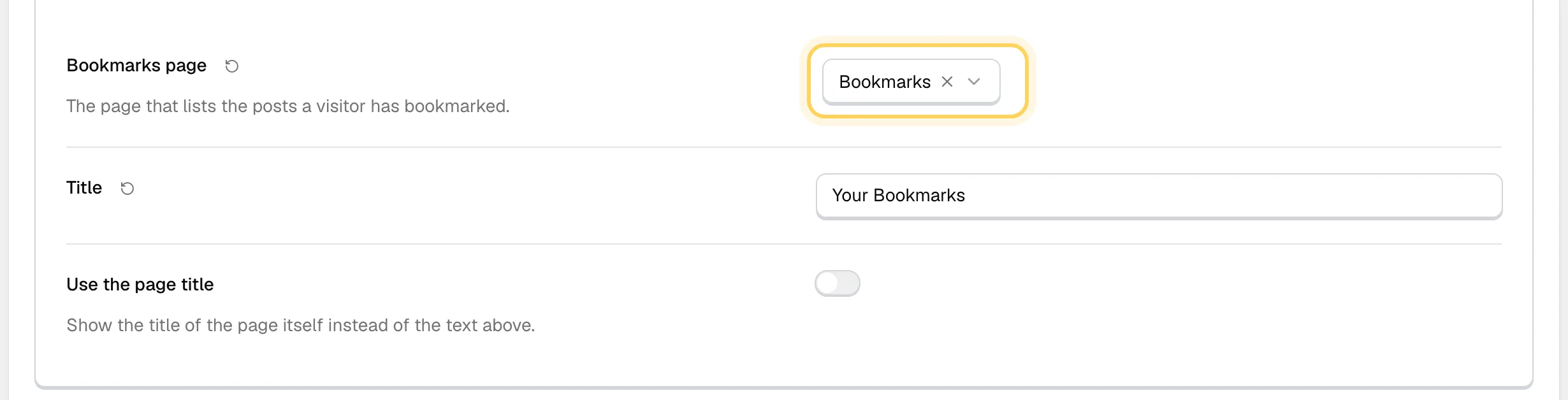
- **Bookmarks page**: The page that lists the posts a visitor has bookmarked. Visitors build their own list with the bookmark button on posts, so each person sees only their own bookmarks.
- **Title**: The heading shown above the list.
- **Use the page title** (default: off): Shows the title of the page itself instead of the **Title** text.
- **Subtitle**: A line shown under the title.
- **Header image**: The image behind the page header.
:::
Choose the page that shows the bookmarks list.
## The Reviews tab
:::options
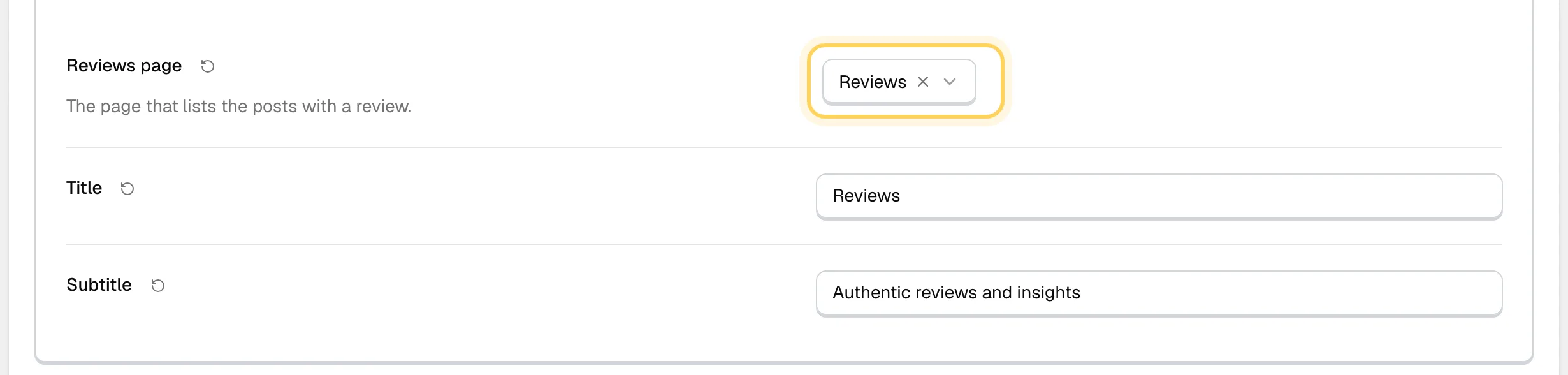
- **Reviews page**: The page that lists the posts with a review. A post is listed once its **Enable Review** switch is on in the **Post Review** box of the post editor.
- **Title**: The heading shown above the list.
- **Subtitle**: A line shown under the title.
- **Order** (default: Newest first): The order of the list. The choices are **Newest first** and **Oldest first**.
- **Header image**: The image behind the page header.
:::
The Reviews tab works the same way.
## Let visitors reach the bookmarks page
The bookmarks page is only useful if visitors can find it. Two things help:
- The bookmark button must show on posts. **Bookmark Button** at [[Fabula Pro > Theme Options > Blog]] (default: on) controls the post lists, and **Display Bookmark Button** at [[Fabula Pro > Theme Options > Single Post]] (default: on) controls single posts.
- Turn on **Display Bookmarks Sub Menu** at [[Fabula Pro > Theme Options > Navigation]] (default: off). The sub menu lists the visitor's bookmarks, and its **Check all** button opens the bookmarks page you chose.
Each list shows as many posts per page as your **Posts per page** setting in [[Settings > Reading]].
The page shows the normal page instead of the list
Open [[Fabula Pro > Theme Options > Blog]] and check that the page is chosen in **Bookmarks page** or **Reviews page**, and that it is the page you are visiting. Clear any page cache afterward.
The reviews page is empty
No post has a review yet. Edit a post, open the **Post Review** box, and turn on **Enable Review**.