## Fields on categories, authors, and widgets
Product: Fabula - News & Magazine WordPress Theme
URL: https://hub.jkdevstudio.com/docs/fabula/theme-settings/category-author-and-widget-fields
Updated: 2026-11-28
Summary: Where to find the extra Fabula Pro fields on category and user screens and in widgets, with every field, its default, and what it changes on your site.
Availability: Pro only.
Fabula Pro adds extra fields to three places in the admin: the category editor, the user profile, and a set of its own widgets. They live with the item they describe, so a category's color is set on the category and an author's job title on the author. None of these fields appears on the Theme Options page.
## Category fields
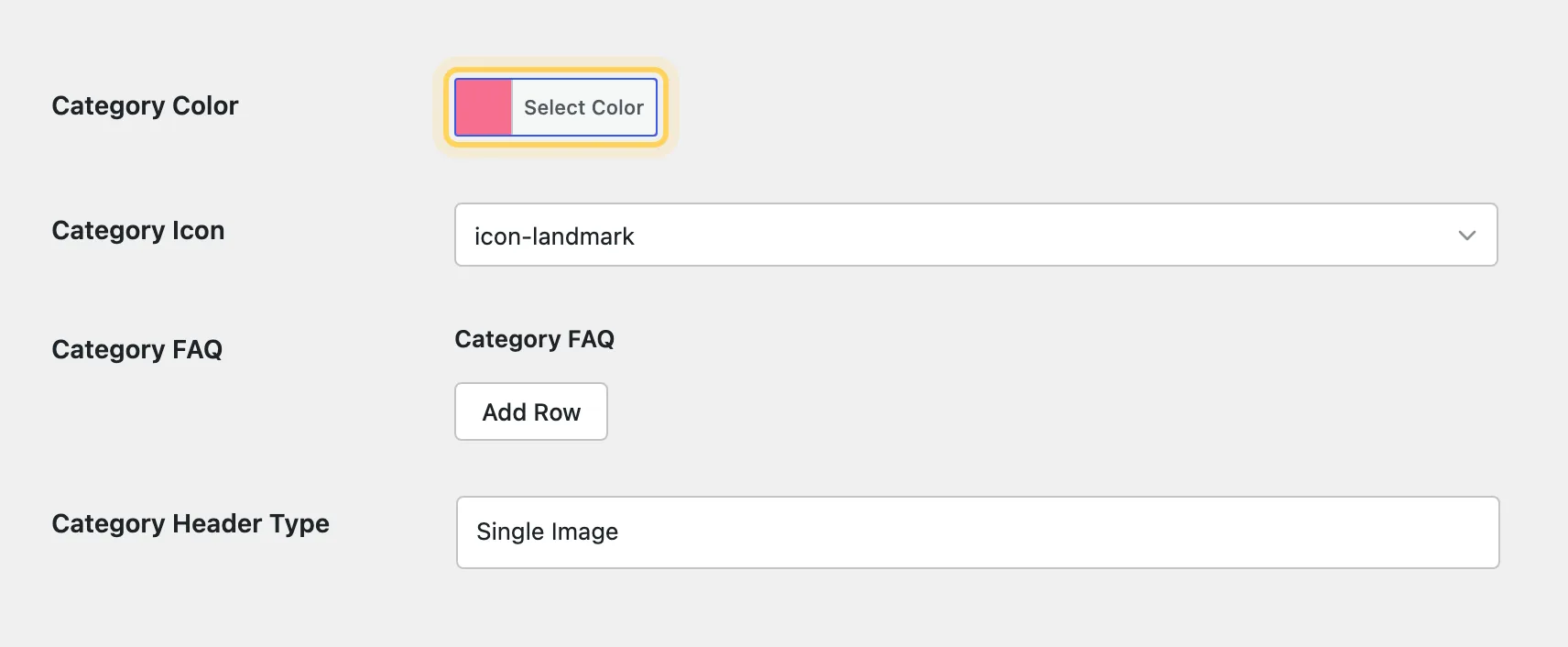
Open [[Posts > Categories]], click a category to edit it, and scroll to the **Category Options** box.
:::options
- **Category Color**: A color for this category. The theme uses it for the category label and similar highlights, where a post shows its category.
- **Category Icon**: An icon from the theme's icon set, picked from a list. It shows next to the category in places such as category lists.
- **Category FAQ**: Rows of **Question** and **Answer**. They are shown on the page of this category.
- **Category Header Type** (default: Single Image): What fills the header of the category page. The choices are **Single Image**, **Video**, and **Ken Burns Gallery**. The three fields that follow show only for their own choice.
- **Category Header Image**: The header picture. Shown while the type is **Single Image**.
- **Category Header Video**: Click **Edit** to open the video settings. They show only while the type is **Video** and are described below.
- **Ken Burns Gallery**: Click **Edit** to choose the **Images** (required) and the **Slide Duration (seconds)** (default: `8`, at least `3`). It shows only while the type is **Ken Burns Gallery**.
- **Category Top Content**: Text shown above the posts of this category.
- **Category Bottom Content**: Text shown below the posts of this category.
:::
The extra fields sit below the standard category fields.
The video settings:
:::options
- **Video Source** (default: Self-hosted): The choices are **YouTube**, **Vimeo**, and **Self-hosted**.
- **Video URL**: The address of the video. Shown for **YouTube** and **Vimeo**.
- **Upload Video File**: The file, in `mp4`, `webm`, or `ogg` format. Shown for **Self-hosted**.
- **Poster Image**: The still image shown before the video plays.
- **Autoplay** (default: on): Starts the video by itself.
- **Loop** (default: on): Repeats the video.
- **Muted** (default: on): Plays the video without sound. Browsers often block autoplay with sound, so leave this on when **Autoplay** is on.
:::
## Author fields
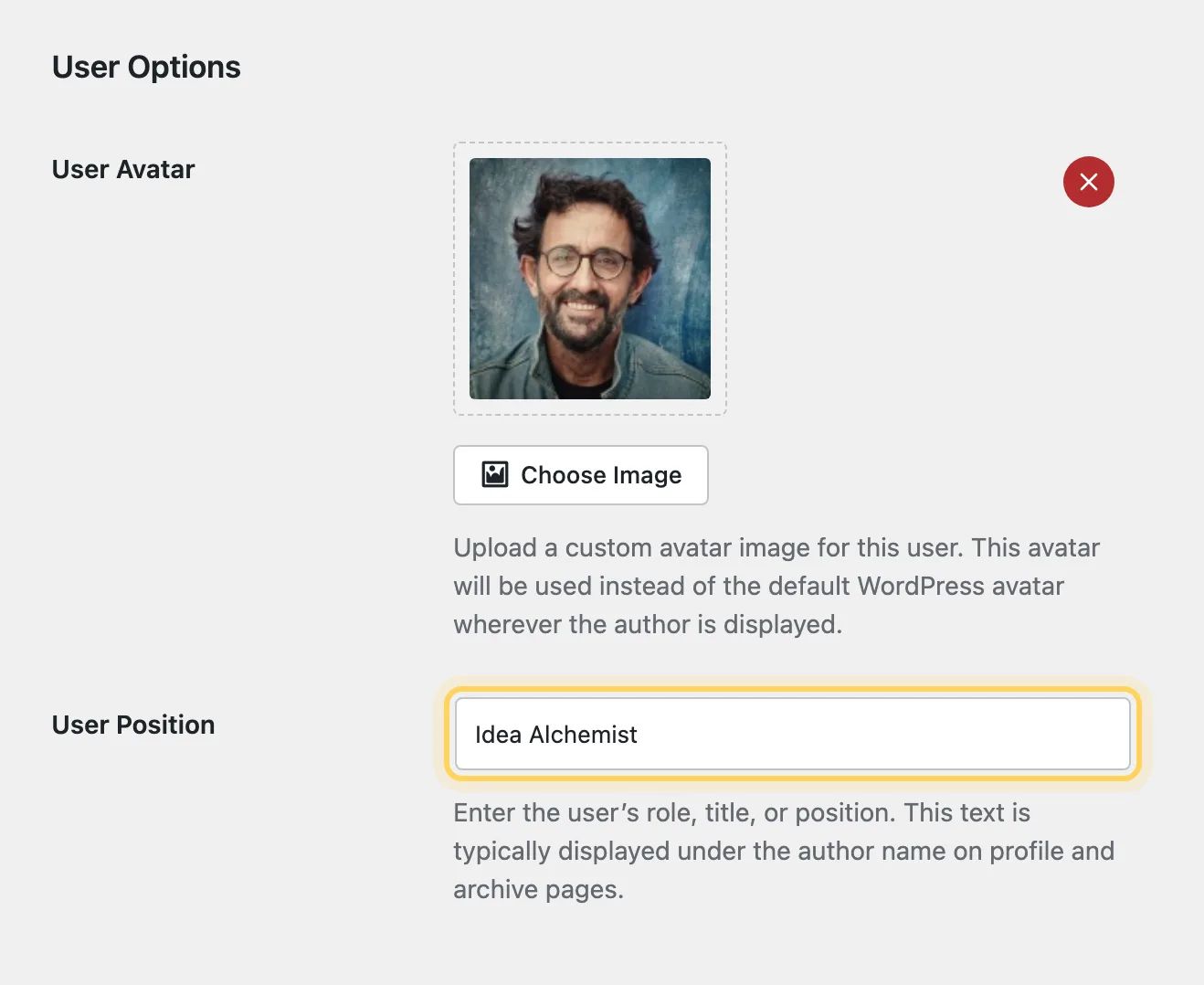
Open [[Users > All Users]], click a user to edit them, and scroll to the **User Options** box. It appears for users with the Administrator, Editor, Author, or Contributor role. The author box under a post and the author's archive page read these fields.
:::options
- **User Avatar**: An image to use instead of the WordPress avatar wherever the author is shown.
- **User Position**: A job title such as `Editor-in-Chief`, shown with the author name on the author's archive header and in the author box.
- **Social List**: The author's own social links, as rows. Each row has a **Social Link** (the full address), a **Social Text** (the network name, used as the link label), a **User Icon** (picked from a list), an optional **Social Count**, and an **Icon Color**. Leave the color empty to use the default theme color.
:::
Avatar and position are set on each user profile.
The social icons of the site itself are a different list. See [Social profiles](https://hub.jkdevstudio.com/docs/fabula/theme-settings/social-profiles).
## Widget fields
Fabula Pro registers five widgets, and each one has its own settings inside its box at [[Appearance > Widgets]]. They show up after you add the widget to an area. For how widget areas work, see [Widget areas: what they are and why one is missing](https://hub.jkdevstudio.com/knowledge-base/configuration/wordpress-widget-areas).
### JKD Recent Posts
:::options
- **Posts Count** (default: 3): How many posts, from `1` to `10`.
- **Show Date** (default: on): The publication date of each post.
- **Show Categories** (default: on): The categories under each post title.
- **Show Author** (default: on): The author name.
- **Show Avatar** (default: off): The author avatar beside the post.
- **Show Thumbnail** (default: on): The featured image of each post.
:::
### JKD Categories
:::options
- **Categories Count** (default: 5): The most categories shown, from `1` to `100`.
:::
### JKD Reviews
:::options
- **Reviews Count** (default: 5): How many reviews, from `1` to `100`.
- **Order** (default: DESC): The choices are `DESC` for newest first and `ASC` for oldest first, by publication date.
- **Show Date** (default: on): The review date.
- **Show Categories** (default: on): The categories of each review.
- **Show Author** (default: on): The author.
- **Show Avatar** (default: off): The author avatar.
:::
### JKD CTA
:::options
- **Icon** (default: icon-mail-plus): The class name of the icon at the top of the box.
- **CTA Title** (default: CTA Title): The heading. Replace the placeholder text.
- **Content** (default: CTA Content): The supporting text below the heading. Replace the placeholder text.
- **Link**: The address the button opens.
:::
### JKD Social
:::options
- **Style** (default: Style 1): One of six looks for the icons, from **Style 1** to **Style 6**. The icons come from the list described in [Social profiles](https://hub.jkdevstudio.com/docs/fabula/theme-settings/social-profiles).
:::