## Social profiles
Product: Fabula - News & Magazine WordPress Theme
URL: https://hub.jkdevstudio.com/docs/fabula/theme-settings/social-profiles
Updated: 2026-11-28
Summary: Add your social profiles once in Fabula Pro, then show the icons in the footer, mobile menu, fixed side panel, Elementor, or a widget area.
Availability: Pro only.
You enter your social profiles once, in one list, and the same list feeds every place on the site that shows social icons. Adding the list does not show the icons by itself: each place has its own switch, covered in the second part.
## Add your profiles
:::steps
### Open the Social page
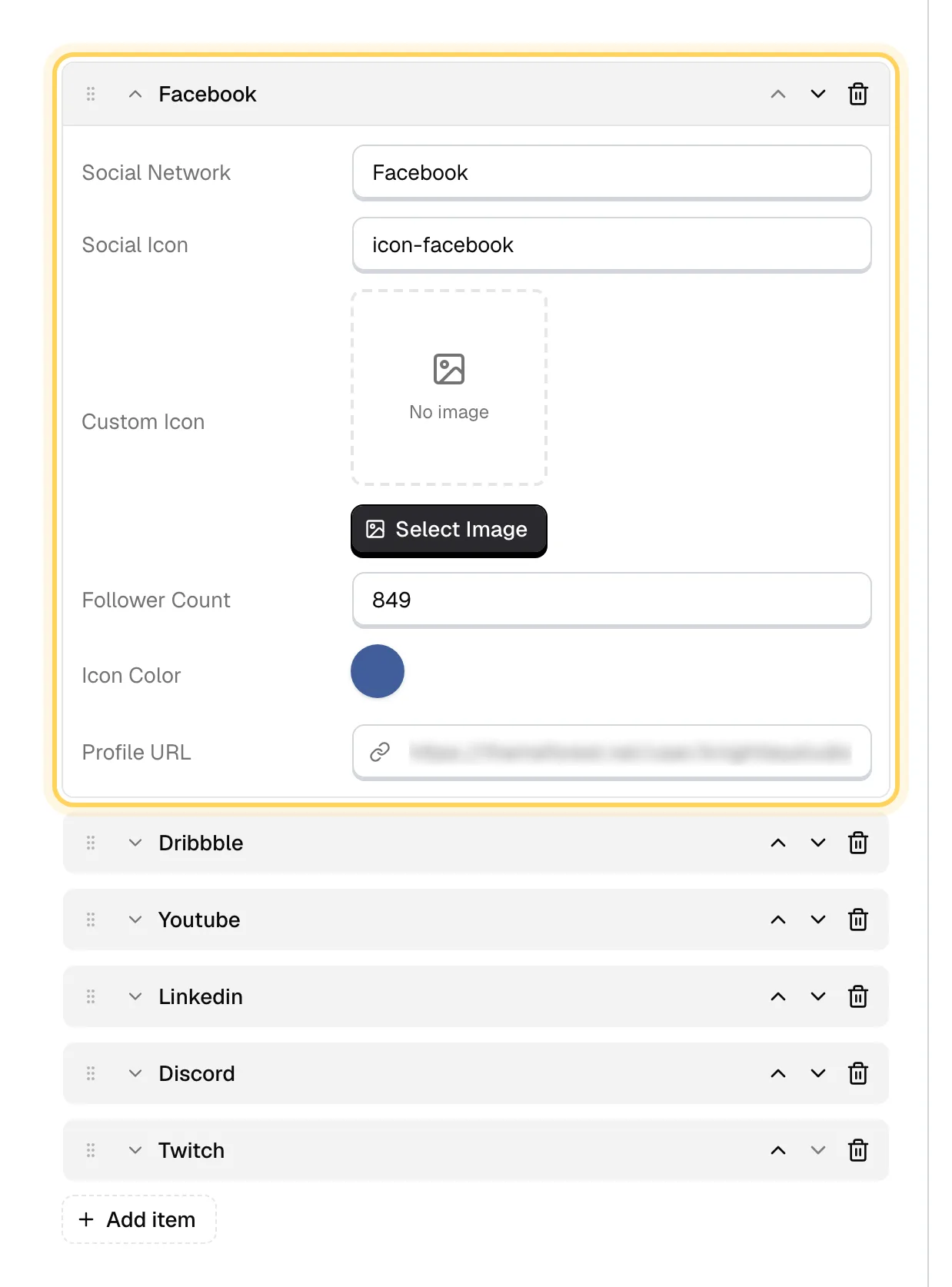
Go to [[Fabula Pro > Theme Options > Social]]. The page has one setting, **Social Icons**, which is a list of rows.
### Add a row for each network
Add a row and fill in these fields. The row is named after its **Social Network** text, so you can tell rows apart in the list.
- **Social Network** (default: `Facebook`): The name of the network. Screen readers announce it as the label of the link.
- **Social Icon**: The class name of the icon, for example `icon-facebook`, `icon-instagram`, or `icon-twitter`.
- **Custom Icon**: An image to use instead of the icon class. An SVG file takes the color of the **Icon Color** field. Other image types are shown as they are.
- **Follower Count** (default: `100`): A number shown beside the icon in one style only (see below). The default is a placeholder, so change it.
- **Icon Color** (default: `#3b5998`): The color of the icon.
- **Profile URL** (default: `https://facebook.com/`): The full address of your profile. Replace the default.
One open row holds every field of a profile.
### Save the page
The icons appear in the order of the rows. The list is ready once you save, but nothing shows on the site until you turn on a place below.
:::
A new row starts with Facebook values, so change every field in it, not just the name.
## Choose where the icons appear
:::options
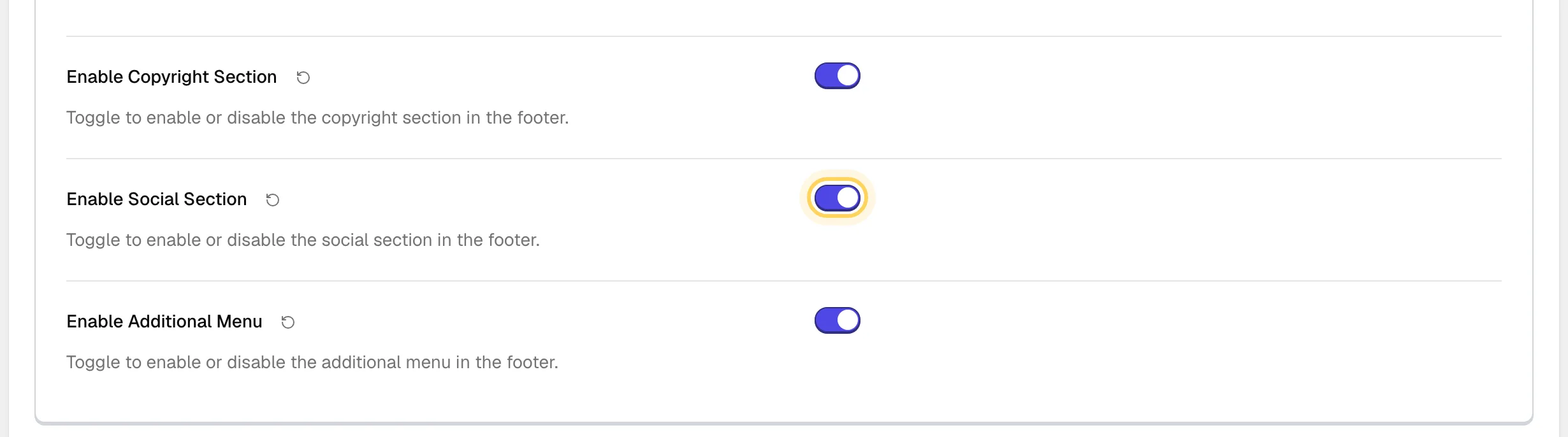
- **Footer**: Turn on **Enable Social Section** at [[Fabula Pro > Theme Options > Footer]] (default: off).
- **Mobile menu**: Turn on **Enable Social** on the **Mobile Settings** tab at [[Fabula Pro > Theme Options > Navigation]] (default: off). The icons then show in the menu overlay.
- **Fixed side panel**: Turn on **Enable Fixed Social** at [[Fabula Pro > Theme Options > General]] (default: off). The panel is a vertical strip of icons at the side of the screen. Each post and page has an **Enable Fixed Social** switch of its own, on by default, to hide the panel there.
- **Anywhere in Elementor**: Add the **Social Icons** widget and pick one of its styles.
- **A widget area**: Add the **JKD Social** widget at [[Appearance > Widgets]]. It has a title and a **Style** choice from **Style 1** to **Style 6**. See [Widget areas: what they are and why one is missing](https://hub.jkdevstudio.com/knowledge-base/configuration/wordpress-widget-areas) for how widget areas work.
:::
The footer has its own social switch.
The styles differ in what they show. **Style 5** and **Style 6** print the network name beside the icon, and **Style 6** also prints the **Follower Count**. The other styles show the icon alone.
## Author profiles are separate
The author box under a post and the header of an author archive show the author's own social links, not this list. Each author sets theirs on their own profile. See [Fields on categories, authors, and widgets](https://hub.jkdevstudio.com/docs/fabula/theme-settings/category-author-and-widget-fields).
My icon shows as an empty square
The **Social Icon** text does not match an icon class. Use a class that starts with `icon-`, such as `icon-facebook`, or upload a **Custom Icon** instead.
I added profiles but nothing shows
Check the switch of the place you want, from the list above, then clear any page cache.