## Theme Options: the Pro settings panel
Product: Fabula - News & Magazine WordPress Theme
URL: https://hub.jkdevstudio.com/docs/fabula/theme-settings/theme-options
Updated: 2026-11-28
Summary: Where the Fabula Pro Theme Options live, what each of the ten pages controls, and which settings stay in the Customizer, on a post, or on a category.
Availability: Pro only.
Fabula keeps its settings in three places, and knowing which place holds what saves a lot of hunting. The look of the site (colors, widths, fonts) is in the Customizer. The behavior of the site (what shows where, and how) is in **Theme Options**, which comes with Fabula Pro. Settings for a single post, page, category, or author sit on that item.
Theme Options needs an active Fabula Pro license. Without one the site shows its defaults and your changes do not save.
## Where to find Theme Options
Open [[Fabula Pro > Theme Options]]. The menu in the admin sidebar carries the theme's name, and Fabula Pro adds "Pro" to it. Inside, the settings are grouped under a **Fabula** section, with one page per area, listed here in the order they appear.
## The pages
:::deflist
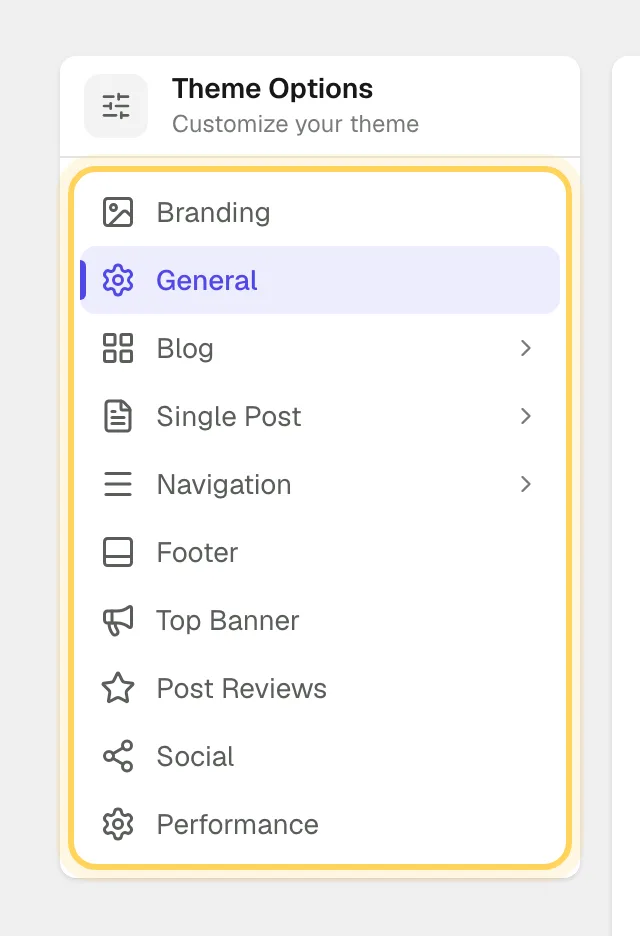
Branding
: Your logos and the copyright notice of the site.
General
: Site-wide switches: image placeholders, the scroll to top button, animations, the preloader, the default color scheme, boxed or full width layout, breadcrumbs, and custom code before and after the page. See [General settings](https://hub.jkdevstudio.com/docs/fabula/theme-settings/general-settings).
Blog
: How blog and archive pages list posts: grids, headers, post meta, and the SEO and content options. Its **Bookmarks** and **Reviews** tabs choose the pages that list bookmarked posts and reviewed posts. See [Bookmarks and reviews pages](https://hub.jkdevstudio.com/docs/fabula/theme-settings/bookmarks-and-reviews-pages).
Single Post
: The layout of a single post, its meta, ad placements, the table of contents, and related content sections.
Navigation
: The header menu, the mobile menu, the category sub menu, the bookmarks sub menu, the color switcher, and custom code for the menu.
Footer
: The layout of the footer, its copyright text, and its social links.
Top Banner
: The announcement bar above the navigation.
Post Reviews
: Review options, including the review colors.
Social
: The list of your social profiles. See [Social profiles](https://hub.jkdevstudio.com/docs/fabula/theme-settings/social-profiles).
Performance
: Switches that turn off unused WordPress features. See [Performance settings](https://hub.jkdevstudio.com/docs/fabula/theme-settings/performance-settings).
:::
The ten pages sit in one list on the left.
There is no separate page for special pages. The bookmarks and reviews pages are tabs of the **Blog** page.
## What stays outside Theme Options
**The Customizer** at [[Appearance > Customize > Fabula Theme]] keeps the look of the site:
- [Colors and color schemes](https://hub.jkdevstudio.com/docs/fabula/theme-settings/colors-and-color-schemes), including the first-visit scheme when Pro is not active. [Set up dark mode](https://hub.jkdevstudio.com/docs/fabula/theme-settings/dark-mode) walks through it.
- [Layout and design tokens](https://hub.jkdevstudio.com/docs/fabula/theme-settings/layout-and-design-tokens), the widths, corners, shadows, and overlays.
- [Typography](https://hub.jkdevstudio.com/docs/fabula/theme-settings/typography), the fonts and text sizes.
**Fields on the item itself** hold settings that differ from one post, category, or author to the next. See [Fields on categories, authors, and widgets](https://hub.jkdevstudio.com/docs/fabula/theme-settings/category-author-and-widget-fields), and the **Post Settings** and **Post Review** boxes in the post editor.
## What changes when Pro is active
With Fabula Pro active, Pro draws the blog, archive, and single post pages. That has two consequences:
- The theme's own **Blog** and **Posts** sections in the Customizer ([[Appearance > Customize > Fabula Theme > Blog]] and [[Appearance > Customize > Fabula Theme > Posts]]) stop having an effect, and [[Fabula Pro > Theme Options > Blog]] and [[Fabula Pro > Theme Options > Single Post]] decide instead.
- The default color scheme moves from the Customizer to [[Fabula Pro > Theme Options > General]].
Four style values that only Pro uses also moved from the Customizer to [[Fabula Pro > Theme Options > General]], in the **Style Tokens** group: **Single Post Font Size**, **Shadow Extra Large**, **Overlay Extra Large**, and **Dark Scheme Border Color**.
## Questions
I cannot find Theme Options in the menu
Theme Options belongs to Fabula Pro. Check that the Pro plugin is installed and active, and that your license is active.
My settings from an earlier version are missing
Settings from before Fabula 2.0 move once, through the migration screen in the Fabula dashboard. Run the migration before you decide a value has disappeared.