## Typography
Product: Fabula - News & Magazine WordPress Theme
URL: https://hub.jkdevstudio.com/docs/fabula/theme-settings/typography
Updated: 2026-11-28
Summary: Pick the heading and text fonts, scale heading, text, and meta sizes with multipliers, and set exact pixel sizes in the Fabula Typography settings.
Typography has its own Customizer section: [[Appearance > Customize > Fabula Theme > Typography]]. It sets two fonts and the sizes of three kinds of text. It has no tabs, and the size sliders that need a switch stay hidden until you turn it on.
## Fonts
Fabula uses Poppins out of the box. The font files ship inside the theme, so a fresh site fetches nothing from outside servers. Any other font comes from your site's font library. To add one, follow [Adding fonts to your site](https://hub.jkdevstudio.com/knowledge-base/jkd-toolkit/adding-fonts-to-your-site), then choose it here.
:::options
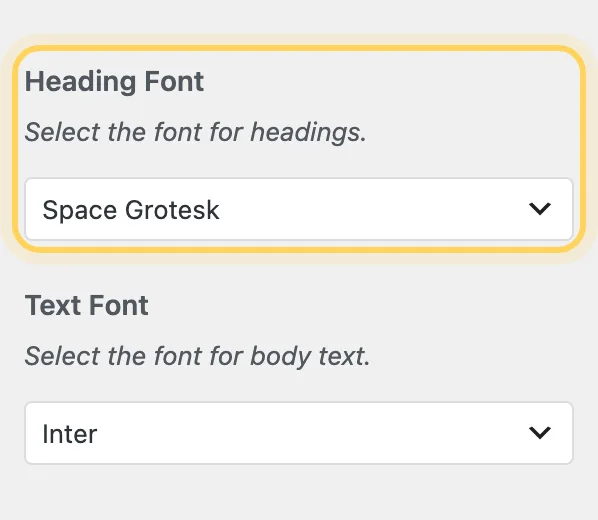
- **Heading Font** (default: Poppins): The font of headings.
- **Text Font** (default: Poppins): The font of body text.
:::
Pick the heading and text fonts here.
Adding a font to the library does not apply it. A family only changes the site after you pick it in one of these two controls.
## Size multipliers
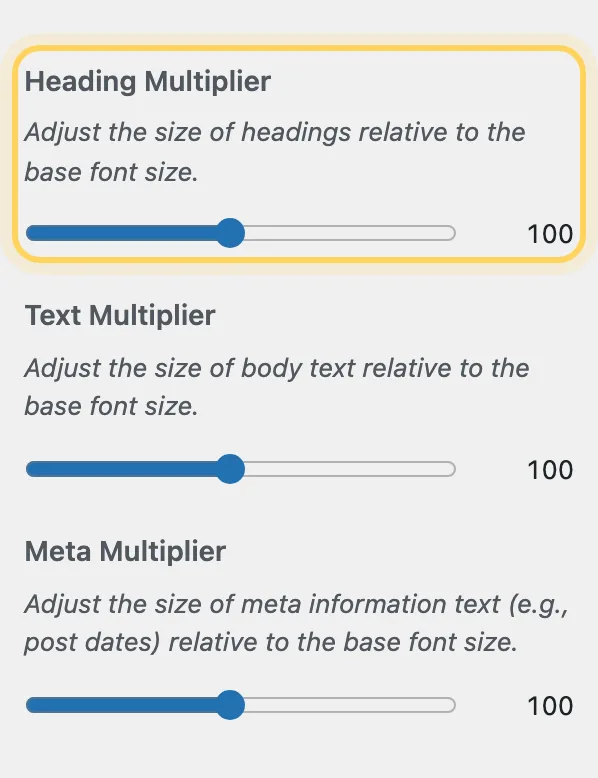
Each multiplier is a percentage of the theme's base size for that kind of text. `100` is the original size, `150` makes the text half as large again, and `80` makes it a fifth smaller. All three run from `10` to `200` in steps of `1`, and a change shows in the preview as you drag the slider.
:::options
- **Heading Multiplier** (default: 100): Scales every heading size together.
- **Text Multiplier** (default: 100): Scales body text.
- **Meta Multiplier** (default: 100): Scales meta information, such as post dates.
:::
Each multiplier scales one kind of text.
Use a multiplier when you want the whole type scale larger or smaller and keep the proportions between sizes.
## Advanced sizes
:::options
- **Advanced Typography** (default: off): Shows the two pixel sliders below. Turn it on only if you want to set the base sizes yourself.
- **Text Font Size** (default: 14): The base size of body text in pixels. The slider runs from `10` to `36`. It is hidden while **Advanced Typography** is off.
- **Meta Font Size** (default: 13): The base size of meta text in pixels. The slider runs from `10` to `36`. It is hidden while **Advanced Typography** is off.
:::
The multiplier and the pixel size work together: the text size you see is the pixel size multiplied by the multiplier and divided by `100`. With the defaults, body text is `14` pixels. Set **Text Multiplier** to `120` and it becomes `16.8` pixels.
## With Fabula Pro active
Pro adds one size setting for posts. On the [[Fabula Pro > Theme Options > General]] page, in the **Style Tokens** group, **Single Post Font Size** (default `14`, from `10` to `36` pixels) sets the size of the text on single posts. See [Theme Options: the Pro settings panel](https://hub.jkdevstudio.com/docs/fabula/theme-settings/theme-options).
## Questions
I picked a font and the site did not change
Click **Publish**, then clear any page cache. If the font does not appear in the picker at all, it is not in your font library yet, so add it first.
Do the fonts load from Google?
Poppins does not: it ships with the theme. A font you add from Google Fonts can be served from your own domain, which is covered in the fonts article linked above.