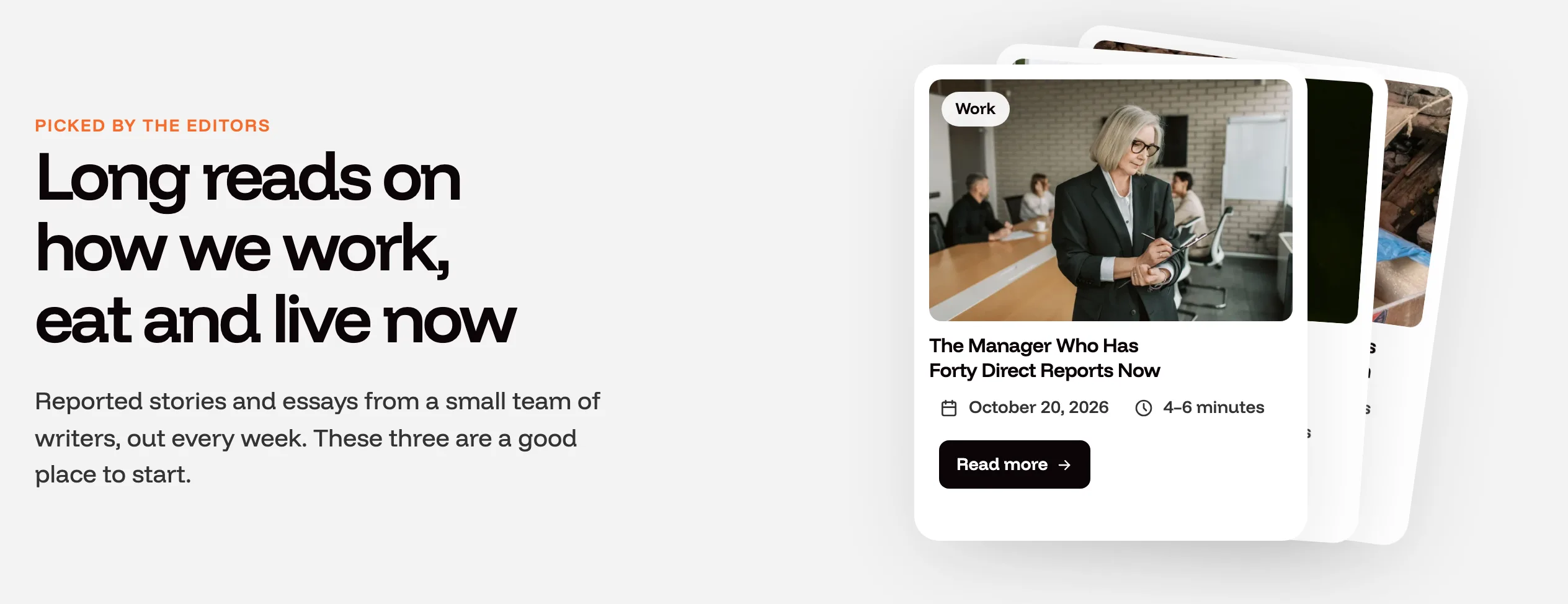
## Build the home page and the other magazine pages
Product: Grafton - Blog & Magazine WordPress Theme
URL: https://hub.jkdevstudio.com/docs/grafton/pages-blog-and-patterns/home-and-pages
Updated: 2026-11-14
Summary: Create the home, about, contact, categories and authors pages from Grafton Pro page patterns, set the front page, and replace the demo content section by section.
This is a Pro feature. Grafton Pro ships five whole pages as patterns: Home, About, Contact, Categories and Authors. You start a page from one, set the home page, and replace the words and pictures with your own. The demo import builds all five for you; this is the route for a site you set up by hand.
The hero that opens the Home page pattern.
## Create a page from a page pattern
:::steps
### Add a new page
Go to [[Pages > Add New Page]]. A window offers patterns to start from.
### Pick the pattern
Choose **Home page**, **About page**, **Contact page**, **Categories page** or **Authors page**. If the window does not appear, open the inserter, switch to the Patterns tab, open the **Grafton pages** category and click the one you want.
### Choose the template for the home page
For the home page only, set the **Template** row of the page sidebar to **Page without header**, so the hero starts at the top. The other pages keep the default template, which shows their title in the page header band.
### Publish
Give the page a title and publish it. The title is used in menus, the page header and the browser tab.
:::
## Set it as the front page
Go to [[Settings > Reading]], choose **A static page**, set **Homepage** to your new page and **Posts page** to the page that will list the blog, then save. Why the two are separate pages is explained in [building a good homepage](https://hub.jkdevstudio.com/knowledge-base/tutorial/building-a-homepage).
## Make the sections yours
The sections of a page pattern are ordinary blocks. Click any heading or paragraph and type; click a picture and choose **Replace**. A section you do not need can be selected through **List View** and deleted, and any section from the **Grafton** pattern category can be added between the others.
:::deflist
Sections that fill themselves
: Recent posts, Featured articles, Most discussed, the card stacks, the category cards and the author cards read your posts, categories and users. You never edit their content, only their settings in the block sidebar.
Sections you write
: The hero title and lead, About in pictures, Mission, the image strip heading and the contact details.
:::
The posts sections of one page never repeat a story: each one skips posts that a section above it already shows. Mark a few posts as Featured to decide what the hero shows; see [category pictures, author photos and Featured posts](https://hub.jkdevstudio.com/docs/grafton/topics-authors-and-featured-stories/pictures-photos-and-featured).
## What each page needs
- **Contact page**: the Contact Form 7 plugin and at least one form. The page shows your first form unless you pick another in the block's settings; see [Contact Form 7 integration](https://hub.jkdevstudio.com/knowledge-base/integration/contact-form-7-integration).
- **Newsletter box and footer**: a connected Mailchimp audience; see [Mailchimp integration](https://hub.jkdevstudio.com/knowledge-base/integration/mailchimp-integration).
- **Categories and Authors pages**: category pictures and author photos, so the cards look finished.