## Category pictures, author photos and Featured posts
Product: Grafton - Blog & Magazine WordPress Theme
URL: https://hub.jkdevstudio.com/docs/grafton/topics-authors-and-featured-stories/pictures-photos-and-featured
Updated: 2026-11-14
Summary: Give each category a picture for its card, each author a photo and a position, and mark the posts that fill the Featured sections and the hero card stack.
This is a Pro feature. Grafton Pro adds three fields that the magazine sections read: a picture for each category, a photo and a position for each author, and a Featured mark on posts. Fill them once and every section that shows topics, people or featured stories picks them up.
## Give a category its picture
:::steps
### Open the category
Go to [[Posts > Categories]] and click the category name.
### Choose the picture
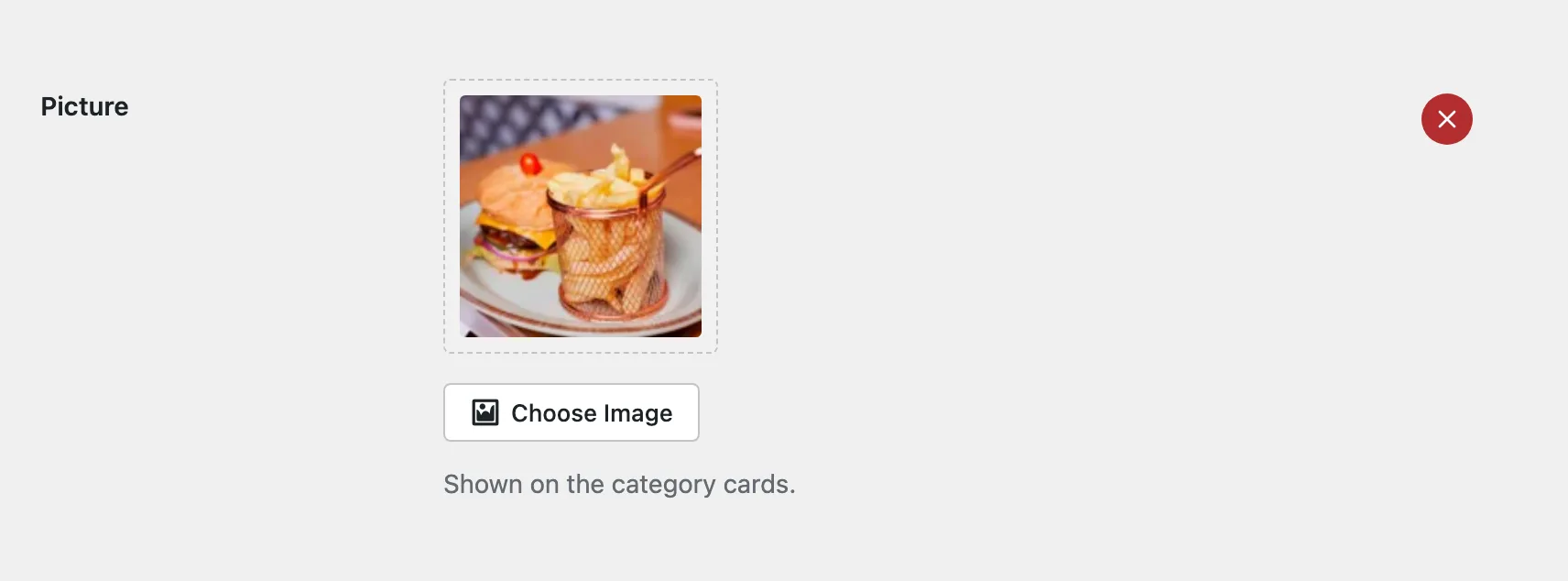
Under **Picture**, click **Choose Image** and pick a landscape photo from the media library. It shows on the category cards.
The picture field on the category screen.
### Update
Click **Update**. The **Category cards** and **All categories** sections now show the picture with the category name and its number of posts.
:::
A category without a picture still shows on the cards, on a plain grey tile. The **Category row** section shows names only, so it needs no pictures.
## Give an author a photo and a position
:::steps
### Open the profile
Go to [[Users > All Users]] and edit the author, or open [[Users > Profile]] for yourself.
### Set the photo
In **Profile photo**, choose a square photo. It replaces the Gravatar everywhere WordPress draws this person's avatar, the byline of their posts included. Leave it empty to keep the Gravatar.
### Set the position
In **Author card**, fill **Position** with a short line such as Travel Editor. It shows under the name on the author cards.
### Update the profile
Click **Update User**. The **Authors** section and the **Authors page** show the new photo and position.
:::
## Mark a post as Featured
:::steps
### Open the post
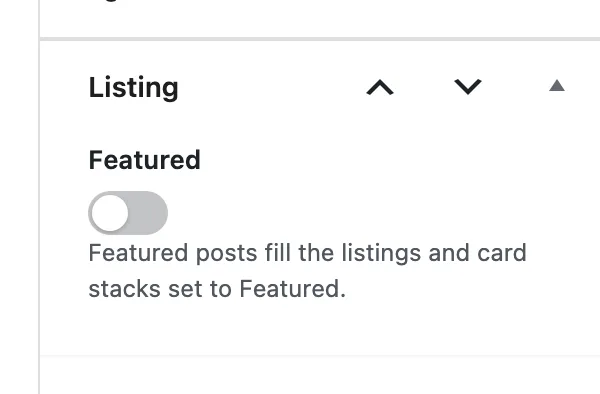
Edit the post and find the **Listing** box in the sidebar.
### Switch Featured on
Turn on **Featured**.
The Featured switch in the post sidebar.
### Update the post
The post now appears in **Featured articles**, in the hero card stack, and in any card stack set to show featured posts.
:::
## How many posts to mark
While no post is marked, the featured sections show your latest posts, so a new site never has empty sections. As soon as you mark one, they show marked posts only.
A page never shows the same post twice. On the home page the hero stack takes the three newest featured posts and **Featured articles** takes the next three, so mark six to fill both.