## Batch Generation
Product: Lazyline – Innovative Lazy-Load & LQIP WordPress Plugin
URL: https://hub.jkdevstudio.com/docs/lazyline/features/batch-generation
Updated: 2026-04-05
Summary: Run the LQIP batch processor to generate placeholders for your media library. Progress tracking, error handling, and regeneration options.
LQIP placeholders don't generate automatically - you run the batch once after setup, and again whenever you add new images or change settings.
## Workflow
1. **Analyze Images** - scans your media library and counts how many images need processing
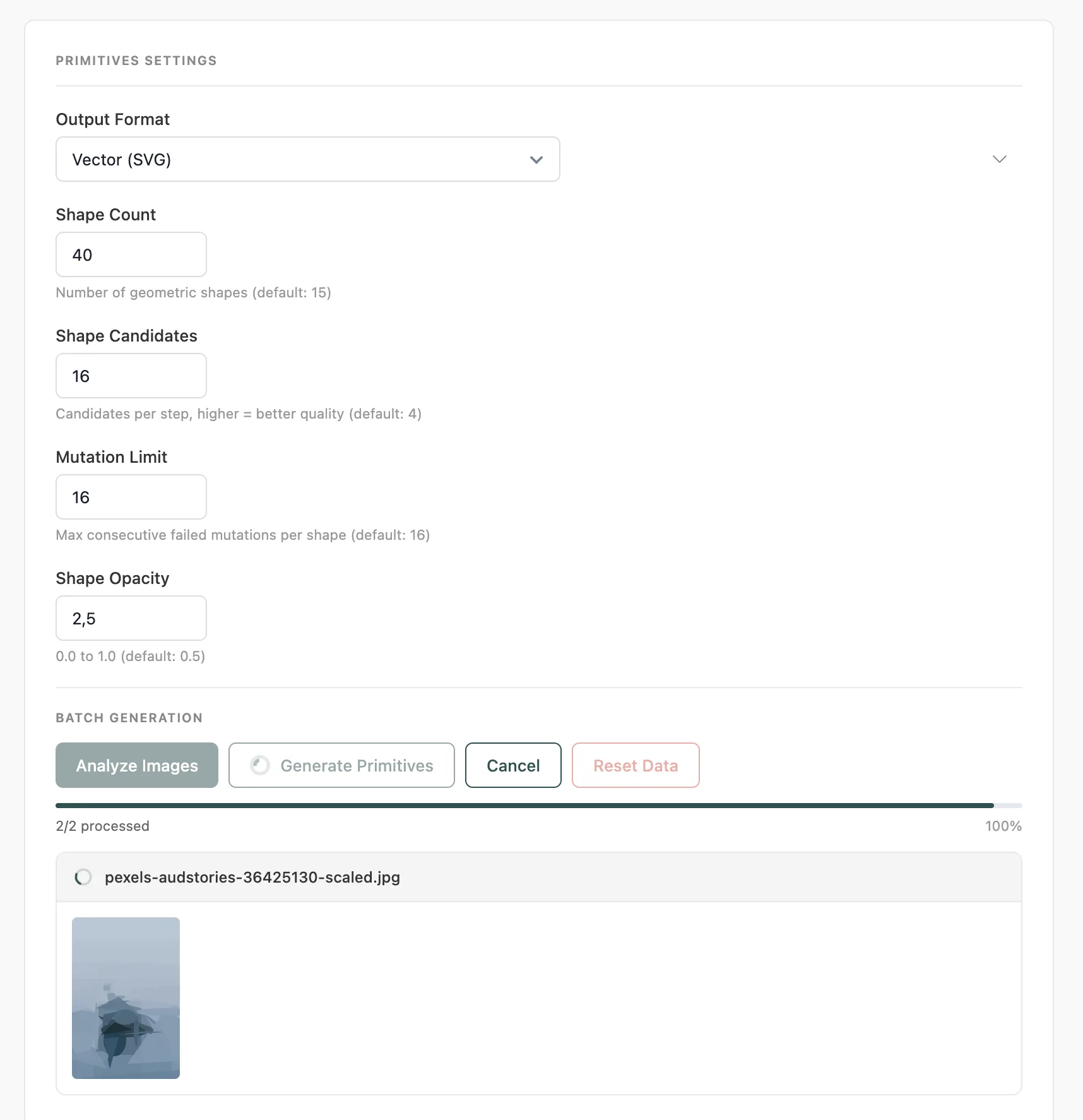
2. **Generate** - processes each image one by one, with a live progress bar and per-file status
3. **Done** - all images processed; Dashboard stats update automatically
Always click **Analyze** before **Generate** if you've added new images since your last run. This ensures new uploads are included in the batch.
## Regenerate
If you've changed settings (quality, shape count, blur, etc.) and want to apply them to already-processed images:
1. Click **Regenerate** (this button appears when all images are already processed)
2. Confirm in the popup - this deletes existing data and starts fresh
3. The plugin runs reset, analyze, and generate automatically in sequence
## Auto-Save
If you change LQIP settings without saving before clicking **Generate** or **Analyze**, the plugin **auto-saves your settings first**. You'll see a "Settings auto-saved" toast notification so you know it happened.
## Progress Tracking
All progress updates happen live, without a page reload:
- **Progress bar** - visual completion percentage
- **Stats line** - e.g. `5/10 processed`, failed count, percentage
- **Live status** - shows the filename currently being processed
- **SVG preview** - for Primitives type, shows the generated SVG as each image completes
## Reset Data
Click **Reset Data** to delete all generated LQIP data for the currently selected type. Stored files and metadata are removed. A confirmation popup prevents accidental deletion.
**Reset Data** only affects the currently selected LQIP type. If you've generated data for Thumbnail and Palette, resetting Thumbnail leaves Palette data intact.
## Tips
- **Thumbnail**, **Palette**, and **Pixelart** run server-side - fast even on large media libraries
- **Primitives** runs in the browser (Canvas API) - keep the tab open and active during generation
- You can generate all 4 types and switch between them freely without re-generating
- Failed images are skipped and counted separately - they don't block the rest of the batch