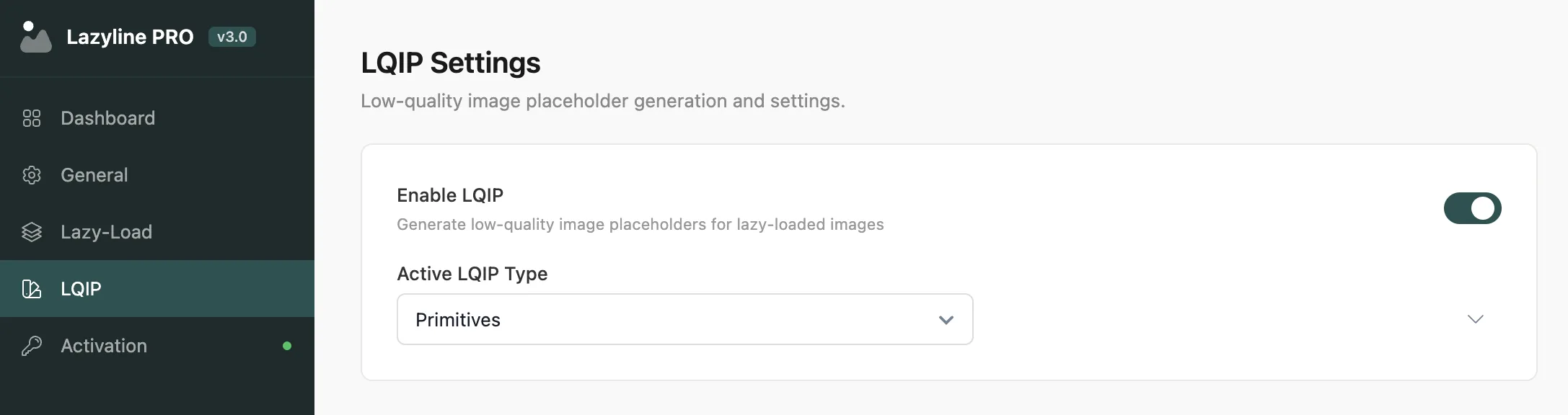
## LQIP Settings

Product: Lazyline – Innovative Lazy-Load & LQIP WordPress Plugin
URL: https://hub.jkdevstudio.com/docs/lazyline/settings-reference/lqip-settings
Updated: 2026-04-05
Summary: Low-Quality Image Placeholders — choose between dominant color, BlurHash, ThumbHash, or SVG trace. Configure quality, size, and fallback behavior.

Low-Quality Image Placeholders (LQIP) replace blank space with a lightweight preview of the final image. The placeholder renders instantly from stored data - no extra HTTP requests - then fades out as the real image loads. This reduces perceived load time and prevents layout shift.

<figure class="doc-figure" data-align="center" style="margin-left: auto; margin-right: auto;"><img src="https://hub.jkdevstudio.com/storage/docs/2026/04/96e96208-e439-4cc8-af2e-bae807cf8b67.webp" alt="" class="doc-image rounded-xl max-w-full"></figure>

## Global Controls

<table style="min-width: 50px;"><colgroup><col style="min-width: 25px;"><col style="min-width: 25px;"></colgroup><tbody><tr><th colspan="1" rowspan="1"><p>Setting</p></th><th colspan="1" rowspan="1"><p>Description</p></th></tr><tr><td colspan="1" rowspan="1"><p>Enable LQIP</p></td><td colspan="1" rowspan="1"><p>Master toggle for all LQIP functionality</p></td></tr><tr><td colspan="1" rowspan="1"><p>Active LQIP Type</p></td><td colspan="1" rowspan="1"><p>Which generation method to use on the frontend</p></td></tr></tbody></table>

Only one type is active at a time. You can generate data for all four types and switch between them freely - no need to regenerate when switching.

<div data-callout="tip">

Not sure which type to pick? Start with **Thumbnail** - it's the fastest to generate and works well for any image. Switch to **Primitives** for a more distinctive look on a portfolio or photography site.

</div>

---

## Thumbnail

Stores a downscaled version of the original image as a base64-encoded data URI, optionally blurred with CSS.

<table style="min-width: 75px;"><colgroup><col style="min-width: 25px;"><col style="min-width: 25px;"><col style="min-width: 25px;"></colgroup><tbody><tr><th colspan="1" rowspan="1"><p>Setting</p></th><th colspan="1" rowspan="1"><p>Description</p></th><th colspan="1" rowspan="1"><p>Default</p></th></tr><tr><td colspan="1" rowspan="1"><p>Thumbnail Size</p></td><td colspan="1" rowspan="1"><p>WordPress image size to use as source</p></td><td colspan="1" rowspan="1"><p>Medium (300px)</p></td></tr><tr><td colspan="1" rowspan="1"><p>Quality</p></td><td colspan="1" rowspan="1"><p>JPEG compression level (1-100)</p></td><td colspan="1" rowspan="1"><p>50</p></td></tr><tr><td colspan="1" rowspan="1"><p>Blur Effect</p></td><td colspan="1" rowspan="1"><p>Apply CSS blur filter for a smoother placeholder appearance</p></td><td colspan="1" rowspan="1"><p>On</p></td></tr><tr><td colspan="1" rowspan="1"><p>Antialiasing</p></td><td colspan="1" rowspan="1"><p>Enable image smoothing. Off gives a sharper, more pixelated look</p></td><td colspan="1" rowspan="1"><p>Off</p></td></tr><tr><td colspan="1" rowspan="1"><p>Optimize Output</p></td><td colspan="1" rowspan="1"><p>Reduce file size of generated thumbnails</p></td><td colspan="1" rowspan="1"><p>On</p></td></tr></tbody></table>

**Best for:** General use. Smallest file size, fastest to generate, works with any image type.

---

## Color Palette

Extracts dominant colors from the image and stores them as metadata - no image file is generated at all.

<table style="min-width: 75px;"><colgroup><col style="min-width: 25px;"><col style="min-width: 25px;"><col style="min-width: 25px;"></colgroup><tbody><tr><th colspan="1" rowspan="1"><p>Setting</p></th><th colspan="1" rowspan="1"><p>Description</p></th><th colspan="1" rowspan="1"><p>Default</p></th></tr><tr><td colspan="1" rowspan="1"><p>Quality</p></td><td colspan="1" rowspan="1"><p>Color extraction quality (lower number = faster)</p></td><td colspan="1" rowspan="1"><p>10</p></td></tr><tr><td colspan="1" rowspan="1"><p>Color Count</p></td><td colspan="1" rowspan="1"><p>Number of colors to extract</p></td><td colspan="1" rowspan="1"><p>5</p></td></tr><tr><td colspan="1" rowspan="1"><p>Palette Type</p></td><td colspan="1" rowspan="1"><p><strong>Single</strong> - one dominant color fill. <strong>Multi</strong> - color columns. <strong>Gradient</strong> - smooth color blend</p></td><td colspan="1" rowspan="1"><p>Single</p></td></tr></tbody></table>

**Best for:** Minimalist or flat-design sites. Zero file overhead since only color values are stored.

---

## Pixelart

Renders a mosaic grid that approximates the image with large colored blocks.

<table style="min-width: 75px;"><colgroup><col style="min-width: 25px;"><col style="min-width: 25px;"><col style="min-width: 25px;"></colgroup><tbody><tr><th colspan="1" rowspan="1"><p>Setting</p></th><th colspan="1" rowspan="1"><p>Description</p></th><th colspan="1" rowspan="1"><p>Default</p></th></tr><tr><td colspan="1" rowspan="1"><p>Block Size</p></td><td colspan="1" rowspan="1"><p>Pixel block size in pixels. Larger = more abstract</p></td><td colspan="1" rowspan="1"><p>12</p></td></tr><tr><td colspan="1" rowspan="1"><p>Grayscale</p></td><td colspan="1" rowspan="1"><p>Render in grayscale instead of full color</p></td><td colspan="1" rowspan="1"><p>On</p></td></tr><tr><td colspan="1" rowspan="1"><p>Custom Palette</p></td><td colspan="1" rowspan="1"><p>Use a fixed color palette instead of actual image colors</p></td><td colspan="1" rowspan="1"><p>Off</p></td></tr></tbody></table>

**Best for:** Artistic or creative sites where a distinctive placeholder style is part of the design.

---

## Primitives

Fits geometric shapes (triangles, rectangles, ellipses) to approximate the image. Generation runs in the browser using the Canvas API.

<table style="min-width: 75px;"><colgroup><col style="min-width: 25px;"><col style="min-width: 25px;"><col style="min-width: 25px;"></colgroup><tbody><tr><th colspan="1" rowspan="1"><p>Setting</p></th><th colspan="1" rowspan="1"><p>Description</p></th><th colspan="1" rowspan="1"><p>Default</p></th></tr><tr><td colspan="1" rowspan="1"><p>Output Format</p></td><td colspan="1" rowspan="1"><p><strong>Vector (SVG)</strong> - scalable, tiny file size. <strong>Raster (JPEG)</strong> - pixel image</p></td><td colspan="1" rowspan="1"><p>Vector</p></td></tr><tr><td colspan="1" rowspan="1"><p>Shape Count</p></td><td colspan="1" rowspan="1"><p>Number of shapes to fit. More shapes = better detail</p></td><td colspan="1" rowspan="1"><p>15</p></td></tr><tr><td colspan="1" rowspan="1"><p>Shape Candidates</p></td><td colspan="1" rowspan="1"><p>Candidates tested per step. More = better quality, but slower</p></td><td colspan="1" rowspan="1"><p>4</p></td></tr><tr><td colspan="1" rowspan="1"><p>Mutation Limit</p></td><td colspan="1" rowspan="1"><p>Max failed mutations before the algorithm moves on</p></td><td colspan="1" rowspan="1"><p>16</p></td></tr><tr><td colspan="1" rowspan="1"><p>Shape Opacity</p></td><td colspan="1" rowspan="1"><p>Transparency of each shape (0.0-1.0)</p></td><td colspan="1" rowspan="1"><p>0.5</p></td></tr></tbody></table>

The average color of each image is automatically extracted and used as the background behind the shapes.

**Best for:** Photography and portfolio sites. Most visually impressive result.

<div data-callout="info">

Primitives generation runs entirely in your browser tab - keep the **LQIP Settings** page open and active during generation. Closing or switching away from the tab will pause the process.
</div>