
A theme is one zip file containing the theme files. Not the package you downloaded, not a folder, and not an archive you unzipped and zipped again. Getting that one thing right avoids the error behind more failed installs than everything else put together.
#Installing through the admin
This is the right route in almost every case.
Open the Themes screen
Go to AppearanceThemes and click the Add Theme button at the top of the screen.
Choose Upload Theme
The Upload Theme button sits at the top of the next screen and reveals a file picker.
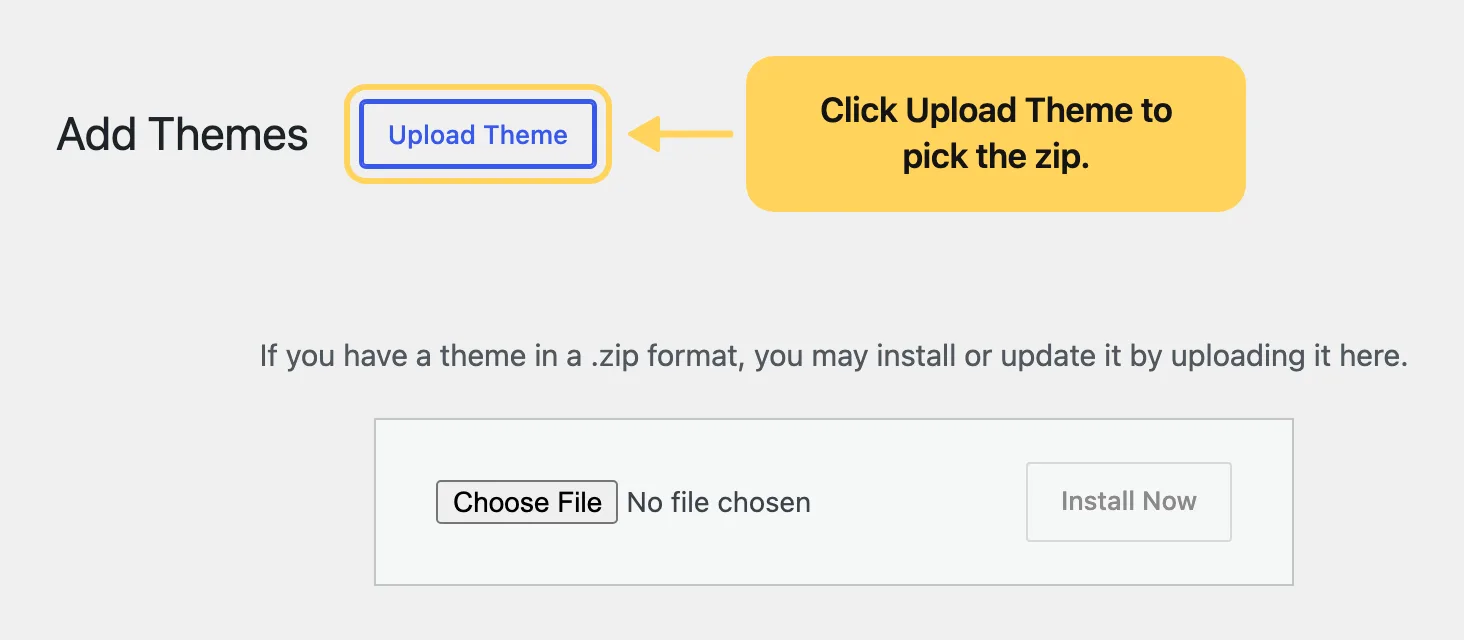
Select the theme zip
Pick the theme archive itself. If you downloaded a package containing several files, unzip it on your computer first and take the theme zip from inside it.
Install
Click Install Now and wait. WordPress uploads the file, unpacks it and reports success.
Activate
Click Activate. This is a separate step, and until you take it the theme is on your site but not running it.
Installing and activating are two different actions.
A good share of "I installed the theme and the site looks the same" reports are a theme that was installed and never activated. The Themes screen shows which one is live: it is the card at the front, labeled Active.
#The error you will probably meet
"The theme is missing the style.css stylesheet", also shown as "No valid theme stylesheet found".
There are two causes, and both are about the file rather than the theme.
The first, and by far the most common: you uploaded the full package instead of the theme zip. The package contains the theme, the documentation and the license files together, and WordPress cannot install it. Unzip it and upload the theme archive from inside.
The second: the theme zip was unzipped and zipped back up. Repacking adds an extra folder level inside the archive, so WordPress looks for style.css at the top and does not find it. Upload the archive exactly as you received it.
This is a basic WordPress question with the same answer for every theme, and support is not the channel for it. A ticket about this error gets pointed back to this article, as the Support Policy excludes general WordPress help.
#Other things that can stop an install
Each of these has a longer answer in the installation troubleshooting article; here the goal is to recognize them.
- The upload is rejected as too large
upload_max_filesizeorpost_max_sizeis below the size of the zip.- The upload times out
max_execution_timeis too low for the file to arrive and unpack.- The install runs out of memory
memory_limitis too low to unpack the archive.- WordPress asks for FTP credentials
The web server cannot write to
wp-content, so WordPress falls back to asking you to do it over FTP.- The theme lands in Broken Themes
Usually a PHP version below what the theme requires.
- There is no Add Theme button
The host or a security plugin has disabled file installation from the admin, often through
DISALLOW_FILE_MODS.
#When the admin will not take the file at all
If the upload limit cannot be raised, the remaining route is to place the theme folder on the server yourself over SFTP. That is a normal thing to do, and there is a walkthrough for it. Try the admin route first: it handles unpacking and permissions for you, and it is harder to get wrong.
#Common questions
Where does the theme actually go?
Into wp-content/themes/, one folder per theme. That is where you look when the admin cannot tell you whether the theme installed at all.
Can I install a theme over an older copy of itself?
Yes. WordPress asks whether to replace the existing one, and replacing is the correct answer when you are updating by hand. Your settings and content live in the database, not in the theme folder, so they survive the swap.
Do I need to delete the old theme?
No. Keep one default WordPress theme installed, because that is what you switch to when you need to rule the theme out as the cause of a problem.
The install still fails
Note the exact wording of the error before you change anything. Every cause on this page produces different text, and the text tells you which one you have.
"Missing style.css" is the file, a timeout or a memory error is the server, and a request for FTP credentials is file permissions. Match it against the installation troubleshooting article.
#Still stuck
Open a support ticket and say what you tried and where it stopped. Your product, your domain, a screenshot and the exact message you saw are usually enough to settle it in one reply.
Last updated
