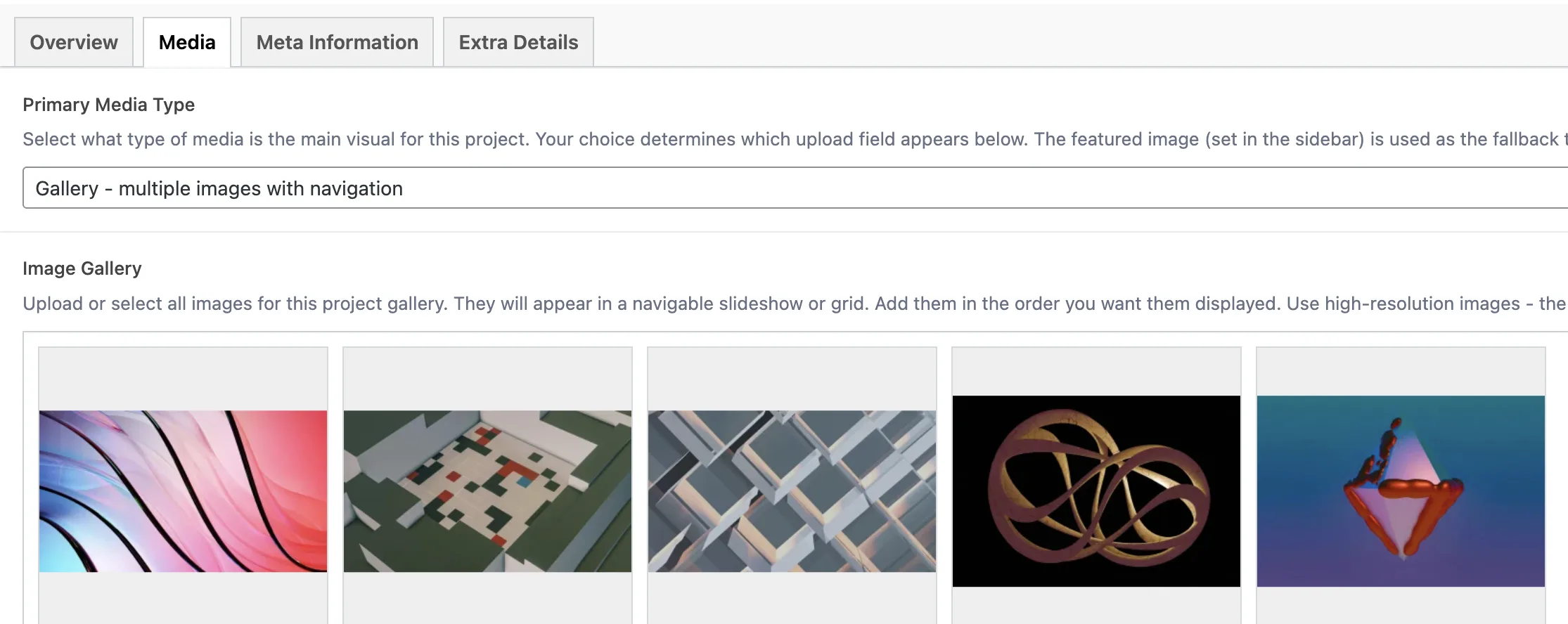
## Gallery Media Type
Product: Monogram - Personal Portfolio WordPress Theme
URL: https://hub.jkdevstudio.com/docs/monogram/content-management/gallery-media-type
Updated: 2026-08-19
The **Gallery** media type lets you showcase multiple images for a single portfolio project in an interactive carousel.
## Setting Up a Gallery
1. Open your portfolio item and go to the **Media** tab
2. Set **Primary Media Type** to **Gallery - multiple images with navigation**
3. The **Image Gallery** field appears below
4. Click **Add to Gallery** to upload new images or select existing ones from the Media Library
5. Drag and drop images to reorder them - they display in the order shown
## How the Gallery Renders
### On Single Project Pages
The gallery renders as a full **Swiper carousel** with:
- **Previous/Next arrows** for manual navigation
- **Slide counter** showing the current slide number and total (e.g., "3 / 8")
- Smooth transitions between slides
- Responsive sizing that adapts to the chosen layout style
### On Portfolio Archive Cards
When a gallery project appears in any portfolio grid or layout, the card thumbnail shows a **"+N Images" badge** in the corner - letting visitors know there is more to see before they click through.
## Gallery Field Reference
Field
Key
Type
Notes
Image Gallery
project_gallery
Gallery (array)
Accepts multiple images. The theme serves the appropriate size automatically
## Best Practices
- **Use consistent aspect ratios** across all images in a gallery. Mixing landscape and portrait shots creates uneven transitions in the carousel.
- **Optimize images before uploading.** Compress JPEGs to 80-85% quality and keep individual files under 500KB when possible. The theme generates responsive sizes automatically, but starting with a clean source helps.
- **Upload at least 1440px wide** for the best result on large screens. The theme will generate smaller versions for tablets and phones.
- **Order matters.** Put your strongest image first - it becomes the default thumbnail on archive pages and the first thing visitors see.
- **Aim for 4-12 images** per gallery. Fewer than 4 makes the carousel feel sparse; more than 12 can slow initial page load.
The featured image (set in the WordPress sidebar) is always used as the card thumbnail in portfolio grids, regardless of which images are in the gallery.