## Portfolio Search
Product: Monogram - Personal Portfolio WordPress Theme
URL: https://hub.jkdevstudio.com/docs/monogram/integrations/portfolio-search
Updated: 2026-09-06
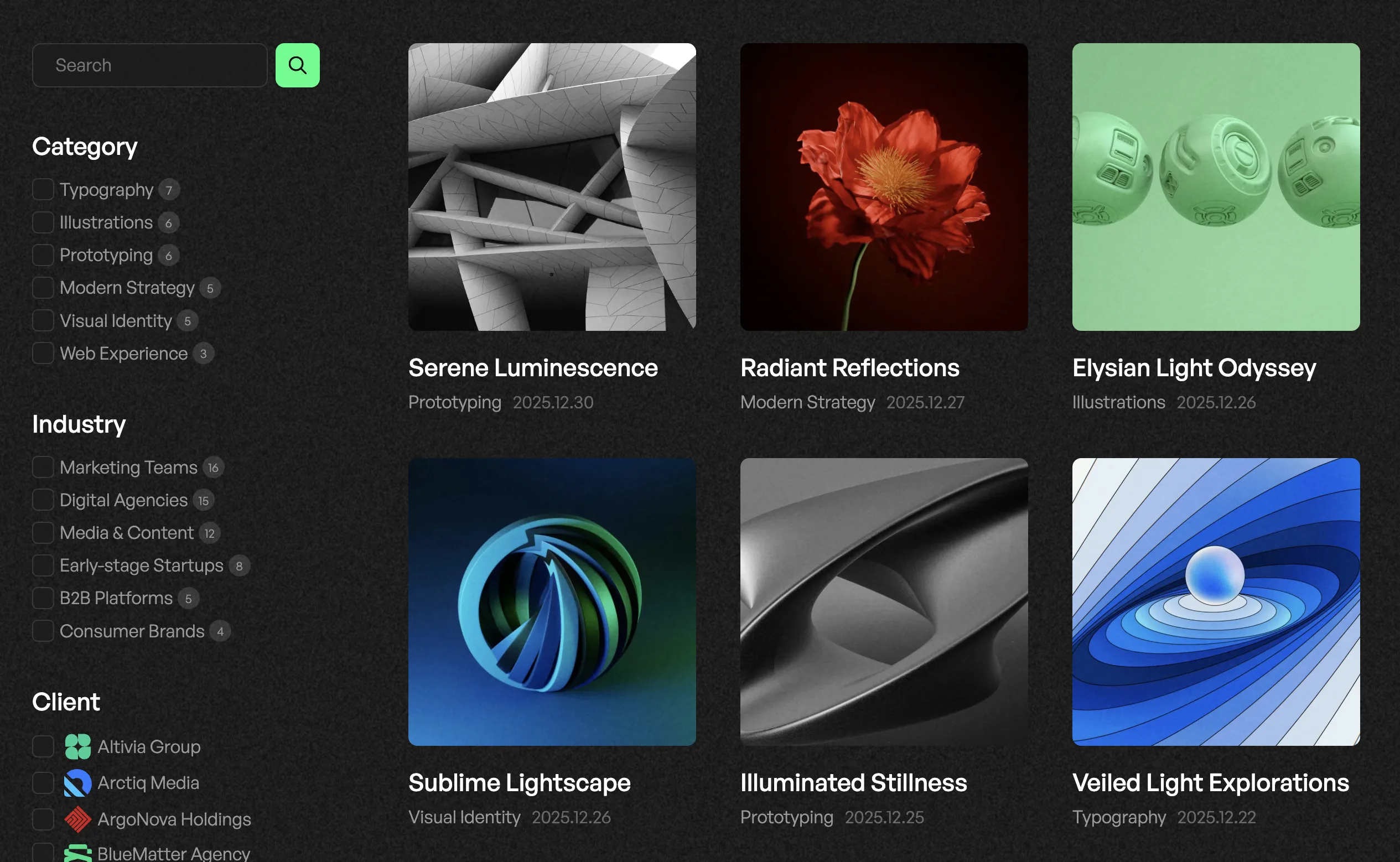
The Portfolio Search page gives visitors a dedicated, full-page search experience for browsing your portfolio. Unlike the navigation autocomplete (which searches all content types as you type), Portfolio Search displays results in a visual grid with sidebar filters - purpose-built for exploring projects.
## How It Works
Portfolio Search uses **Algolia InstantSearch** to deliver near-instant results as visitors type. The page features:
- **Search box** - free-text search with real-time results (no page reload)
- **Filter sidebar** - narrow results by Category, Industry, or Client
- **Visual grid** - portfolio cards with thumbnail, title, category, client, and date
- **Pagination** - browse through large portfolios (9 items per page on desktop, 6 on mobile)
- **Stats bar** - shows "Showing X - Y of Z projects"
All filtering and searching happens client-side through Algolia CDN - results typically appear in under 50ms.
## Setting Up the Portfolio Search Page
### Step 1: Configure Algolia
Make sure you've completed the Algolia setup described in the parent article:
1. WP Search with Algolia plugin is installed and active
2. Application ID and Search-Only API Key are configured in **Settings > Algolia Search**
3. API keys are also added in **Appearance > Customize > API Keys**
### Step 2: Index Your Portfolio
1. Go to **Settings > Algolia Search** in your WordPress dashboard
2. Make sure the **Portfolio** post type is enabled for indexing
3. Click **Re-index** to sync your portfolio items with Algolia
The theme automatically enriches each portfolio item with:
Data
Source
Used For
Title
Post title
Search matching, card display
Categories
portfolio_category taxonomy
Filter sidebar
Industries
portfolio_industry taxonomy
Filter sidebar
Client name
project_client custom field
Filter sidebar, card display
Client avatar
project_client + avatar image
Client filter icons
Date
Post date
Card display (YYYY.MM.DD format)
Thumbnail
Featured image (medium + large)
Card image
Permalink
Post URL
Card link
### Step 3: Create the Page
1. Go to **Pages > Add New**
2. Give the page a title (e.g., "Search Portfolio" or "Explore Work")
3. In the **Page Attributes** panel (right sidebar), set **Template** to **Algolia Grid**
4. Publish the page
That it - the page will automatically display the full search interface.
You can add this page to your navigation menu so visitors can easily find it. It works great as a "Search" or "Explore" link in the main menu.
## The Search Interface
### Desktop Layout
On desktop, the page displays a **sidebar + grid** layout:
- **Left sidebar** (260px) - contains the search box and all filter blocks
- **Main area** - 3-column grid of portfolio cards with pagination below
### Mobile Layout
On mobile devices, the layout adapts:
- The sidebar becomes a **slide-out panel** triggered by a filter button
- The grid switches to a **single column**
- Items per page reduce from 9 to 6
- The sidebar automatically closes after applying a filter
### Filter Sidebar
The sidebar shows three filter groups:
1. **Category** - checkboxes for each `portfolio_category` term, with item counts
2. **Industry** - checkboxes for each `portfolio_industry` term, with item counts
3. **Client** - checkboxes with client avatars and names
Filters that have no available options are automatically hidden. Multiple filters can be combined - for example, filter by "Web Design" industry AND "E-commerce" category.
The Client filter shows avatar images next to each client name. These avatars come from the **Client Avatar** field on your portfolio items. Only clients with an avatar set will show the image.
### Portfolio Cards
Each result card displays:
- **Thumbnail** - featured image with 1:1 aspect ratio and hover zoom effect
- **Title** - project name (links to single project page)
- **Category** - primary taxonomy term
- **Client** - client name with avatar (if available)
- **Date** - formatted as YYYY.MM.DD
### No Results State
When a search or filter combination returns no matches, the page displays a friendly message:
> **No results found.** Try adjusting your search or filters.
## Animations
The page uses **GSAP** entrance animations on first load:
- Filter blocks fade in with a stagger effect (desktop only)
- Portfolio cards animate in with a staggered opacity + vertical slide
- Stats and pagination fade in after the cards
All animations play once on initial load and do not repeat when filtering or paginating.
## Customization
### Translatable Strings
All text in the search interface is translatable through standard WordPress i18n. The following strings can be translated:
String
Default
Where it appears
Search placeholder
"Search"
Search input
Results label
"results"
Stats bar
No results title
"No results found."
Empty state
No results text
"Try adjusting your search or filters."
Empty state
Filter: Category
"Category"
Sidebar heading
Filter: Industry
"Industry"
Sidebar heading
Filter: Client
"Client"
Sidebar heading
Showing
"Showing"
Stats bar
Of
"of"
Stats bar
Projects
"projects"
Stats bar
### Index Name
By default, the search uses the `wp_posts_portfolio` index. If your Algolia index has a different name, the theme will automatically detect it from the WP Search with Algolia plugin configuration.
### Performance Notes
- The theme adds a **DNS prefetch** for Algolia servers to reduce initial connection time
- Client avatar data is **cached for 12 hours** to minimize database queries
- Only medium and large image sizes are indexed to keep the Algolia index lean
After adding, editing, or deleting portfolio items, re-index your content in **Settings > Algolia Search** to keep search results up to date.