## Menus, mega menus, and labels
Product: Norto - Creative Portfolio WordPress Theme
URL: https://hub.jkdevstudio.com/docs/norto/theme-settings/menus
Updated: 2026-11-27
Summary: Assign a menu to the Norto navigation, open a submenu as a wide mega menu, and add a small colored label such as New to a menu item.
Norto has one menu location, **Navigation Menu**. Mega menus and labels need Norto Pro; the menu itself works without it.
:::steps
### Assign the menu
Go to [[Appearance > Menus]], build or select a menu, tick **Navigation Menu** under **Menu Settings**, and save. The menu appears in the navigation bar.
### Open a submenu as a mega menu
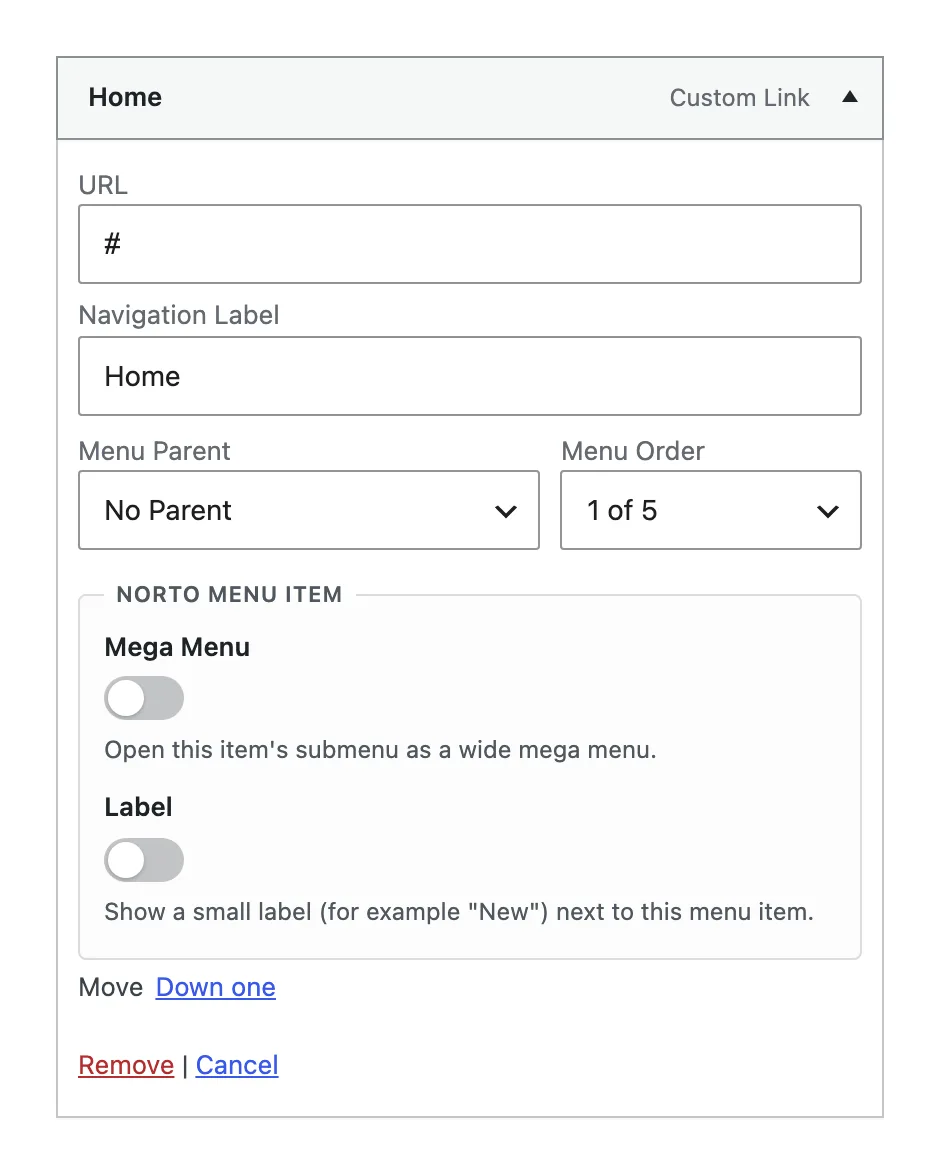
Expand a top-level item that has child items and turn on **Mega Menu** in its **Norto menu item** box. Save the menu. On the site, that item's submenu opens as a wide panel instead of a narrow list.
The Norto switches sit inside each menu item.
### Add a label to an item
Expand any item, turn on **Label**, then fill in **Label Text** (for example `New`) and pick a **Label Color**. Save. The label shows as a small badge next to the item.
:::
If the **Mega Menu** and **Label** switches do not appear on menu items, check that Norto Pro is active and the license is activated.