## Find and save theme options
Product: Qreatix – Interactive Portfolio WordPress Theme
URL: https://hub.jkdevstudio.com/docs/qreatix/theme-options/find-and-save-theme-options
Updated: 2026-11-25
Summary: Open Qreatix Theme Options, move between pages and tabs, save your changes, and reset everything to defaults. Heading sizes are set per screen width.
Availability: Pro only.
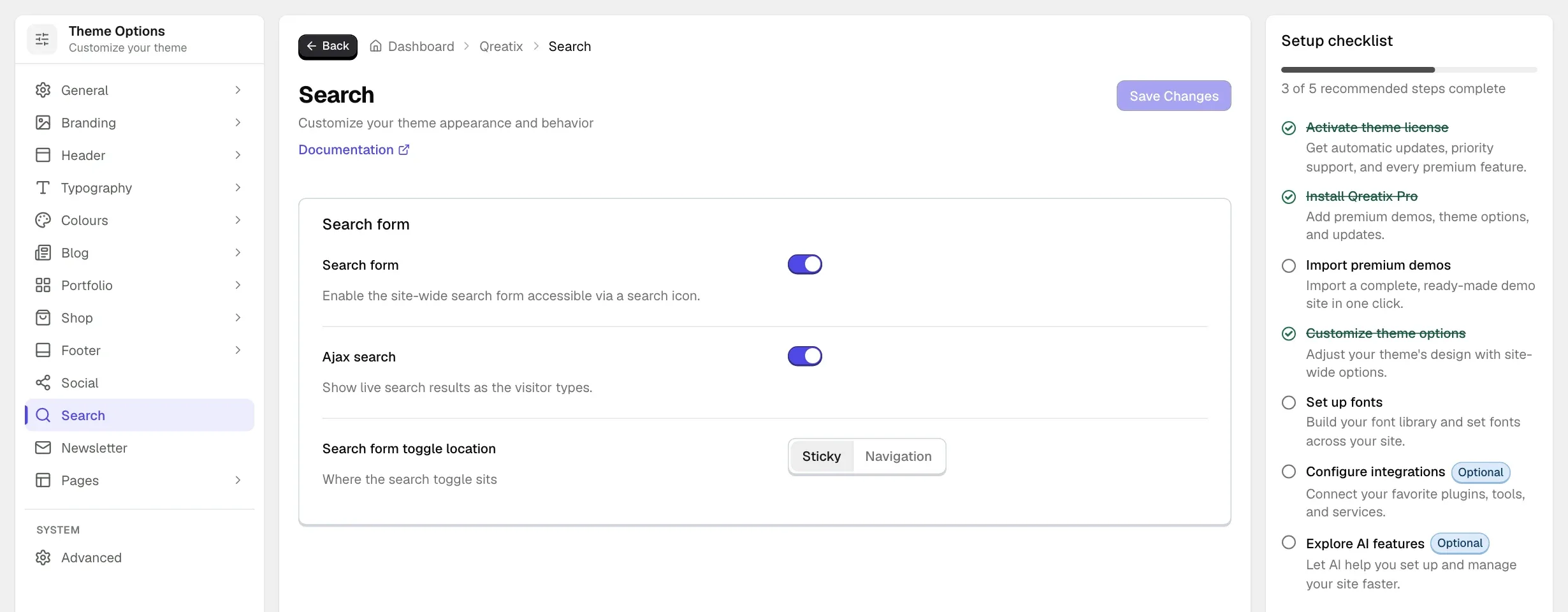
Qreatix keeps its site-wide settings in one app, Theme Options. It has a page for each area of the site, and each page holds tabs and groups of controls.
The Theme Options app.
## Open Theme Options
:::steps
### Go to the menu
In the WordPress admin, open [[Qreatix Pro > Theme Options]]. The Dashboard, Fonts Library and Demo Import screens sit in the same menu.
### Pick a page
The sidebar lists the pages: General, Branding, Header, Typography, Colours, Blog, Portfolio, Footer, Social, Search, Newsletter and Pages. Shop appears between Portfolio and Footer while WooCommerce is active.
### Pick a tab and a group
A page with several tabs lists them under its name in the sidebar, for example **Features**, **Layout** and **Colour scheme** under General. Inside a tab, a column of group names sits to the left of the controls, such as **Navigation** and **Sizes** on the Header page. The Social and Search pages have a single group and no tabs.
:::
## Save your changes
The **Save Changes** button in the page header stays disabled until you change a value. After you click it, the button reads **Saved** for a moment.
You can change values on several pages and save once. Changes on a page you left stay pending, and one click on **Save Changes** stores the edits from every page.
## Reset one control
A control whose value differs from its default shows a small circular arrow next to its label. Click it to put that single control back to its default.
## Controls that hide
Many controls show only while another control is on or set to a certain choice. For example, **Navigation position** appears only for the Default and Overlay navigation styles. A hidden control keeps the value you stored for it. It is ignored until it shows again, so you can switch a style back and forth without losing your earlier settings.
Two pieces of the interface depend on other plugins:
- The **Shop** page exists only while WooCommerce is active.
- **Before content sections** and **After content sections** on the General page exist only while Elementor is active.
## Heading sizes follow the screen width
The **Headings** tab on the Typography page has one group for each heading level, H1 to H6. Each group holds a size, a line height and a letter spacing for four screen widths: desktop, tablet, tablet portrait and mobile. Set the desktop values first, then adjust the smaller screens. The sizes are in pixels and the letter spacing is in em.
## Reset everything
The **Advanced** page sits at the bottom of the sidebar, under the **System** heading. Its **Reset Theme Options** button returns every Theme Option to its default across all pages, and the browser asks you to confirm. This cannot be undone.
Reset clears your logos, colors, fonts and every other value on every page. Note down anything you want to keep first.
## Settings that live on a single page or post
Some settings belong to one page or post, such as the front page scene or the page header. You set those in a box on the edit screen, not here. See the Pages and content section of this manual.