
A widget area is a slot in the theme that you fill with blocks, instead of the theme filling it for you. Sidebars and footer columns are the usual ones. If a sidebar you had is suddenly empty, or an area you expected is not in the list, the cause is almost always a theme change.
Widgets are the oldest layout mechanism in WordPress, and they are the one we recommend using least.
They predate the block editor by more than a decade, and it shows. A widget area only exists where the theme decided to register one, so what you can place and where is fixed by the theme's markup rather than by you. They are awkward to style, they behave differently in every theme, and they have no per page control without a plugin. Since 5.8, WordPress itself has been moving this kind of layout work to blocks.
If you can build the thing with the block editor on the page itself, or with your page builder, do that instead. It gives you the whole canvas, the same blocks, real styling controls and content that belongs to the page rather than to the theme.
#What widget areas are still right for
They still suit one shape of problem: a small, repeated block of content that has to appear in a fixed slot on many pages at once.
That means the footer, a sidebar on an archive, and a blog sidebar. Contact details, a search field, a short category list, a subscribe form, a legal line. Content that is the same everywhere and belongs to the site's furniture rather than to any one page.
Anything past that shape is the wrong tool. A widget area is not where you build a landing page, a promotional section, or a layout that changes between pages. It has no room for that and it will fight you the whole way.
#Where they are
Go to AppearanceWidgets. Every area the active theme registers is listed there, each with a name and a short description of where it appears on the site.
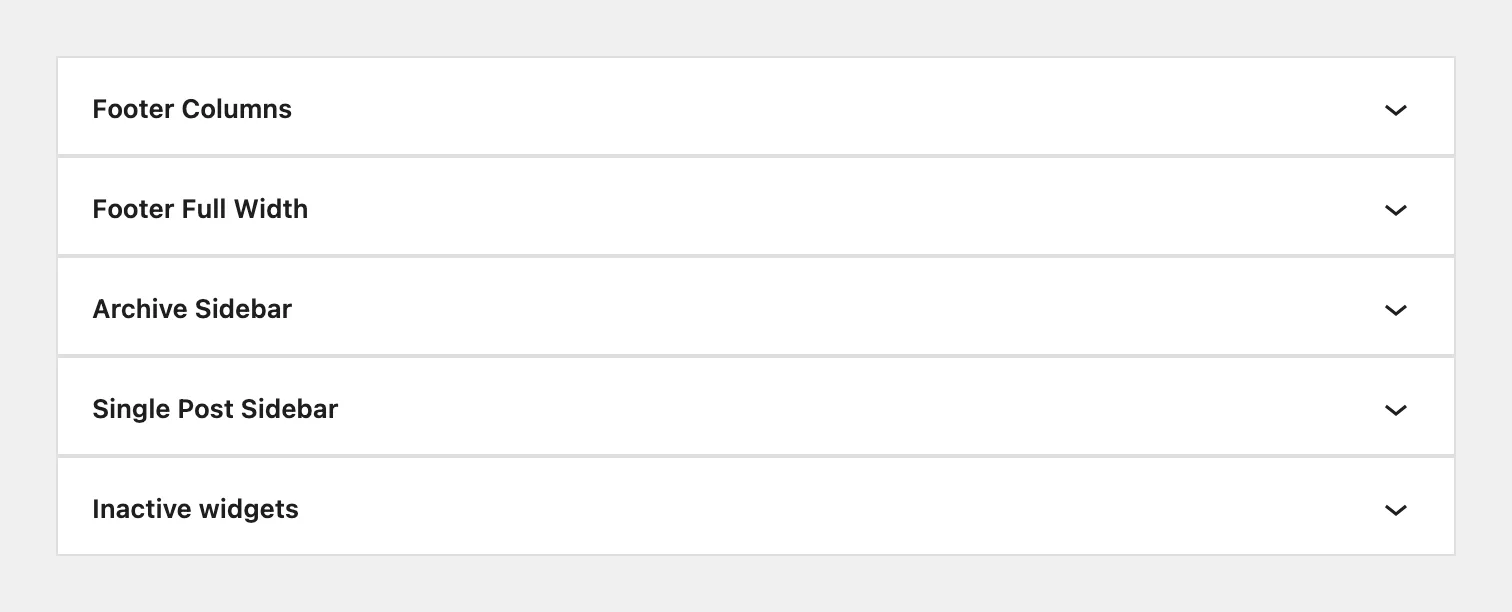
You can also reach them from the Customizer at AppearanceCustomizeWidgets, which shows a live preview as you edit. The two screens edit the same thing.
#Adding a widget
Open the area
On the widgets screen, click the area you want to fill. It expands to show whatever is already in it.
Add a block
Click the plus button and pick a block. Since WordPress 5.8, widget areas take ordinary blocks: a heading, a paragraph, an image, a list of latest posts, anything from the inserter.
Arrange and save
Drag blocks to reorder them. Changes save as you make them on the widgets screen, or on Publish in the Customizer.
Check the front end
Open the part of the site the area's description names. A widget that saved but does not appear usually means the area is not rendered on the page you are looking at.
#Why an area is empty after changing theme
Widget assignments belong to the theme, not to the site.
Each theme registers its areas under identifiers of its own. When you switch theme, the new one looks for its identifiers, finds none of the old theme's widgets, and shows empty areas. Your widgets have not been deleted.
They are in AppearanceWidgets under Inactive widgets, at the bottom of the screen. Drag them from there into the new theme's areas.
Move your widgets into the new theme before deleting the old one.
Inactive widgets survive a theme switch, but not in every case the deletion of the theme they came from. The order of those two steps decides whether you rebuild a sidebar by hand.
This is also the strongest practical argument for keeping widgets to a minimum. Content built on a page belongs to the page and moves with the site, while content built in a widget area belongs to the theme and has to be placed again every time the theme changes.
#Why an area you expected is not listed
The widgets screen shows the areas the active theme registers. There are three reasons one is absent.
The theme does not have that area. A theme with no sidebar registers no sidebar, and no setting adds one.
The area exists but is conditional. Some themes register a sidebar that only renders where a layout setting asks for it, so the area is in the list and stays invisible on the site until you switch that layout on.
The theme uses full site editing instead. A block theme replaces widget areas with template parts, edited in AppearanceEditor, and its widgets screen is empty or absent.
#One rule if you do use them
A widget area is visible on many pages at once, so anything you put there is a commitment across the whole site. A sidebar earns its place when it holds something a reader wants on every page. It stops earning it the moment it becomes a column of everything nobody clicked.
#Common questions
Should I build my sidebar with widgets or in the page?
In the page whenever the content belongs to that page. Use a widget area only when the same block has to appear across a whole section, because widget content is owned by the theme and page content is owned by your site.
Can I show a widget on some pages only?
Not with the built in screen, though plugins add per widget visibility rules. If you need that on more than one or two areas, the content probably belongs in the page instead of a widget.
The old widgets screen was easier
The classic widget interface is still available through a plugin that restores it. It also disables the block based screen, which is useful to know on a site built before the change.
Are widget areas the same as blocks in a template?
No. A widget area is a slot the theme defines and you fill from the widgets screen. A block in a template is part of the template itself and is edited where that template is edited.
A widget saves and never appears
Read the area's description on the widgets screen first, because it names where that area renders. Then check whether the layout it belongs to is switched on in your theme settings: a sidebar with no layout to sit in accepts widgets and draws nothing.
#Still stuck
Open a support ticket and say what you tried and where it stopped. Your product, your domain, a screenshot and the exact message you saw are usually enough to settle it in one reply.
Last updated
