## How do I add a custom font to a block theme?
URL: https://hub.jkdevstudio.com/knowledge-base/full-site-editing/add-a-font-to-a-block-theme
Updated: 2026-10-26
Summary: Upload a font file or install one from Google Fonts in the WordPress Font Library, host it on your own site, and use it for text and headings in Styles.
A block theme takes its fonts from the WordPress Font Library. Add the font there once, and it becomes a choice for text, headings and buttons in Styles.
## Add a font and use it
:::steps
### Open the Font Library
Go to [[Appearance > Fonts]]. The screen has three tabs: **Library** (the fonts the site already has, grouped under **Theme** and **Custom**), **Upload** and **Install Fonts**.
### Upload the font, or install it from Google
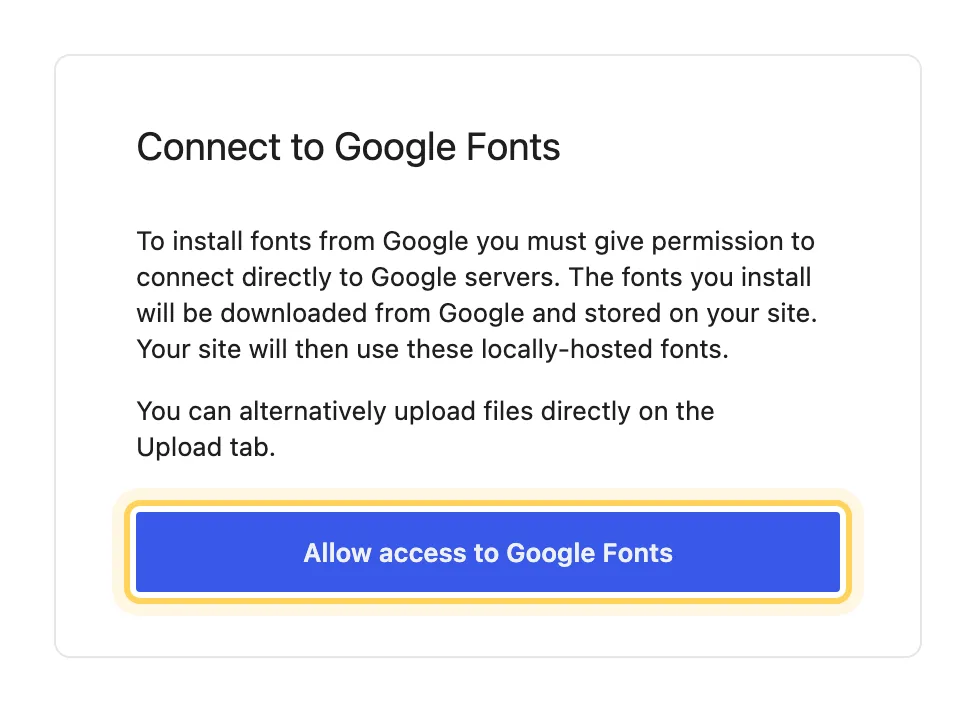
On **Upload**, drop the font files you own, such as `.woff2` or `.ttf`. On **Install Fonts**, click **Allow access to Google Fonts**, search for the family and install the weights you need. Either way the files are stored on your own site, and the font appears in **Library** under **Custom**.
Installed fonts are stored on your own site.
### Choose it in Styles
Go to [[Appearance > Editor > Styles]], open **Typography** and pick the element, **Text** or **Headings** for example. Choose the new font and click **Save**. The front end uses it on the next page load.
:::
The same Font Library opens from Styles too: **Typography** has a **Manage fonts** button.
## Why the fonts are stored on your site
Fonts installed through **Install Fonts** are downloaded from Google once and then served from your own server, so a visitor's browser never contacts Google to show your pages. That is what the permission step asks you to allow, and it is why uploading the files yourself is offered right next to it.
## Questions
How many weights should I install?
The ones the design uses, often a regular and a bold. A browser downloads only the weights a page actually shows, so extra ones cost no speed, but every installed weight is another entry in the lists Styles offers.
My theme's dashboard has its own fonts screen. Which one do I use?
For a block theme, fonts that Styles can use come from [[Appearance > Fonts]]. Add them there and pick them in Styles.
Can I remove a font?
Open the font in **Library** and delete it. If a block or a Styles setting still uses it, that text falls back to the next font in its list, so choose a replacement in Styles first.
## If the font does not show up
Check that the font appears in **Library** and that you saved Styles after choosing it. Then clear the page cache and reload while signed out. If an uploaded file is refused, the server may block that file type; [open a support request](/knowledge-base/support/getting-help-with-your-theme) with the file name and the message you saw.