## How do I edit the header or footer in a block theme?
URL: https://hub.jkdevstudio.com/knowledge-base/full-site-editing/edit-header-and-footer
Updated: 2026-10-26
Summary: Open the header or footer template part in the Site Editor, change the logo, menu or text, and save it once for every page of the site.
In a block theme the header and the footer are template parts: shared pieces of layout that every template places on the page. You edit each one once in the Site Editor, and the change shows everywhere it is used.
## Edit the header or footer
:::steps
### Open the template parts
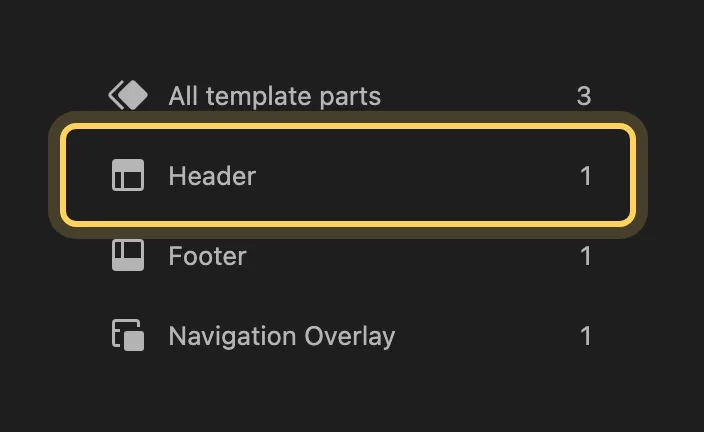
Go to [[Appearance > Editor > Patterns]]. At the top of the list on the left, **All template parts** groups the parts by area: **Header**, **Footer** and any others the theme ships.
The header and footer are template parts.
### Open the part
Click **Header** or **Footer**, then click the part itself. It opens in the editor on its own, without the rest of the page.
### Change it and save
Edit the blocks the way you would edit a post: the logo is a Site Logo block, the menu is a Navigation block, and the text is ordinary paragraphs. Click **Save**. Every page that uses the part shows the change on the next load.
:::
## What to change where
:::deflist
Logo
: The Site Logo block in the header. Select it to replace the image or change its width.
Menu
: The Navigation block. Its items are edited at [[Appearance > Editor > Navigation]], see [where Menus and Widgets went](/knowledge-base/full-site-editing/menus-and-widgets-missing).
Copyright line, contact details, social links
: Ordinary blocks in the footer part. Edit them in place.
Colors and fonts of the header or footer
: Set them in [[Appearance > Editor > Styles]] for the whole site, see [where colors and fonts went](/knowledge-base/full-site-editing/block-theme-colors-and-fonts). A color set on the part itself overrides Styles for that part only.
:::
## Why one edit changes every page
A template describes one kind of page: the blog, a single post, an archive. Instead of drawing its own header, each template inserts the header part, so there is one header for the whole site. That is why a change to the part shows on every page, and also why it is the wrong place for something meant for one page only. Content for a single page belongs in that page.
## Questions
Can different pages have different headers?
Yes. A template can use a different header part. Open the template at [[Appearance > Editor > Templates]], select the header in it and replace it with another part, or create a new part from the Patterns screen with **Add Pattern**.
I changed the header and now it ignores theme updates
An edited part is saved in the database and is used instead of the theme's file. See [a theme update did not change a template I edited](/knowledge-base/full-site-editing/edited-template-ignores-theme-update) to bring back the theme's version.
## If the change does not appear
Clear the page cache and reload while signed out. If the old header still shows, the template that page uses may place a different part: open the template at [[Appearance > Editor > Templates]] and check which part sits at the top. Still stuck? [Open a support request](/knowledge-base/support/getting-help-with-your-theme) with the page address.