## A theme update did not change a template I edited
URL: https://hub.jkdevstudio.com/knowledge-base/full-site-editing/edited-template-ignores-theme-update
Updated: 2026-10-26
Summary: Why a template you customized in the Site Editor ignores theme updates, and how to reset it to the theme's current version without losing your content.
If you updated the theme and one page layout, the header or the footer still looks like the old version, that template was edited in the Site Editor at some point. The edited copy is saved in your database and WordPress uses it instead of the theme's file, so the update cannot reach it until you reset it.
## Reset a template to the theme's version
:::steps
### Open the templates
Go to [[Appearance > Editor > Templates]]. For a header or footer, go to [[Appearance > Editor > Patterns]] and open **All template parts** instead.
### Open the template's actions
Point at the template's card and click its actions button, the three dots. A template that was edited shows **Reset** in the menu. A template without **Reset** was never edited, so it already follows the theme.
### Reset it
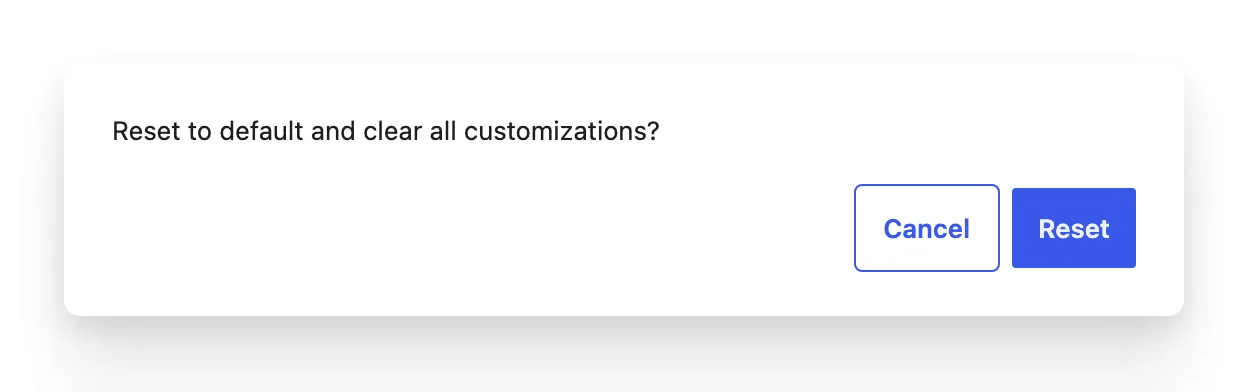
Choose **Reset**. WordPress asks **Reset to default and clear all customizations?** Click **Reset** to confirm. The card's preview changes to the theme's current version.
WordPress asks once before clearing your changes.
:::
Reset removes every change made to that template or part in the Site Editor. Your posts, pages and images are not touched, because they are content and never lived in the template.
## Keep your changes and get the update
A reset is all or nothing. When you want the theme's new version and a change of your own on top, write the change down (or copy the blocks: select them, then copy from the block toolbar), reset the template, and make the change again on the new version.
## Why it works this way
A block theme ships its templates as files. When you save a template in the Site Editor, WordPress stores your version in the database and uses that one from then on, for that theme. A theme update replaces the files and leaves the database alone, which is what protects your edits, and also what keeps the new version out. The [template editor documentation on wordpress.org](https://wordpress.org/documentation/article/template-editor/) covers editing templates in general.
## Questions
How do I tell which templates I have edited?
Open the actions menu on each card in the Templates list: only edited templates offer **Reset**. The same goes for template parts under **All template parts**.
Do styles behave the same way?
Changes made in Styles are kept on top of the theme's design rather than replacing it, so a theme update still changes the values you did not set yourself. To drop all of your style changes, use **Reset styles**, see [where colors and fonts went](/knowledge-base/full-site-editing/block-theme-colors-and-fonts).
I switched to a child theme and my edits are gone
Edits made in the Site Editor belong to the theme they were made under. A child theme is a different theme to WordPress, so it starts from the templates in its own files and its parent's. See [child themes, template overrides and hooks](/knowledge-base/hooks-filters/child-themes-and-overrides).
## If the old version still shows after a reset
Clear the page cache and any caching plugin, then reload while signed out. If the template still looks old, [open a support request](/knowledge-base/support/getting-help-with-your-theme) with the template's name and the theme version from [[Appearance > Themes]].