## Menus and Widgets are missing from the Appearance menu

URL: https://hub.jkdevstudio.com/knowledge-base/full-site-editing/menus-and-widgets-missing
Updated: 2026-10-26
Summary: Menus and Widgets disappear when a block theme is active. Where each one moved in the Site Editor, and how to edit your menu now.

If [[Appearance]] shows **Editor** and **Fonts** but no **Menus** or **Widgets**, the active theme is a block theme. Nothing is broken: WordPress moves those jobs into the Site Editor whenever a block theme is active.

## Edit your menu in the Site Editor

:::steps

### Open the Navigation screen

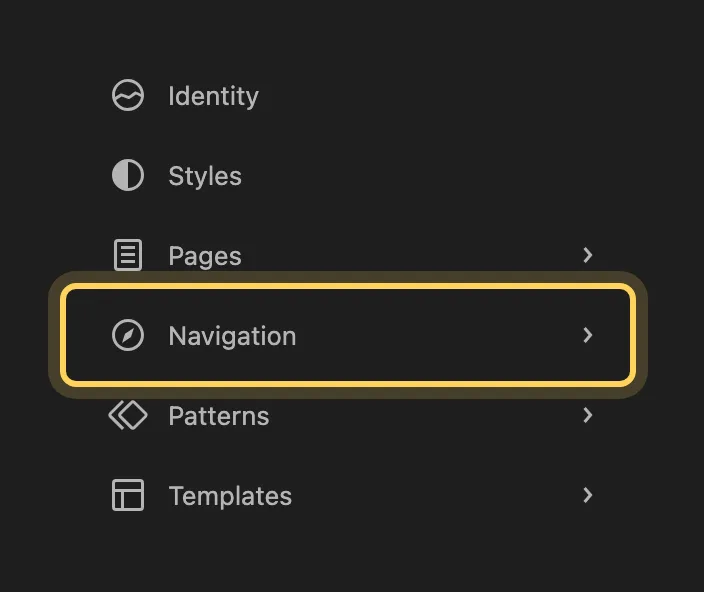
Go to [[Appearance > Editor > Navigation]]. The panel on the left lists every menu on the site by name.

<figure class="doc-figure" data-align="center" data-width="50%"><img src="https://hub.jkdevstudio.com/storage/docs/2026/10/ffc0d274-2edb-424f-b8bf-511a46e63bfb.webp" alt="The Site Editor menu listing Identity, Styles, Pages, Navigation, Patterns and Templates, with Navigation highlighted"><figcaption>Menus now live under Navigation.</figcaption></figure>

### Open the menu your header uses

Click the menu. Its items appear, and the page preview shows where the menu sits.

### Change the items and save

Add, remove or drag the items into a new order, then click **Save** at the top. The menu on the front end changes on the next page load.

:::

## Find each old screen in its new place

<table> <thead> <tr> <th>You are looking for</th> <th>In a block theme</th> </tr> </thead> <tbody> <tr> <td>Menus</td> <td>The Navigation block, edited at <span data-type="ui-path"><span data-type="ui-segment">Appearance</span><span data-type="ui-segment">Editor</span><span data-type="ui-segment">Navigation</span></span></td> </tr> <tr> <td>Widgets and sidebars</td> <td>Blocks placed straight into a template or a template part</td> </tr> <tr> <td>Header and footer</td> <td>Template parts, at <span data-type="ui-path"><span data-type="ui-segment">Appearance</span><span data-type="ui-segment">Editor</span><span data-type="ui-segment">Patterns</span></span> under <strong>All template parts</strong></td> </tr> <tr> <td>Colors, fonts and layout</td> <td><span data-type="ui-path"><span data-type="ui-segment">Appearance</span><span data-type="ui-segment">Editor</span><span data-type="ui-segment">Styles</span></span></td> </tr> <tr> <td>Additional CSS</td> <td>The <strong>More</strong> menu at the top of Styles, then <strong>Additional CSS</strong></td> </tr> <tr> <td>Page layouts</td> <td>Templates, at <span data-type="ui-path"><span data-type="ui-segment">Appearance</span><span data-type="ui-segment">Editor</span><span data-type="ui-segment">Templates</span></span></td> </tr> </tbody> </table>

**Customize** can still be in the menu. WordPress shows it to a block theme only when the theme or a plugin puts settings there, and a block theme that does uses it for behavior, such as animations, while colors and fonts stay in Styles. The details of each move are in [where colors and fonts went](/knowledge-base/full-site-editing/block-theme-colors-and-fonts) and [editing the header and footer](/knowledge-base/full-site-editing/edit-header-and-footer).

## What a block theme is

A classic theme draws its pages with PHP files and offers its options in the Customizer. A block theme is made of templates written in blocks, plus a `theme.json` file that holds its colors, fonts and spacing. Full Site Editing is the WordPress name for editing all of that in the browser: the header, the footer and every template open in the Site Editor the way a post opens in the block editor. WordPress has shipped it since version 5.9, and the [Site Editor documentation on wordpress.org](https://wordpress.org/documentation/article/site-editor/) and its page on [block themes](https://wordpress.org/documentation/article/block-themes/) cover the editor itself.

## Questions

<details><summary>Where did my old menu go?</summary>

A menu built on the old Menus screen is still in the database. The Navigation block can use it: select the block in the header and choose the menu from the block's menu list, where WordPress keeps the classic menus apart from the new ones. See the [Navigation block documentation](https://wordpress.org/documentation/article/navigation-block/).

</details>

<details><summary>Will my widgets come back?</summary>

Widgets placed under a classic theme do not show in a block theme, because a block theme has no widget areas. Add the same content as blocks in the template or template part where it should appear.

</details>

<details><summary>Can I bring the Menus and Widgets screens back?</summary>

They return only with a classic theme. Switching back changes far more than two menu items, so read [what survives a theme change](/knowledge-base/migration/what-survives-a-theme-change) first.

</details>

## If Editor is missing too

When [[Appearance]] has neither **Editor** nor **Menus**, check which theme is active in [[Appearance > Themes]]. A classic theme that registers no menus shows no **Menus** screen, and an admin menu plugin or a user role without the right to edit theme options can hide both. Sign in as an administrator and check again, and if the screens are still gone, [open a support request](/knowledge-base/support/getting-help-with-your-theme) with a screenshot of your Appearance menu.