
If something on your site looks broken and you want it fixed quickly, this page walks you from the first checks to a bug report we can act on. Most things that look broken turn out to be unfinished setup, so the basics come first.
#Check the basics first
The environment meets the server requirements
WordPress was prepared before the theme went on
The theme is installed and activated
The license is activated
The Pro plugin is installed and active, if you expect Pro features
Any integrations the feature needs are installed
The most common "nothing works" cases are on that list: a theme installed but never activated, a child theme active without its parent, or somebody waiting for Pro features without the Pro plugin. None of those is a bug or an environment problem.
#What kind of problem is it
The class decides where to go next and who can fix it.
- Not a problem, a setting
The feature exists, and it is switched off or configured somewhere other than where you looked. It is solved in the settings, which is faster than any ticket.
- An environment problem
Hosting, PHP limits, missing extensions, file permissions, blocked outbound requests. The theme only shows the symptom, and only your host can fix it. The sign: red checks in Diagnostics, values that do not match the requirements.
- A front end problem
Visible in the browser. Broken layout, a script not running, old styles. It lives in the browser and in caches, not on the server. First check: a private window and cleared caches. Second: the browser console.
- A server problem
A white page, a 500, an interrupted import, the "critical error" screen. Nothing useful is visible in the browser, because the cause is in the PHP log. This is the one class that cannot be diagnosed at all without a debug log.
- A conflict
The symptom appears only with a particular third party plugin active. The check takes a minute and saves days of correspondence.
- A consequence of your own edits
Code changes, custom snippets, overridden templates, leftovers of an old theme or an old implementation.
#The route, cheapest step first
Skipping steps does not save you time: support will ask for the same things anyway.
Hygiene
Clear caches at every level, check the page in a private window, update the theme and Pro plugin to the current versions, and read the changelog. It may already be fixed.
Diagnostics
With the Pro plugin active, run the built in Diagnostics. One click checks the server, WordPress, the theme, plugins and the connection to Hub, and tells you what is wrong.
System Info
Copy the environment snapshot. You need it either way: to compare values against the requirements yourself, and to attach to a ticket.
The debug log
If the first three found nothing, or the symptom is a server one, turn on WordPress debugging.
#Turning on the debug log
This is a mode built into WordPress where errors are written to a file instead of being swallowed silently. It has nothing to do with the theme, and the WordPress debugging documentation describes it in full.
Add three constants to wp-config.php, above the line that says to stop editing:
define( 'WP_DEBUG', true );
define( 'WP_DEBUG_LOG', true );
define( 'WP_DEBUG_DISPLAY', false );
The third constant matters on a live site.
Without WP_DEBUG_DISPLAY set to false, PHP errors are printed into the page your visitors are reading, complete with file paths.
The result lands in wp-content/debug.log, which you fetch over SFTP or through your host's file manager. If the file never appears, the folder is not writable, and that is a finding in itself.
Reproduce the problem after turning it on. Only what happens while the mode is on gets written.
Turn it off when you are done. The log keeps growing, and on a live site it is information sitting where it should not.
Your host's control panel usually has PHP logs in their own section, which is the same content by another route.
The framework log in System Info is not the same file as debug.log.
It records our own events, not your site's PHP errors, and neither one replaces the other.
#How to write a report that gets a real answer
A support reply can only be as specific as the report it answers. We read every ticket, but we cannot see your site from here, so the description is all we have to work with.
Two kinds of report come back with a generic answer, because nobody can tell from them what is wrong:
- A single vague sentence, such as "the header is broken" or "the import does not work". There is no page, no error and no step to repeat.
- Generic text copied from an AI assistant. These often read well and describe a problem in general terms, but they mention settings, files or functions our products do not have. We then spend the reply sorting out what is invented instead of looking at your site.
Your own words are better, even short and imperfect ones, as long as they say what you did, what you expected and what happened. The better the description, the faster a real bug is found and fixed.
#What to include
Walk this list before you press send:
- the page address where it happens, and the steps to repeat it
- what you expected, and what happened instead
- the copied System Info report, as text or a text file, not a screenshot
- the Diagnostics report, if you have Pro
- the full error from
debug.log, including the file path and the trace, not a cropped fragment - a screenshot or a short screen recording
- whether it still happens with third party plugins deactivated
The support request form in your Hub account has a category, the product, the license, a message, up to five attachments, and a references block where you can name the release you run and the site URL. It has no field for the WordPress or PHP version, so paste those into the message or attach System Info.
#What a bug report covers
Bug reports and diagnosis cover problems directly tied to our products and to the environment they run in: the theme, the Pro plugin, our integrations, and the server requirements they depend on.
These are outside it:
- third party plugins, and what they do on your site
- leftovers of old implementations or old themes: shortcodes, database options, CSS or code a previous setup left behind
- custom code, wherever it lives, including a child theme
- edited theme or plugin files. Restore the original files first, then report
If any of those are present, say so in the report. It is the first thing we check, and saying it up front saves a round of questions. The full boundary is in the Support Policy, and Third party plugins and where responsibility sits explains the reasoning.
A confirmed bug in our code goes into a release. A theme with a Pro plugin and integrations is tens of thousands of lines of code and hundreds of settings, so bugs do happen, and a clear report is the shortest route to fixing one for everybody who runs it.
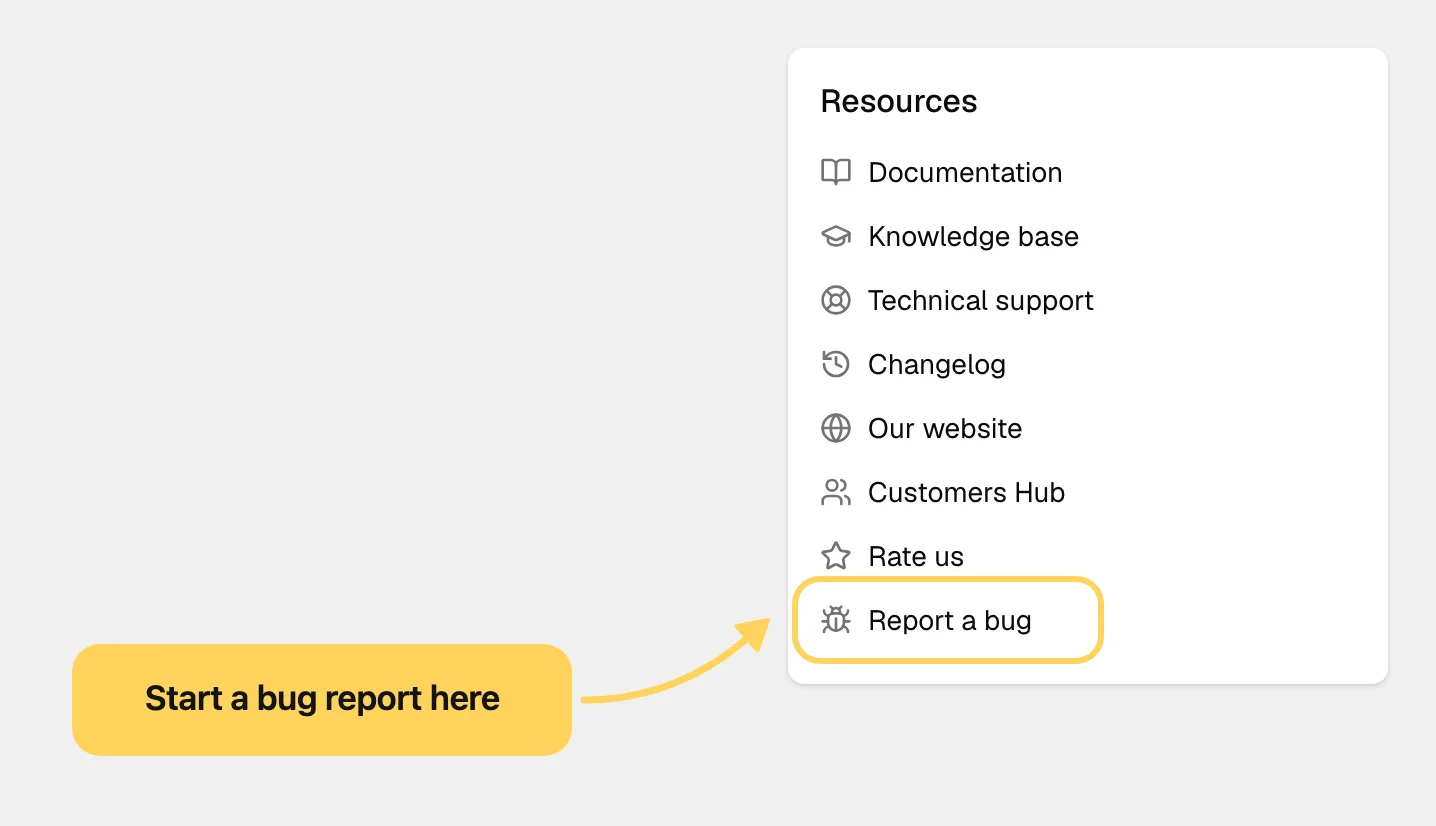
To start a report from WordPress, open the theme dashboard: Report a bug in its Resources list takes you to support.
#Feature requests are a different thing
If something works as designed and you want it to work differently, or you want us to support a plugin we do not support today, that is a feature request, not a bug.
A request is judged by whether it helps more than one customer. Support for a widely used plugin, or a setting many sites would use, has a real chance. Something very local to one site, such as matching one particular plugin configuration or one custom layout, can be declined and not built. That says nothing about the site: everything we add has to be maintained for every customer afterwards. A request is considered, never promised.
#Common questions
The debug log stays empty
One of three things happened: debugging was switched on after the problem, wp-content is not writable, or the failure occurs before WordPress loads. Your host's own PHP log covers all three.
Do I have to test with plugins deactivated?
It is the most useful minute you can spend. A symptom that disappears with third party plugins off is a conflict, not a bug in our code, and naming the plugin in the ticket replaces most of the investigation.
I got a generic reply to my ticket
Read what it asks for and reply with it: the page address, the steps, System Info, the error. A generic reply usually means the report did not give us enough to look at anything specific yet.
Can I use an AI assistant to write my report?
You can use one to tidy your own description, as long as every setting, file and message in it is something you actually saw on your site. Do not send a general explanation it produced about a problem it has never seen.
My case does not fit any of the six classes
Open a ticket anyway, with the details listed above. An unusual case that is well described is still one we can look at.
Does a bug report use up my support allowance?
No. Bugs, and license, activation or download problems, never count against it. See Policies, support terms and refunds.
#Still stuck
Open a support ticket and say what you tried and where it stopped. Your product, your domain, a screenshot and the exact message you saw are usually enough to settle it in one reply.
Last updated
