## Branding
Product: Elisen – Blog & Magazine WordPress Theme
URL: https://hub.jkdevstudio.com/docs/elisen/customizer/branding
Updated: 2026-11-27
Summary: Upload the Elisen logo, the dark mode logo, and the compact mobile logos in the Branding section of the Customizer, and find where their sizes are set.
The Branding section holds four logo uploads. Open it at [[Appearance > Customize > Elisen Theme > Branding]]. The section needs the Elisen Pro plugin with an active license.
## Four logo slots cover the full and compact logo in both color schemes
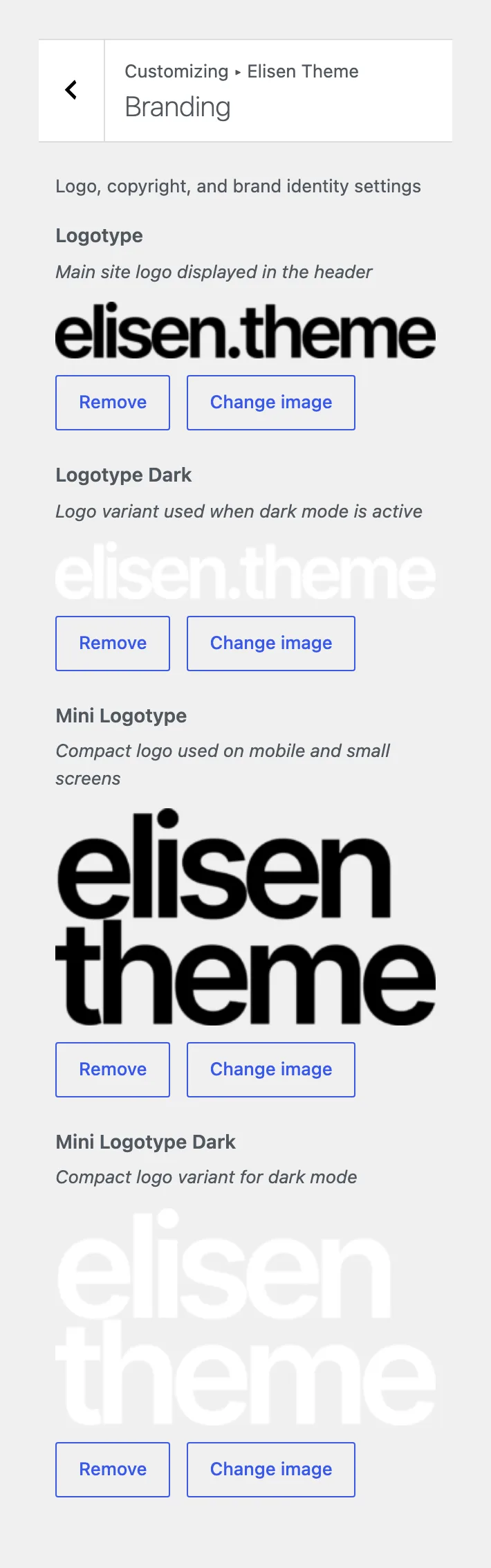
The four logo slots of the Branding section.
:::options
- **Logotype** (default: none): The main site logo, shown in the header.
- **Logotype Dark** (default: none): The logo variant used when dark mode is active.
- **Mini Logotype** (default: none): A compact logo for mobile and small screens.
- **Mini Logotype Dark** (default: none): The compact logo variant for dark mode.
:::
Each slot opens the WordPress media library. Upload a logo that reads on the background it sits on: a dark logo on a light page for **Logotype**, and a light one for **Logotype Dark**.
## Logo size is set in the Navigation section
The width the logo is drawn at is not in this section. **Logotype Width** and **Mobile Logotype Width** are in [[Appearance > Customize > Elisen Theme > Navigation]]. The site icon, the small image in the browser tab, is set in [[Appearance > Customize > Site Identity]], which is part of WordPress.
For the order to change colors, fonts, and logo so the site stops looking like the demo, see Matching the theme to your brand.