
Where to change each part of the site - Adesa
Adesa keeps its settings in three places, and each place answers one kind of question. Once you know which question you are asking, you know where to look.
- The Customizer
How the whole site looks. AppearanceCustomize
- Theme Options
How the site behaves, and the layouts the Pro plugin adds. Adesa ProTheme Options
- Fields on the item itself
Anything that belongs to one page, post, category, author or menu item. The box sits on that item's edit screen.
When a setting exists at more than one level, the narrower one wins: a page's own header image beats the site default, and a category's featured post beats the archive's default source.
#The Customizer: look and branding
Theme Styles holds the style kits, colors, typography, corner shapes and motion. General holds Reveal Animations, the one switch for every scroll animation on the site. Branding has the logo, the site name and position line, the default page header image and your social profiles.
Navigation, Footer, 404, Posts Page, Archives and Single Post set the look of those parts in the plain theme: the sidebar menu, the footer columns and background, the posts page layout, the article width and drop cap. These are the settings that keep working even without the Pro plugin.
#Theme Options: behavior and the Pro layouts
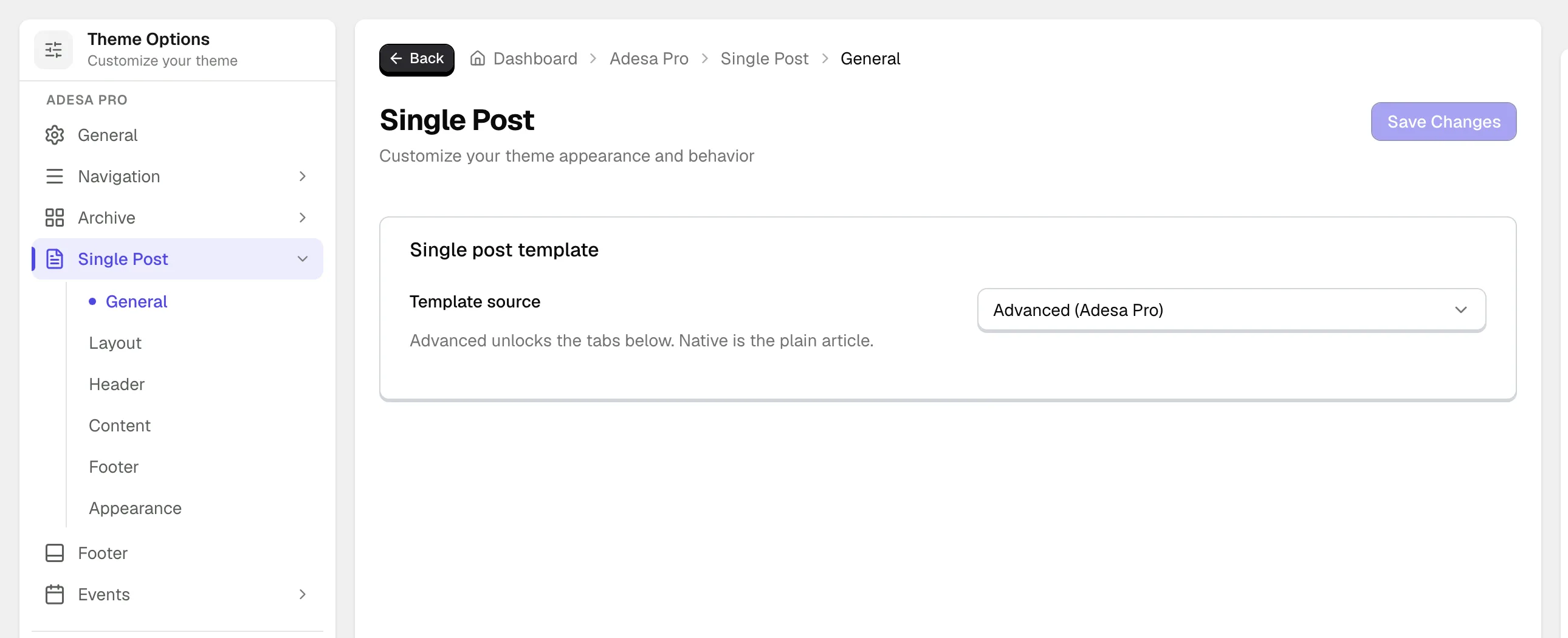
- General
Page transitions, smooth scrolling and the llms.txt file for AI search.
- Navigation
The search window and the language switcher.
- Archive
How category, tag, author and date archives, the posts page and search results are laid out, including their page header.
- Single Post
Everything about the article: the sidebar, contents and injected content (Layout), the header style, fold and meta (Header), the summary, key points and reading bar (Content), sharing, the author box, comments, related posts and Read Also (Footer), and spacing (Appearance).
- Footer
The call to action above the footer.
- Events
The events archive and its page header. Shown while the Events integration is on.
Most Theme Options pages start with a Template source. Advanced turns on the Pro layout and its sub-pages. Native keeps the plain theme template, and Block pattern swaps the whole area for a pattern you design, as described in building pages in the block editor.
#Fields on each item
- Pages
Page Settings (content width and framing, the footer call to action on or off) and Page Header (title, subtitle, background image, alignment, width, breadcrumbs and parallax).
- Posts
Adesa Editorial (subtitle and Read Also picks), Adesa Reading Aids (TL;DR and key points), and the Gallery, Video or Audio format box when the post has that format.
- Categories
Adesa Art Direction (the category image) and Featured Post, the story pinned above that category's archive.
- Authors
Adesa Author Profile on the user's profile screen: avatar or initials badge, position, city, social profiles and a featured post.
- Menu items
Adesa Menu Item in AppearanceMenus: the item's icon and whether it skips the page transition.
A setting in Theme Options switches a feature on for the whole site. A field fills it in for one item.
TL;DR is a good example: the switch is in Single Post > Content, and the text itself is written on each post.
Last updated
Was this article helpful?

On this page
