
The integration connects your site to your own Algolia account and gives you two things: search that answers while you type, and listing blocks that draw posts from the index with filters, sorting and pagination. It talks to Algolia directly, so there is no second plugin to install.
It replaces the WP Search with Algolia plugin and does not need it.
We wrote this integration so you would not have to run a third-party search plugin beside the theme. It holds its own credentials, calls the Algolia REST API itself, and does not detect, require or read anything from that plugin. If you have it installed for another reason, our integration neither uses it nor conflicts with it.
#What it gives you
Search is the half people expect. The other half gets used about as often.
- Instant search
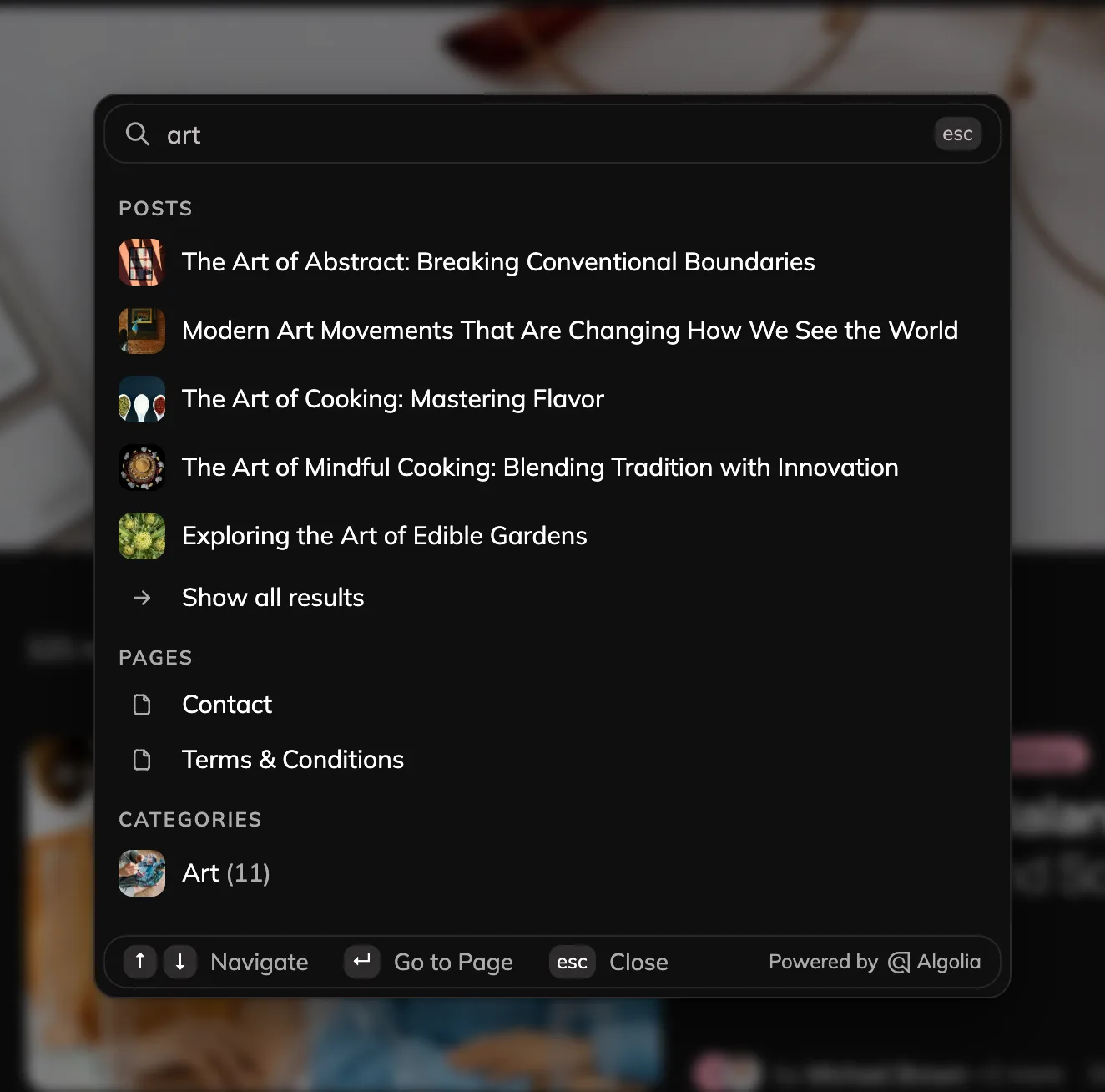
The theme search panel switches into Algolia mode and answers while you type. The theme draws the rows in its own chrome, so results look like the rest of the site and not like a search widget.
- Live listings
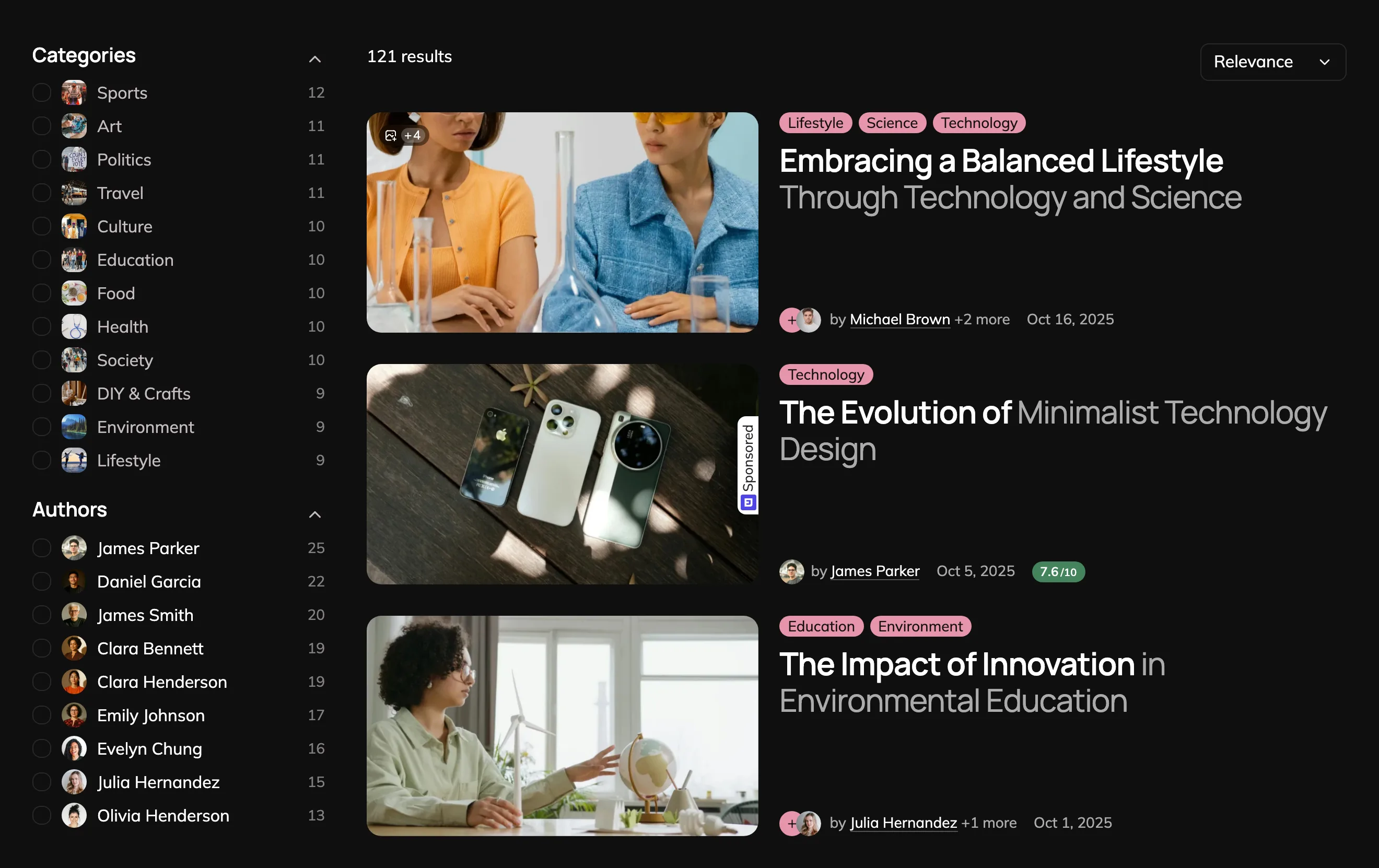
A listing block that renders content straight from the index, as a grid or a list, with a search field, filters, sorting and pagination. People use it to build an archive, a portfolio wall or a filtered catalog, and it works whether or not you ever touch the search panel. An Elementor widget exists too, for sites that happen to run Elementor.
A listing reads the same index, and its filters count what the index holds, so the numbers beside each category and author are live.
The listing is answered on the server, so the page receives finished markup. Search goes straight from the visitor's browser to Algolia, so a keystroke never waits for WordPress. For that, the page carries your Application ID and a secured search key: a key derived from your search-only key that can only read this site's indexes and stops working after a day. The theme still draws every row itself, and there is no Algolia widget on the page. If you leave the search-only key empty, search is answered on the server too.
#Where our part ends
Your Algolia account, your plan, your index settings and your ranking rules belong to Algolia, and their documentation covers them. Our part is what happens with a working index: connecting, pushing your content into it, and the two surfaces that read it.
#Getting it running
Create an Algolia account
Sign up at algolia.com and create an application. The free plan is enough for most sites, and their pricing tells you when it stops being enough.
Copy your keys
In the Algolia dashboard, open SettingsAPI Keys, which their own guide walks through. You need three values: the Application ID, the Admin API key and the Search-Only API key.
Enter them in the theme
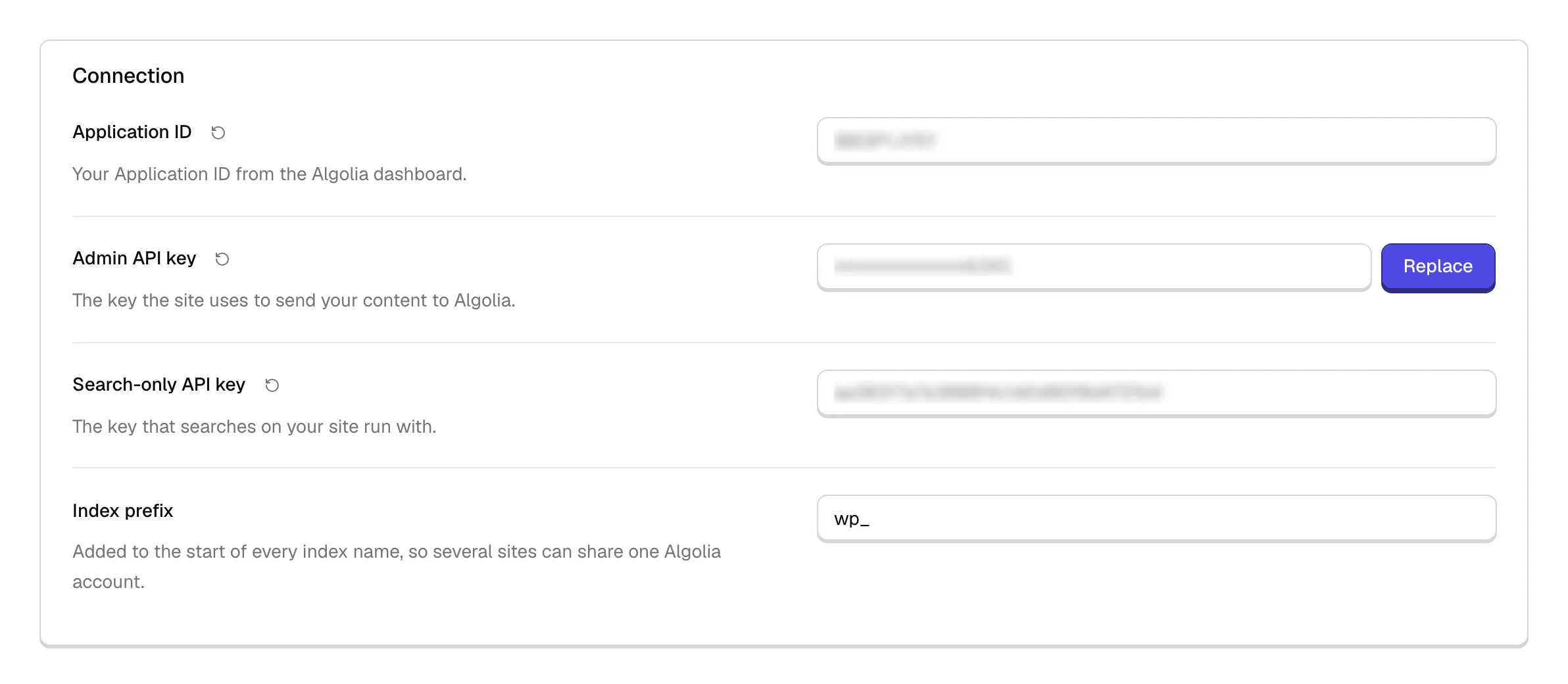
Theme OptionsAlgolia takes the application ID, both keys and the index name. The admin key is what pushes your posts up. The search key is what reads them back. Both are stored as passwords and are never shown again in plain text.
Build the index
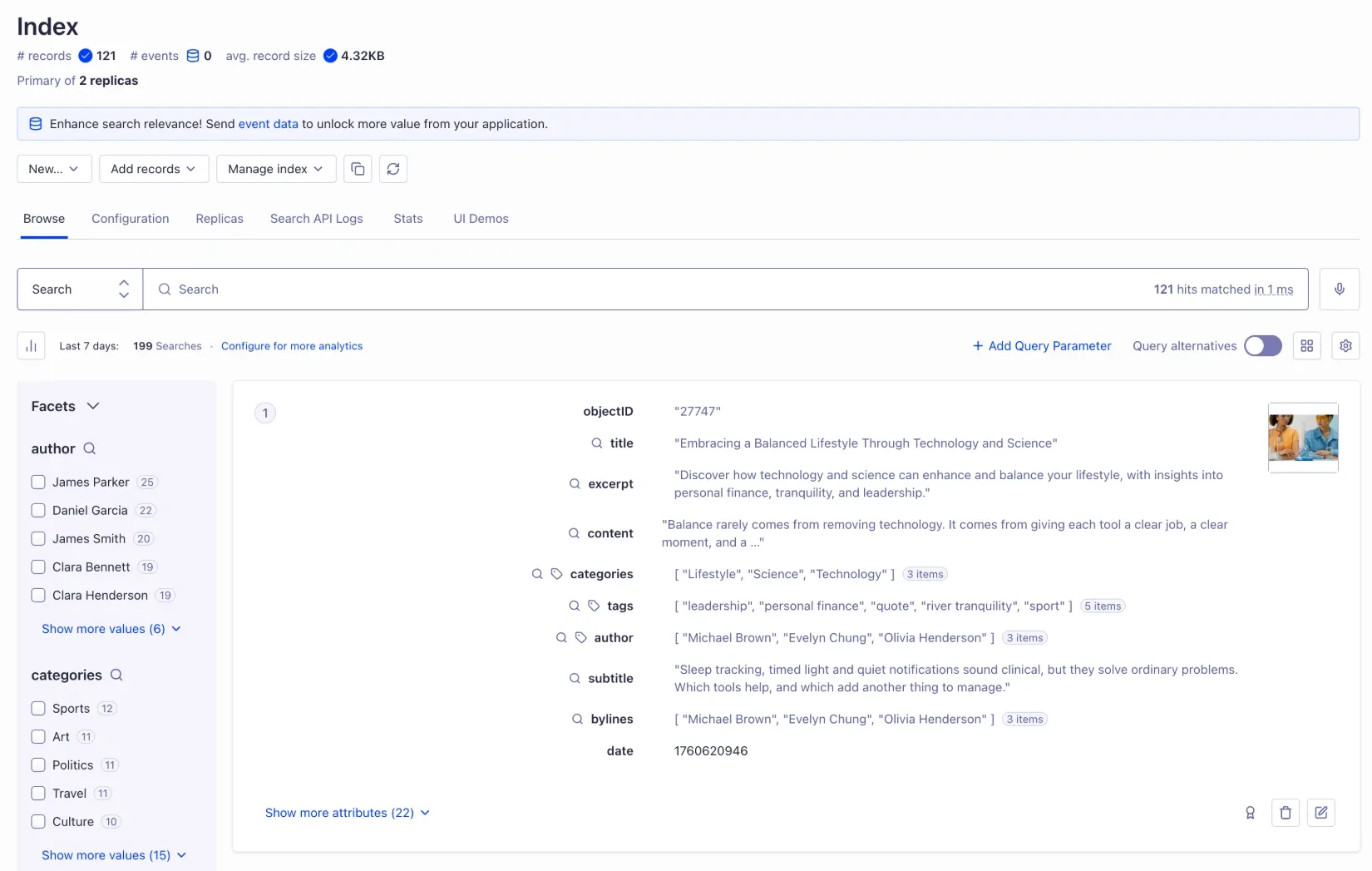
Use Rebuild index on the same page. Clear before rebuild wipes the index first. Use it after changing what gets indexed, not for a routine refresh.
Point the theme at it
In the theme's search settings, set Search Provider to Algolia. If your theme keeps its search options behind a source or mode switch, set that to the advanced option first so the provider choice appears. The listing block is available as soon as the index has content.
The keys are account credentials, so treat them like a password.
The admin key can write to and delete from your index, and it never leaves the server. The only key a visitor's browser ever sees is the secured search key described above, which can read your indexes and nothing else. If you ever paste a real key somewhere public, rotate it in the Algolia dashboard.
#Keeping the index current
Editing a post updates its record on its own. Publishing, editing, unpublishing, trashing and a scheduled post going live all keep the index in step, so ordinary writing never waits for a rebuild. A post that stops being public is removed from the index and no longer answers searches.
Only the live site writes to the index.
A staging or local copy of your site reads the same index but never rebuilds or updates it, scheduled reindex included, so it cannot fill live search with links your readers cannot reach. The integration treats a site as a copy when its WordPress environment type is not production, or when it runs on a local address such as .test, .local or localhost.
Scheduled reindex, on the same settings page, is the safety net for what automatic updates cannot cover: a bulk import, a database restore, or a change to what the index holds.
A scheduled reindex runs on WP-Cron, so it needs cron to be running.
On a site where nothing ever triggers wp-cron.php, the schedule silently does nothing and the manual rebuild button is the only thing that works.
One thing goes stale quietly. A record stores the URL of the featured image as it was at indexing time, so replacing a post's image leaves the old one in search results until the next rebuild.
This integration is licensed with the theme, not on its own.
Integrations are premium functionality for customers running a Pro license of one of our themes. They are written against our themes and expect them, and we cannot support or take responsibility for what one does inside somebody else's theme. See how theme integrations work.
#Common questions
Do I need a paid Algolia plan?
That depends on how much content you index and how many searches your visitors run, so it is a question for the Algolia pricing page. Small to mid-sized sites usually stay inside the free tier.
Can I remove the Search by Algolia label?
The attribution is required on the Algolia free plan, and their paid plans let you drop it, so whether you may remove it depends on your plan. The integration prints it through a hook that can be unhooked.
If you remove it while on a plan that requires it, that is between you and Algolia. We are not a party to your agreement with them and cannot carry that risk for you.
Search returns nothing at all
Check the index name first. A name in the settings that does not match the index in Algolia produces exactly this while nothing else looks wrong.
Then confirm in the Algolia dashboard that the index holds records, and run a rebuild if it does not. If the index has content and the site still finds none of it, check the search key next: an admin key alone will write and read nothing back.
Sorting by date does nothing
Algolia sorts through index replicas, so newest and oldest read separate indexes that your plan has to allow and your account has to create. Until those replicas exist, the query falls back to relevance, which is why the page still shows results and no error. This is not a theme setting and cannot be fixed from our side.
A filter shows no counts, or refining matches nothing
Facets have to be declared on the index before Algolia will count them, and a rebuild declares them. A filter that comes back empty almost always means the index was written before that filter existed, and a rebuild brings the counts back.
Is my content sent to Algolia?
Yes, that is how a hosted search service works. The title, excerpt, content, URL, date, categories, tags, author and featured image URL of each indexed post are stored in your own Algolia application, under your own account and your agreement with them.
What happens if the connection breaks?
Search falls back to ordinary WordPress search, and your visitors see results instead of an error. A listing block has nothing else to draw from, so an unreachable service leaves it empty and slows down the page it sits on while it waits.
#Still stuck
Open a support ticket and say what you tried and where it stopped. Your product, your domain, a screenshot and the exact message you saw are usually enough to settle it in one reply.
Last updated
