
A demo import is the heaviest thing your site will do. It downloads media, creates hundreds of entries and writes to the database in long runs. Nearly every failed import traces back to one of the checks on this page.
#Back up first
Take a full backup of the database and the files before the import, before any settings reset, and before moving settings between sites.
Your host's backup, a backup plugin or a manual database export all work. What matters is that it exists and lives somewhere other than the same server.
There is no undo for a demo import.
The backup is the undo. Nothing in the admin reverses a run, and a partial import leaves content behind that has to be removed by hand.
#Check the server
These are the values that decide whether a run finishes:
max_execution_timeat 60 seconds or unlimitedmemory_limitat 128Mupload_max_filesizeandpost_max_sizeat 16M or moremax_input_varsat 3000PHP 8.1 or newer, with the
curl,mbstring,gd,zip,fileinfo,domandsimplexmlextensions availableEnough free disk space for the demo media
Outbound HTTPS requests allowed
The full list, what each limit does, and a message you can send your host if one of them is too low are on the requirements page.
The theme's system information screen measures all of these for you, so checking them takes a minute.
#Check WordPress
- The theme is installed and activated
Installed alone is not enough. The import runs from the Demo Import screen in the theme's admin menu, which only exists once the theme is active.
- Required plugins are in place
A demo that uses an integration needs that integration installed, or the parts depending on it come in empty. The import window lists them before the run: most are installed and turned on by the import itself, and anything it cannot install is marked for you to set up.
- Caching is off, or you can clear it
Page caches and object caches serve stale data during an import and make a successful run look like a failed one.
- Security plugins are not blocking the REST API
The import talks to your site over the REST API. A plugin that blocks it stops the run at the first step.
- No other demo importer is active
Our packages are built for our own importer, so another import plugin adds nothing to the run. Switch it off while you import.
#For premium demos: the license is checked during the import
A premium demo also needs the Pro plugin installed and an active license. Without both, premium demos are visible in the list and cannot be started.
The check happens again at import time. A premium demo package is fetched from our servers at the moment you run the import, and that request carries your key and the domain asking for it. A site running a key that is not valid here does not get the package, and we can see which domain tried.
Check the license before you start.
An import that fails at the download step because the key is inactive looks exactly like an import that failed on a server limit, and you can spend an hour on the wrong one. Open the license screen first and confirm it is active for this domain.
The free route has its own page and needs neither the Pro plugin nor a license.
#Keep what the import window shows you
While the import runs, the window shows a percentage and a checklist of the import stages, with the current stage marked. If the run fails, the window shows "Something went wrong" with the error message underneath and a Try again button.
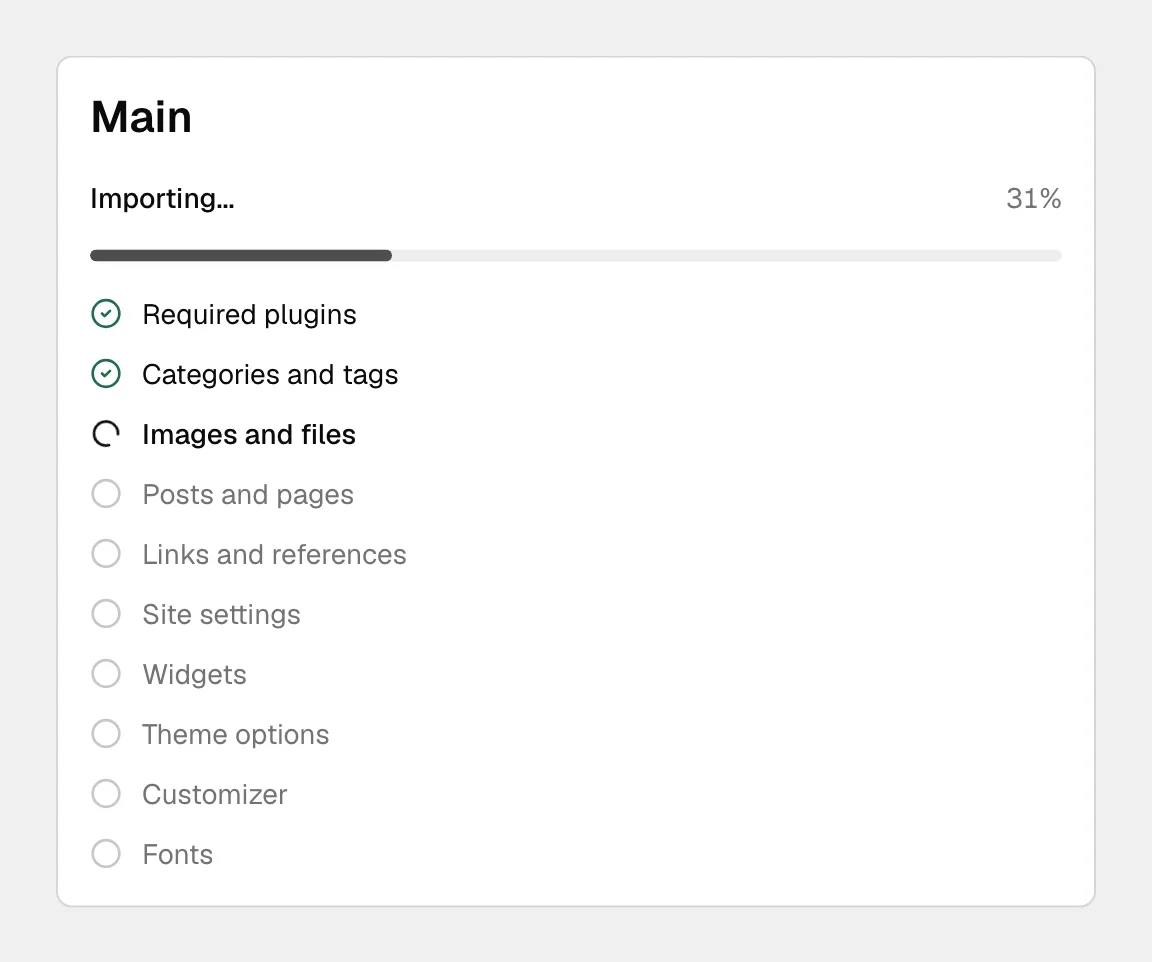
That screen is your evidence if something goes wrong, so capture it before closing the window:
A screenshot of the import window at the point it stopped
The stage it was on
The error message, copied rather than described
Your PHP version, memory limit and max execution time from the system information screen
Whether the site had existing content, and which data types you selected
"The demo import does not work" cannot be answered.
A ticket with no stage, no error message and no server values gets sent back to this page, which costs you a day. A ticket with the five items above usually gets a specific answer in the first reply. See getting help with your theme for where to send it.
#On a site that already has content
On a site with real content, an import mixes two sites together.
The importer adds its posts, pages and front page next to yours. If you still want part of a demo, select only the data types you need, or import pages individually, which is usually the better tool.
#Common questions
How much disk space do I need?
Enough for the demo's media library. That is the part with real size; the theme and plugin files are small by comparison.
Do I have to deactivate all my plugins?
No. Turn off caching, security plugins that touch the REST API and any other demo importer, and leave the plugins the demo needs in place.
My host says the limits cannot be raised
Then the import will probably not finish, and no setting on our side changes that. Plan around it: a different hosting plan, or building the pages you need without the import.
Can I run the import on staging first?
Yes, and it is a good idea. Staging uses the free license slot rather than a paid one, and you see the result before your visitors do.
Can I import a single page instead of the whole demo?
Yes, and on a site that already has content that is usually the right tool: it brings in one finished page and the data it needs, leaving the rest of your site alone. See importing a single page from a demo.
A check fails and I cannot fix it myself
Ask your host, using the ready-made message on the server requirements page. An import attempted on a server that cannot complete it wastes the attempt and leaves a partial site behind for you to clean up.
#Still stuck
Open a support ticket and say what you tried and where it stopped. Your product, your domain, a screenshot and the exact message you saw are usually enough to settle it in one reply.
Last updated
