
If AppearanceCustomize opens without any color or font settings, or is not in the menu at all, your theme is a block theme. Its design lives in Styles, inside the Site Editor, and every change there applies to the whole site at once.
#Change colors and fonts in Styles
Open Styles
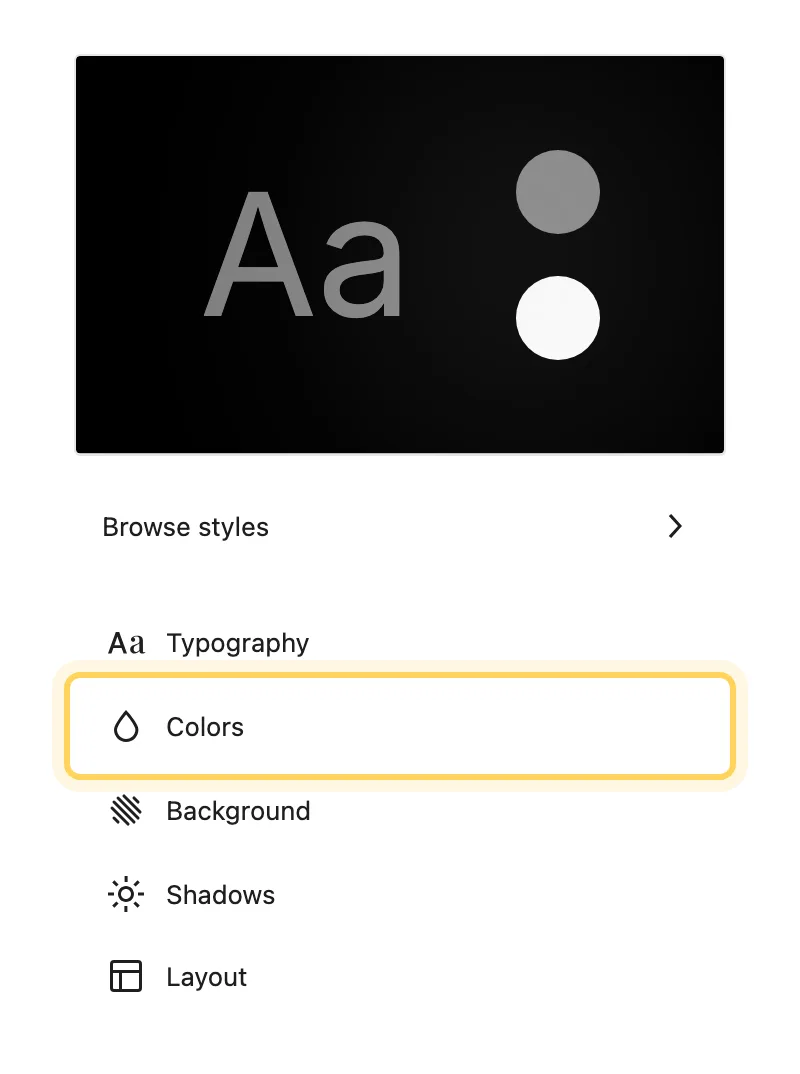
Go to AppearanceEditorStyles. The panel lists Browse styles, Typography, Colors, Background styles, Shadows, Layout and Blocks, and the preview on the right shows the site.
Change the color palette
Open Colors, then the palette, and click a swatch to change it. Every block that uses that color changes with it in the preview.
Change the fonts
Open Typography and pick the element: Text, Links, Headings, Captions or Buttons. Choose the font, size and weight. To use a font the site does not have yet, see adding a font to a block theme.
Save
Click Save at the top. The front end shows the new colors and fonts on the next page load.
To change one block type only, every heading or every button for example, open Blocks in Styles and pick the block. Its settings override the site-wide ones for that block alone.
#Try a style variation
Browse styles lists the theme's style variations, each a complete set of colors and fonts. Click one to preview it and Save to keep it. Everything stays editable after you apply it, so a variation is a starting point rather than a lock.
#Where these settings are stored
A block theme describes its design in a theme.json file: the palette, the font families, the type scale, the spacing and the layout widths. What you change in Styles is saved in the database on top of that file, so a theme update can bring new defaults without touching the values you set yourself. The WordPress developer handbook on global settings and styles describes the file.
#Questions
How do I undo my changes?
Open the More menu (the three dots) at the top of Styles and choose Reset styles. The site goes back to the theme's own design. Reset removes every change made in Styles, so note the values you want to keep first.
Where do I add custom CSS?
In the same More menu, choose Additional CSS. Before adding any, read where to put custom CSS and JavaScript.
Do my styles survive a theme update?
Yes, they are stored apart from the theme files. Switching to a different theme does change them: styles are saved per theme, so a new theme, a child theme included, starts from its own design.
The theme's Customizer still has a few settings. Which ones belong there?
A block theme can keep behavior in the Customizer, such as animations or a color scheme switch. Anything that sets how the site looks, colors, fonts, spacing and widths, belongs in Styles.
#If a change does not show
Clear any page cache or caching plugin first, then reload the page while signed out. If the old design still shows, settings will not save, or changes are not visible walks through the remaining causes, and you can open a support request from there.
#Still stuck
Open a support ticket and say what you tried and where it stopped. Your product, your domain, a screenshot and the exact message you saw are usually enough to settle it in one reply.
Last updated
