
If Appearance shows Editor and Fonts but no Menus or Widgets, the active theme is a block theme. Nothing is broken: WordPress moves those jobs into the Site Editor whenever a block theme is active.
#Edit your menu in the Site Editor
Open the Navigation screen
Go to AppearanceEditorNavigation. The panel on the left lists every menu on the site by name.
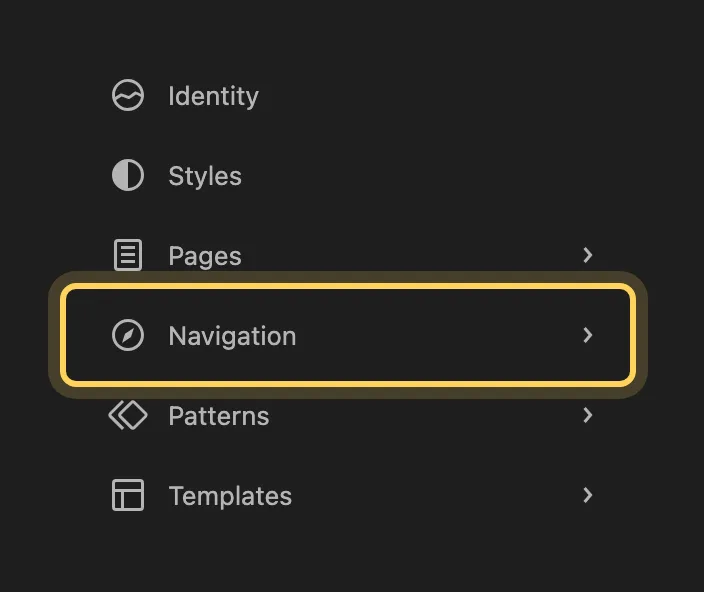
Open the menu your header uses
Click the menu. Its items appear, and the page preview shows where the menu sits.
Change the items and save
Add, remove or drag the items into a new order, then click Save at the top. The menu on the front end changes on the next page load.
#Find each old screen in its new place
| You are looking for | In a block theme |
|---|---|
| Menus | The Navigation block, edited at AppearanceEditorNavigation |
| Widgets and sidebars | Blocks placed straight into a template or a template part |
| Header and footer | Template parts, at AppearanceEditorPatterns under All template parts |
| Colors, fonts and layout | AppearanceEditorStyles |
| Additional CSS | The More menu at the top of Styles, then Additional CSS |
| Page layouts | Templates, at AppearanceEditorTemplates |
Customize can still be in the menu. WordPress shows it to a block theme only when the theme or a plugin puts settings there, and a block theme that does uses it for behavior, such as animations, while colors and fonts stay in Styles. The details of each move are in where colors and fonts went and editing the header and footer.
#What a block theme is
A classic theme draws its pages with PHP files and offers its options in the Customizer. A block theme is made of templates written in blocks, plus a theme.json file that holds its colors, fonts and spacing. Full Site Editing is the WordPress name for editing all of that in the browser: the header, the footer and every template open in the Site Editor the way a post opens in the block editor. WordPress has shipped it since version 5.9, and the Site Editor documentation on wordpress.org and its page on block themes cover the editor itself.
#Questions
Where did my old menu go?
A menu built on the old Menus screen is still in the database. The Navigation block can use it: select the block in the header and choose the menu from the block's menu list, where WordPress keeps the classic menus apart from the new ones. See the Navigation block documentation.
Will my widgets come back?
Widgets placed under a classic theme do not show in a block theme, because a block theme has no widget areas. Add the same content as blocks in the template or template part where it should appear.
Can I bring the Menus and Widgets screens back?
They return only with a classic theme. Switching back changes far more than two menu items, so read what survives a theme change first.
#If Editor is missing too
When Appearance has neither Editor nor Menus, check which theme is active in AppearanceThemes. A classic theme that registers no menus shows no Menus screen, and an admin menu plugin or a user role without the right to edit theme options can hide both. Sign in as an administrator and check again, and if the screens are still gone, open a support request with a screenshot of your Appearance menu.
#Still stuck
Open a support ticket and say what you tried and where it stopped. Your product, your domain, a screenshot and the exact message you saw are usually enough to settle it in one reply.
Last updated
