
In a block theme the header and the footer are template parts: shared pieces of layout that every template places on the page. You edit each one once in the Site Editor, and the change shows everywhere it is used.
#Edit the header or footer
Open the template parts
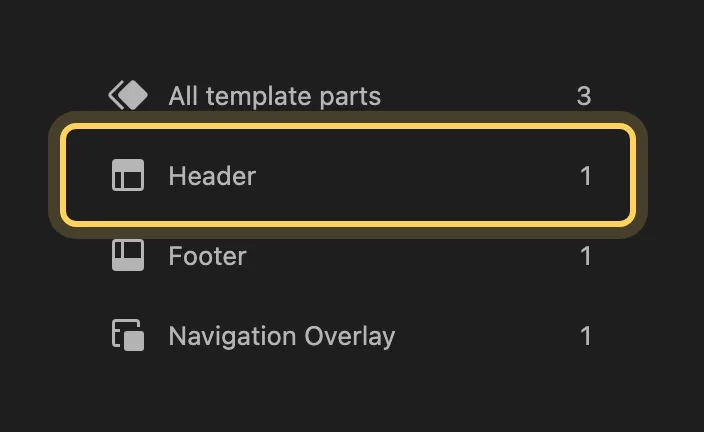
Go to AppearanceEditorPatterns. At the top of the list on the left, All template parts groups the parts by area: Header, Footer and any others the theme ships.
Open the part
Click Header or Footer, then click the part itself. It opens in the editor on its own, without the rest of the page.
Change it and save
Edit the blocks the way you would edit a post: the logo is a Site Logo block, the menu is a Navigation block, and the text is ordinary paragraphs. Click Save. Every page that uses the part shows the change on the next load.
#What to change where
- Logo
The Site Logo block in the header. Select it to replace the image or change its width.
- Menu
The Navigation block. Its items are edited at AppearanceEditorNavigation, see where Menus and Widgets went.
- Copyright line, contact details, social links
Ordinary blocks in the footer part. Edit them in place.
- Colors and fonts of the header or footer
Set them in AppearanceEditorStyles for the whole site, see where colors and fonts went. A color set on the part itself overrides Styles for that part only.
#Why one edit changes every page
A template describes one kind of page: the blog, a single post, an archive. Instead of drawing its own header, each template inserts the header part, so there is one header for the whole site. That is why a change to the part shows on every page, and also why it is the wrong place for something meant for one page only. Content for a single page belongs in that page.
#Questions
Can different pages have different headers?
Yes. A template can use a different header part. Open the template at AppearanceEditorTemplates, select the header in it and replace it with another part, or create a new part from the Patterns screen with Add Pattern.
I changed the header and now it ignores theme updates
An edited part is saved in the database and is used instead of the theme's file. See a theme update did not change a template I edited to bring back the theme's version.
#If the change does not appear
Clear the page cache and reload while signed out. If the old header still shows, the template that page uses may place a different part: open the template at AppearanceEditorTemplates and check which part sits at the top. Still stuck? Open a support request with the page address.
#Still stuck
Open a support ticket and say what you tried and where it stopped. Your product, your domain, a screenshot and the exact message you saw are usually enough to settle it in one reply.
Last updated
