
This integration adds events to your site: talks, openings, screenings, workshops, anything with a date. Each event is its own entry with a start and end, a venue, ticket details and an optional agenda, and the events archive lists them in date order. There is no third party plugin involved.
The integration stores the event and its details. How an event looks on the page (the card, the single event layout, the agenda) comes from your theme, so it matches the rest of the site.
#Turning it on
Install the integration
Install Events and switch it on from the Integrations page of the theme dashboard, as described in installing and managing plugin integrations. An Events item then appears in the WordPress sidebar, with Categories and Venues under it.
Check the events page
Open /events/ on your site. It lists your events by start date, the nearest one first. If it shows a "page not found", see the questions at the end of this page.
Add an event
Open EventsAdd New, give the event a title, write the description in the editor, set a featured image, and fill in the Event Details box below the content.
#The event details
The Event Details box has four tabs.
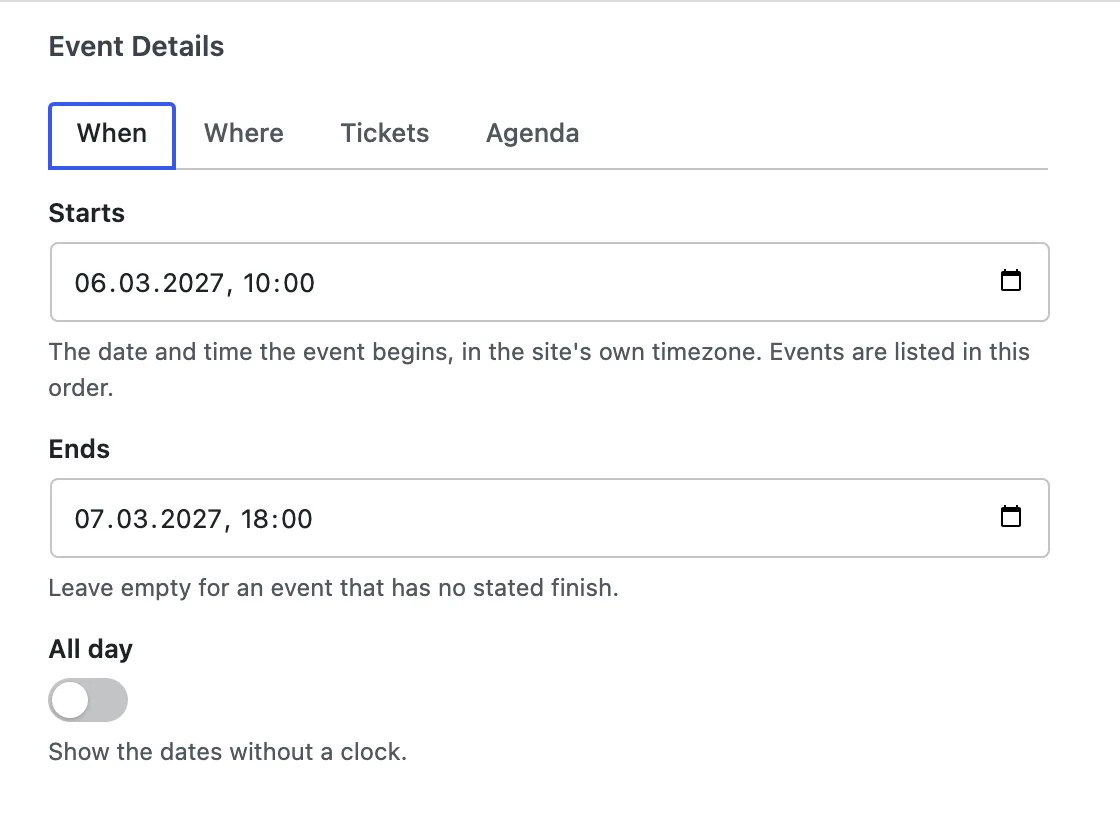
When the event begins, in your site's own timezone. Events are listed in this order.
When it finishes. Leave it empty for an event with no stated finish; it is then treated as ending when it starts.
Shows the dates without a time.
The street address shown under the venue name. The venue itself is picked in the Venues box, not here.
The event can be attended at a link. Turn it on as well as filling in an address for a hybrid event.
Where attendees join. Shown while Online event is on.
Says so plainly. An empty price reads as unfinished.
Written the way you would say it, such as "From $25" or "£10, £6 concessions". Shown while Free to attend is off.
Where people book or buy. Leave it empty when there is nothing to sign up to.
How many people fit. 0 means it is not counted.
#Building an agenda
The Agenda tab is optional. Add one row per session: a Day, a Time, the Session title and a Speaker or note. Rows with the same day text are shown together, so a two-day fair is two groups of sessions.
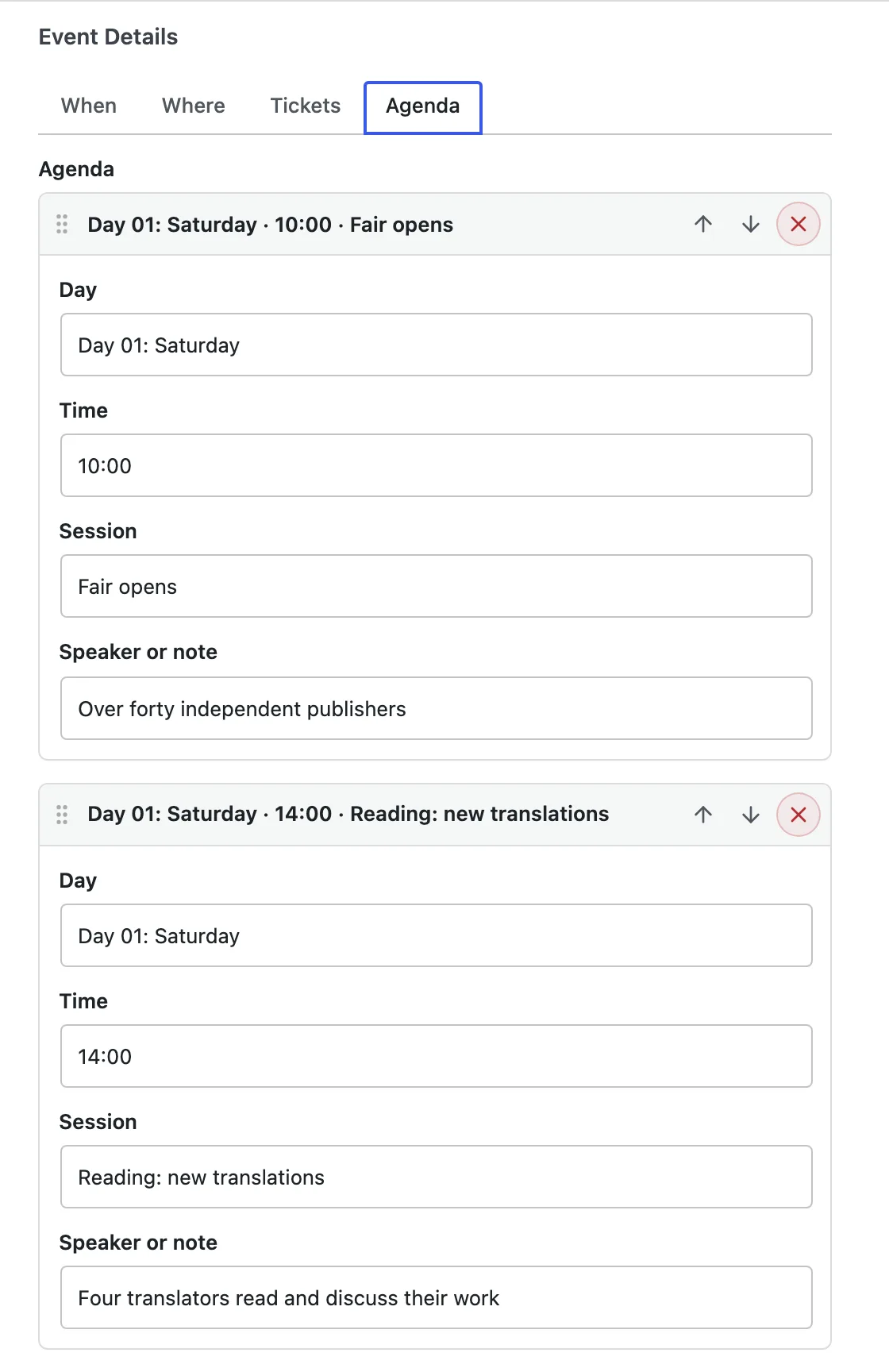
Type the day the same way in every row of that day.
"Day 01: Saturday" and "Day 1: Saturday" are two different days to the agenda.
#Categories and venues
Event categories group events by kind (talks, exhibitions, workshops) and each has its own archive page. A category can carry a Category image and a Category colour for themes that show them.
Venues are a list of places. Pick one in the Venues box of an event; the venue name comes from there and the street address from the event's Address field, so one venue can host many events without retyping it.
#Upcoming and past
An event counts as upcoming until it ends, so an exhibition that opened yesterday and closes next month is still upcoming today. An event with no end moves to past once its start time passes. Past events are listed the other way round, the most recent first.
An event saved without a start date stays on the upcoming list on purpose, ordered by its publish date. It is unfinished, and that is where the person who needs to finish it will see it.
#Search engines
Every single event page carries Event structured data built from its dates, venue, address and tickets, so search engines can show it as an event. Fill in the address and ticket fields and the result is richer; nothing extra needs installing.
This integration is licensed with the theme, not on its own.
Integrations are premium functionality for customers running a Pro license of one of our themes. They are written against our themes and expect them, and we cannot support what one does inside somebody else's theme. See how theme integrations work.
#Common questions
The events page shows "page not found"
WordPress has not picked up the new addresses yet. Open SettingsPermalinks and click Save Changes without changing anything. That rebuilds the address rules, and /events/ starts working.
Events show up in the wrong order
They are ordered by Starts. Check the dates on the events that look out of place, including the time, and that your site's timezone in SettingsGeneral is the one you meant.
Times are off by a few hours
Dates are read in the timezone set in SettingsGeneral. Set the city there, not a UTC offset, so daylight saving is handled for you.
An event I just created is on the upcoming list with no date
That is deliberate: an event without a start date stays visible as unfinished work. Add the Starts date and it moves into place.
Still stuck?
Open a support request with the event's address, its dates as entered, and your site's timezone.
#Still stuck
Open a support ticket and say what you tried and where it stopped. Your product, your domain, a screenshot and the exact message you saw are usually enough to settle it in one reply.
Last updated
