
Two things live on the same screen: getting a newer version, and going back to an older one. Start with who gets updates automatically, because that decides which half of this page applies to you.
#Update from the official sources only
A legitimate build comes from exactly three places: the update inside your WordPress admin, your jkdevstudio account, and your Envato downloads if that is where you bought.
Anything else, a file sharing site, a "free download" of a premium theme, a zip somebody sent you, is not the product. Those copies are modified before they are repackaged, and what gets added to them is not a feature.
#Who gets automatic updates
Automatic updates in the admin come with licenses bought directly from us. An Envato license does not have them.
The deciding factor is the license tier, not the store: automatic updates start at Premium. A Regular key activates, verifies and works normally. It does not receive new builds in the admin.
Updates are one item on a longer list. A direct license includes every demo and every integration, while a Regular (Envato) key gets only the demos and integrations marked available to Envato, and it also leaves out priority support and feature requests (voting on published roadmap entries stays open to everyone). The list may grow as new paid-channel features are added. What an Envato license covers has the details.
The reason: the marketplace share does not cover update infrastructure.
Envato takes a large enough cut of each sale that running the delivery pipeline on top of it does not add up. Every release is still available to an Envato buyer, installed by hand.
The tier at which updates begin is set on our side and can change, so check the current pricing rather than treating this as permanent.
#Updating with a direct license
Nothing new to learn. The update appears where WordPress shows every other update: the theme in AppearanceThemes, the Pro plugin in Plugins, with the ordinary update button.
The theme dashboard also tells you. It carries its own update notice and an updates tab, which is where rollback lives too, so the two actions sit together.
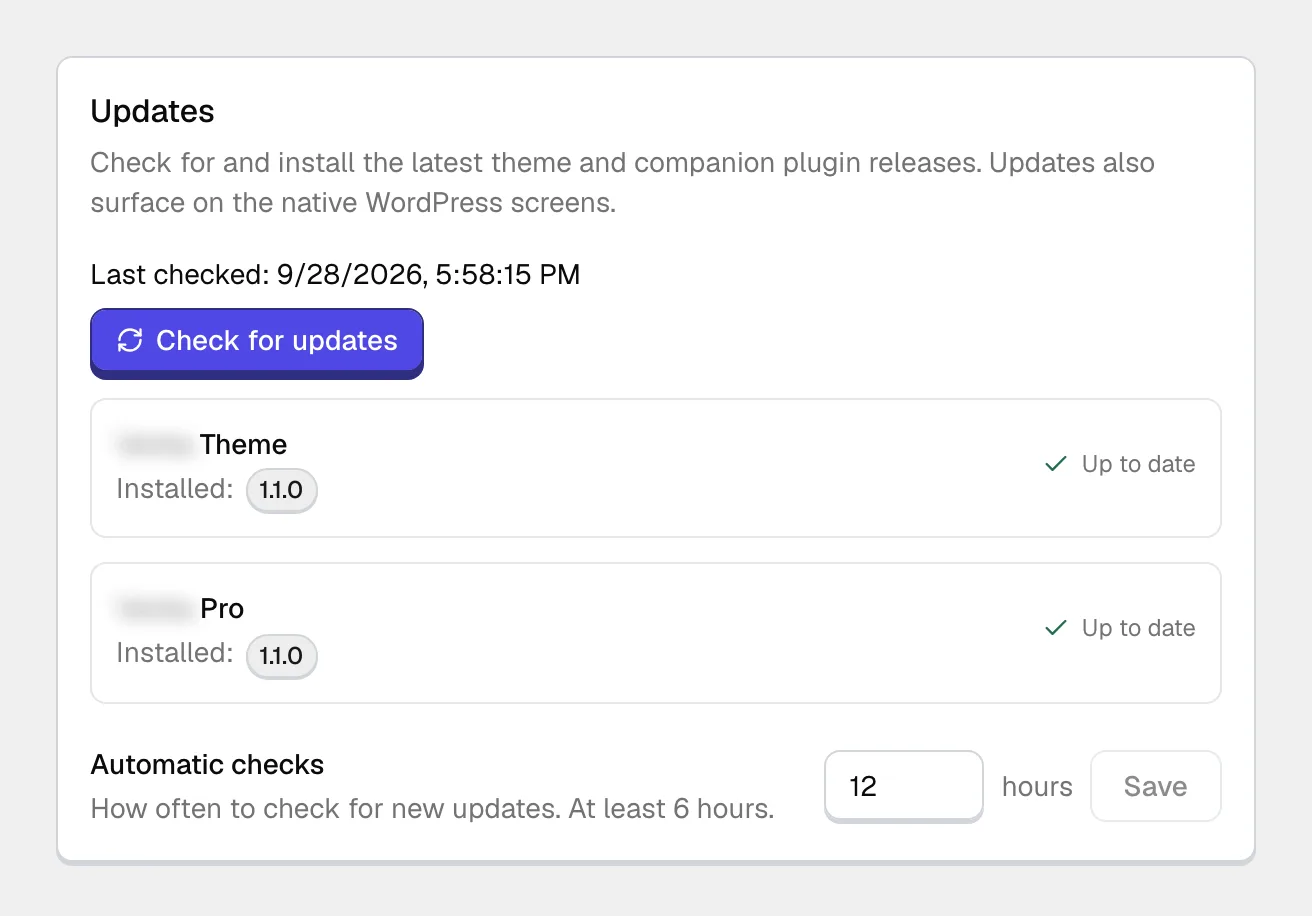
The only condition is an active license.
The theme and the Pro plugin have separate version lines.
They update independently, so one having an update while the other does not is normal. It does not mean something failed to arrive.
#If you bought on Envato
You update by hand, and you have two places to get the files from. The account is the better one.
- Your jkdevstudio account
Both files in one place, the theme and the Pro plugin, and the new version is there the moment we publish it.
- Your Envato downloads
The theme package as the marketplace hosts it. Every update goes through Envato's review before it appears, so this copy always arrives later, sometimes by days.
Connect your Envato account or sign in with the purchase address, and the license shows up in your account with its download list.
#Updating by hand
The main route for Envato buyers, and the fallback for everyone when an automatic update will not go through.
Take a backup
An update overwrites the theme files, so any edits made directly to them disappear. If you have customizations, they belong in a child theme.
Download the current version
From your account, or from your Envato downloads.
Install the theme zip over the old one
Open AppearanceThemes, click the Add Theme button at the top, then Upload Theme, and choose the zip. WordPress asks whether to replace the existing copy; replacing is correct.
Do the same for the Pro plugin
Separate file, separate upload, same idea: the Add Plugin button on the Plugins screen, then Upload Plugin.
#Rolling back
#When it is the right tool
One case: something broke after an update and you need a working site back while the cause is worked out.
Preferring how an older version looked is a different case, and rollback is not meant for it.
#How it works
The rollback tab in the theme dashboard is the simplest route, and it sits beside the update button. It works in both directions and for both products: the theme, the Pro plugin, or both.
The list shows the versions we publish for your product, and you can install any of them.
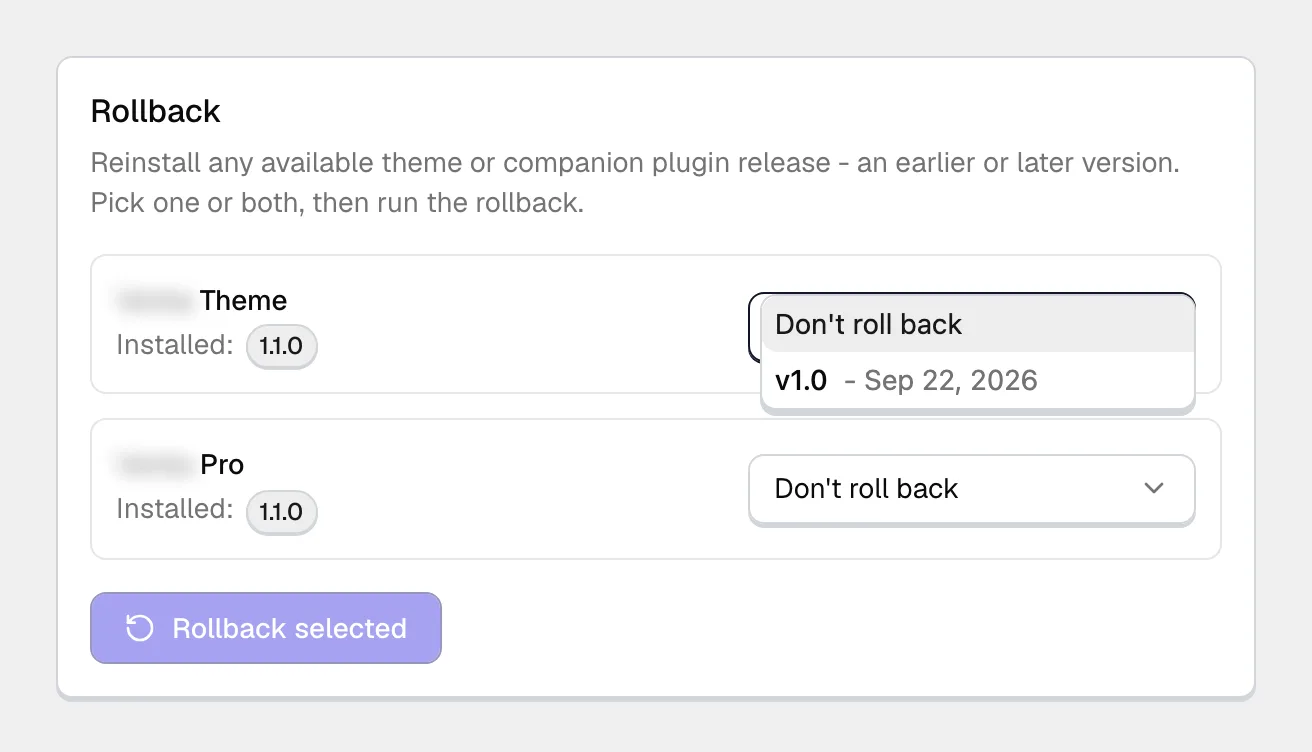
An Envato license has no automatic rollback: going back a version there means downloading the older zip from your account and installing it by hand.
#Keep the theme and the Pro plugin close
The theme and the Pro plugin are built for each other. Rolling the theme back ten versions while the plugin stays current pulls them far enough apart that features stop working.
That is not a bug, and testing cannot remove it. Two products with dozens of releases each produce hundreds of pairings, and nobody verifies all of them. We build each release against its counterpart of the same period.
So a large gap between the two is yours to own. The Support Policy sets out what support covers. The practical rule: roll back a step or two, keep the theme and the Pro plugin close together, and if you rolled one back, check whether the other needs to go with it.
#Before you roll back
Take a backup, because a rollback replaces files too and you may need to come forward again.
Write down which version you were on. Without it, returning is guesswork.
And if the problem is still there on the older version, the update was not the cause. Better to learn that before you spend an evening on it.
#Common questions
Will I lose my settings when I update?
No. Settings live in the database, not in the theme files, so an update replaces the code and leaves everything you configured where it was.
Do I have to update both the theme and the plugin?
If an update was released for both, yes. They are designed against each other within nearby versions, and drifting far apart is what breaks features.
How far back can I roll?
As far as the version list goes. How far you should roll is a different question, and the answer to that one is a step or two.
I bought on Envato. Why is the version in my account newer?
Because the marketplace reviews each update before publishing it, and we do not. The build in your account is the one we released; the marketplace copy is the same build after its queue.
An update appeared for the plugin but not the theme
That is expected. The two have separate version lines and are released independently.
An update fails partway
Note where it failed, because the two halves have different causes. An update that dies at download is usually connectivity or an inactive license. One that dies at install is usually a file permission or a memory limit.
Both show up on the diagnostics screen. Installing the zip by hand is the reliable fallback while you sort out the underlying cause.
#Still stuck
Open a support ticket and say what you tried and where it stopped. Your product, your domain, a screenshot and the exact message you saw are usually enough to settle it in one reply.
Last updated
