
Two font libraries work at the same time on your site: the one WordPress ships, and the one the theme ships. The theme does not replace or block the WordPress one, and both are offered in every font picker.
That comes first because most themes do not work this way.
The usual arrangement is a dropdown.
Many themes hand you a Customizer select with a few hundred Google families in it, wired straight to fonts.googleapis.com. There is no library to curate, no control over weights or subsets, no local serving, and the WordPress font library sits there ignored. It was a reasonable thing to build in 2018.
What you get here is a library you curate, control over which weights and character sets load, and a switch that serves the files from your own domain.
#Where the fonts screen is
Open the admin menu named after your theme and go to Fonts Library. It is a different screen from AppearanceFonts, which is the WordPress library. The page has five tabs: Library (what your site has), Catalog (what you can add), Uploads (your own files), Providers (where fonts come from) and Settings (how they are served).
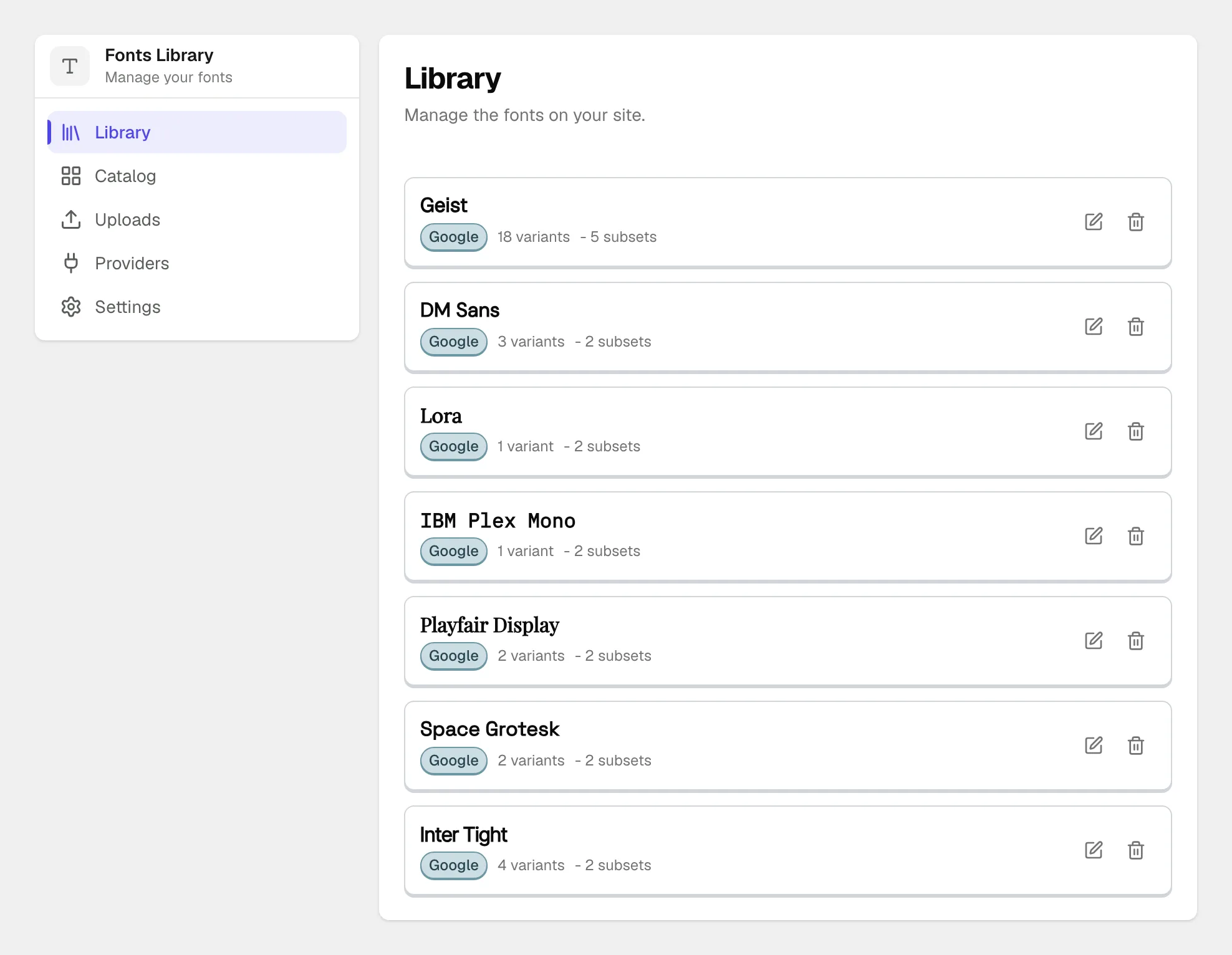
Everything below happens on one of those five.
#The sources
- System
The fonts already installed on your visitor's device, so nothing has to load at all. Free.
- Google Fonts
The built-in set works immediately with nothing to configure. The full catalog needs a Google API key, which is free to create and only changes how much of the catalog you can browse.
- Adobe Fonts (Typekit)
Your own Adobe kits, added by kit ID. Many current premium typefaces are published there. Pro.
- Your own uploads
Font files you own (woff2, woff, ttf, otf), stored on your site and served from it. Pro.
- The WordPress Font Library
Whatever you added through WordPress. The theme reads it live and shows those families as their own group in every picker, so nothing you add there is hidden by us.
There is a practical reason to use the WordPress library for some of your typography: fonts added there stay with the site if you ever change theme. They belong to WordPress rather than to us.
#Adding a font
Open the Catalog tab, pick a source, find the family and click Add to library. It lands in your Library and becomes available in every font picker on the site.
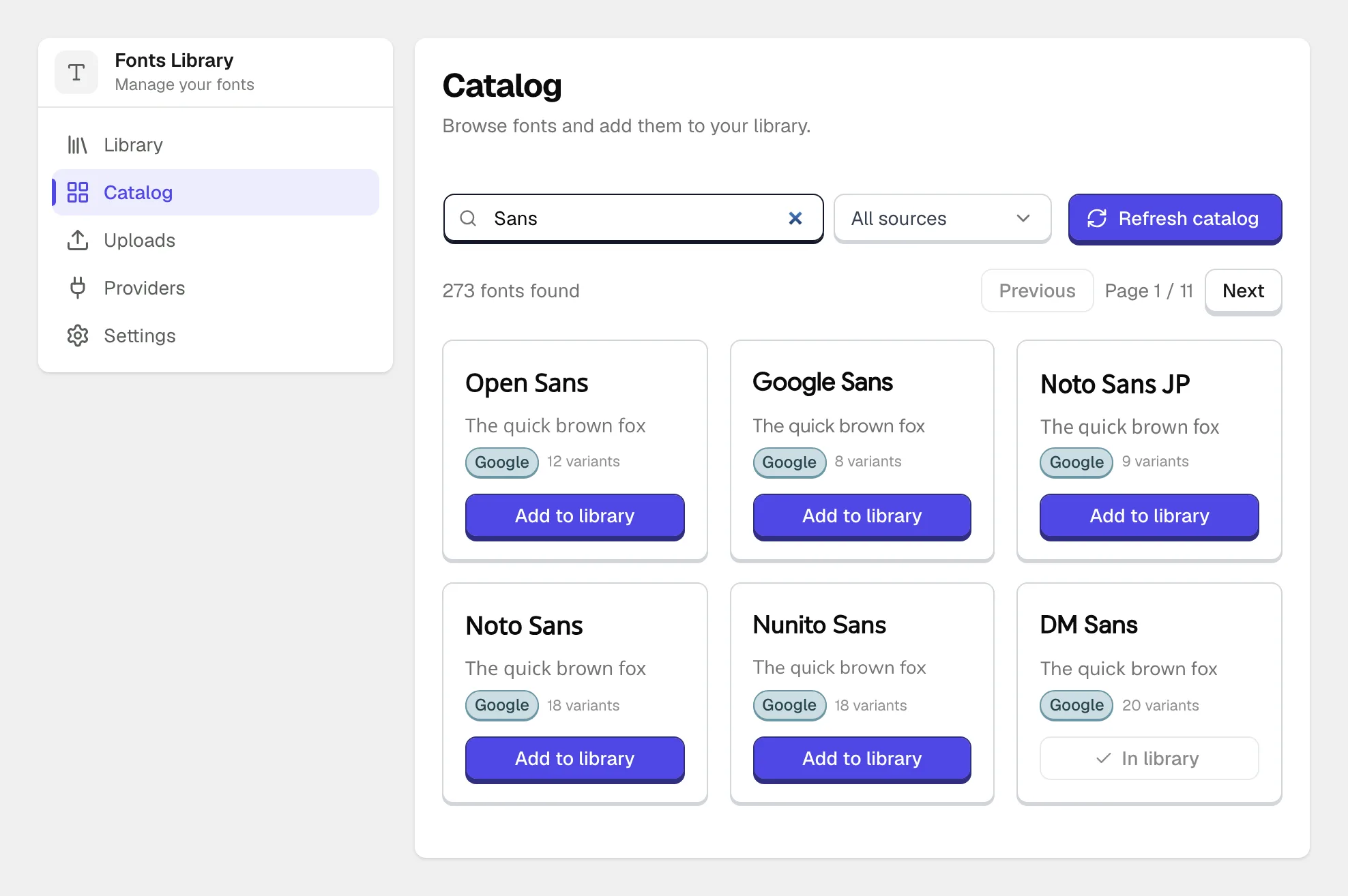
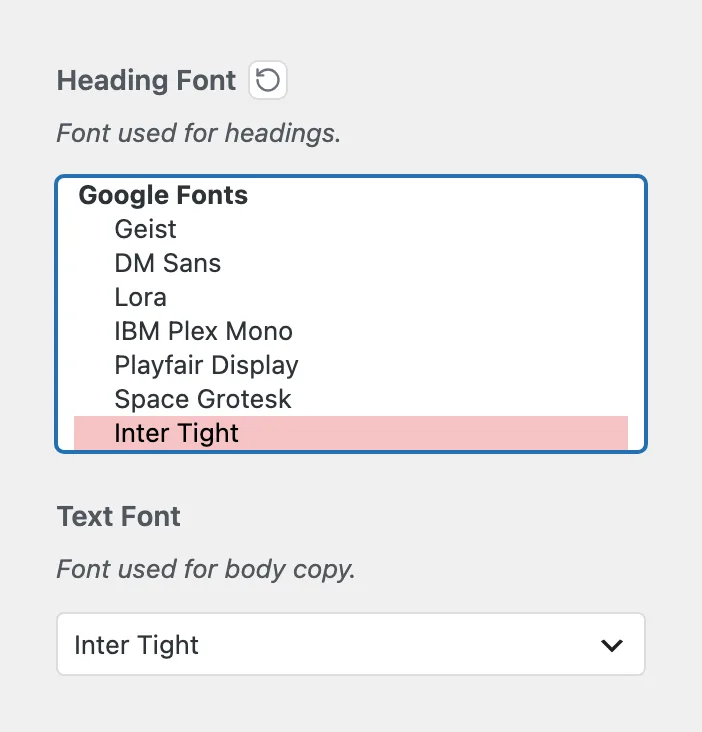
Adding a font makes it available. Applying it happens in the typography settings, and that gap is the most common reason for "I added the font and nothing changed".
#Loading only the weights and character sets you need
This part deserves ten minutes, because it decides how heavy your pages are.
A family on Google can carry nine weights, two styles and five character subsets. That is roughly ninety files, and almost every site uses four of them.
In the Library tab, the Edit button on a family opens exactly that choice:
- Variants
Every weight and style the family offers, as chips. Turn off the ones your design does not use. Headings at 600 and body at 400 is a normal selection. At least one has to stay on.
- Subsets
The character sets. Latin alone is a fraction of the download of Latin plus Cyrillic plus Greek, and if your site is not written in those alphabets you are paying for them on every page load.
A family with nothing selected loads everything. That is the default, and it is why a fresh library is heavier than it needs to be. What you turn off stays visible as an inactive chip, so you can put it back later.
The selection is what the theme emits, and with local serving on it is also what gets downloaded to your server.
#Removing a font
The Remove button on a Library row takes the family out. Anywhere it was in use falls back to the default font, so move your typography off a family before you remove it.
Uploaded fonts are removed the same way, and their files go with them.
#Connecting a provider
The Providers tab is where credentials live. A saved credential is validated immediately: the theme calls the provider with it and stores it only if the provider answers, so a bad key fails the moment you paste it.
Google API key, for the full catalog
Create a key in the Google Cloud console and enable the Web Fonts Developer API on the same project. Google's guide to that API walks through both steps. Paste the key into the Google card. Without a key you still get the built-in set and self-hosting; the key only widens what the catalog can show you.
Adobe Fonts kit ID
In your Adobe Fonts account, open the web project you want and copy its kit ID, which looks like abc1xyz. Paste it into the Adobe Fonts card. The families published in that kit then appear in the catalog.
A kit ID is site-specific, so it does not travel with an export.
Moving a site carries the library as a list of families rather than as files. Google and system families resolve on the new site immediately. An Adobe family stays Unavailable until the new site has its own kit configured, and uploaded files do not travel at all.
#Refreshing the catalog
Provider catalogs are cached on your server for a day, so the catalog stays fast instead of calling Google or Adobe on every admin page.
That cache is also why a font you just published in an Adobe kit, or a family added after you saved an API key, is not in the list yet. The Refresh catalog button on the Catalog tab clears it and reads the provider again.
The WordPress Font Library is exempt. It is read live every time, because WordPress already keeps it current and a stale copy would leave a deleted font in your pickers.
#Serving fonts from your own domain
The Settings tab holds three controls.
Load fonts locally downloads the font files into your uploads folder and serves them from your site. No request goes from your visitor's browser to a font server. This is the setting that answers the GDPR question below.
Pre-load local fonts tells the browser to fetch the first weight it will need before it has parsed the stylesheet, so text does not flash a fallback font on first paint. It needs local serving turned on, and it does not apply to uploads.
Clear local fonts cache deletes the stored files. The next page view downloads them again, which is what you want after a provider updates a family.
A large family does not download in one go. The theme fetches what it can within a few seconds, finishes the rest on a scheduled job, and serves the font remotely in the meantime, so no page waits on it.
#What else the library does
Only the families a page uses are loaded. The theme keeps an index of which font each setting references, so a family sitting unused in your library costs nothing.
Style kits install what they need. Switching to a ready-made typeface pairing in the Customizer adds any missing family as part of the switch.
The library moves with the site. It comes across with a demo import and with a settings export, so you do not re-add fonts by hand after a move.
Do not attach a font by hand in custom CSS.
A font declared in custom CSS bypasses both libraries, so it never reaches the block editor. Your admin then renders in a different typeface from your site, and that mismatch is hard to trace six months later.
#Common questions
Do self-hosted fonts help with GDPR?
Yes, and that is why the setting exists. A font loaded from Google is a request from your visitor's browser to a Google server, carrying their IP address, and German courts have taken issue with exactly that. Turning on Load fonts locally serves the files from your own domain, so no third party sees the visitor.
The longer version, including what else on an ordinary page does the same thing, is here:

A font does not load on the front end
Clear any page cache first. Fonts are referenced from generated CSS, and a cached page still points at the old file.
Then check that your uploads folder is writable, because both local serving and uploads write there; the diagnostics screen reports on it.
An Adobe family that reads as Unavailable usually means the kit ID is missing or belongs to another site. A heavy family with local serving on may be served remotely for the first few page views while the files finish downloading, and that settles on its own.
My font is in the library but not applied anywhere
Adding a font makes it available; the typography settings are what apply it. The family is waiting in every picker on the site.
Where are uploaded fonts stored?
In your WordPress uploads folder, inside the theme's own directory, which is why that folder has to be writable. Locally cached Google files live in the same place.
Will my fonts survive a theme change?
Fonts added through the WordPress library will, because they belong to WordPress. Fonts added through the theme library belong to the theme and travel only as far as a settings export carries them.
That export holds the library as a list: Google and system families resolve on the new site immediately, an Adobe family needs the target site to have its own kit, and uploads do not travel at all. See what survives a theme change.
Do I need the Google API key?
No. The built-in Google set works with no key and can be self-hosted like any other family. The key only widens how much of the Google catalog you can browse in the Catalog tab.
#Still stuck
Open a support ticket and say what you tried and where it stopped. Your product, your domain, a screenshot and the exact message you saw are usually enough to settle it in one reply.
Last updated
