
Single posts and post headers - Grafton
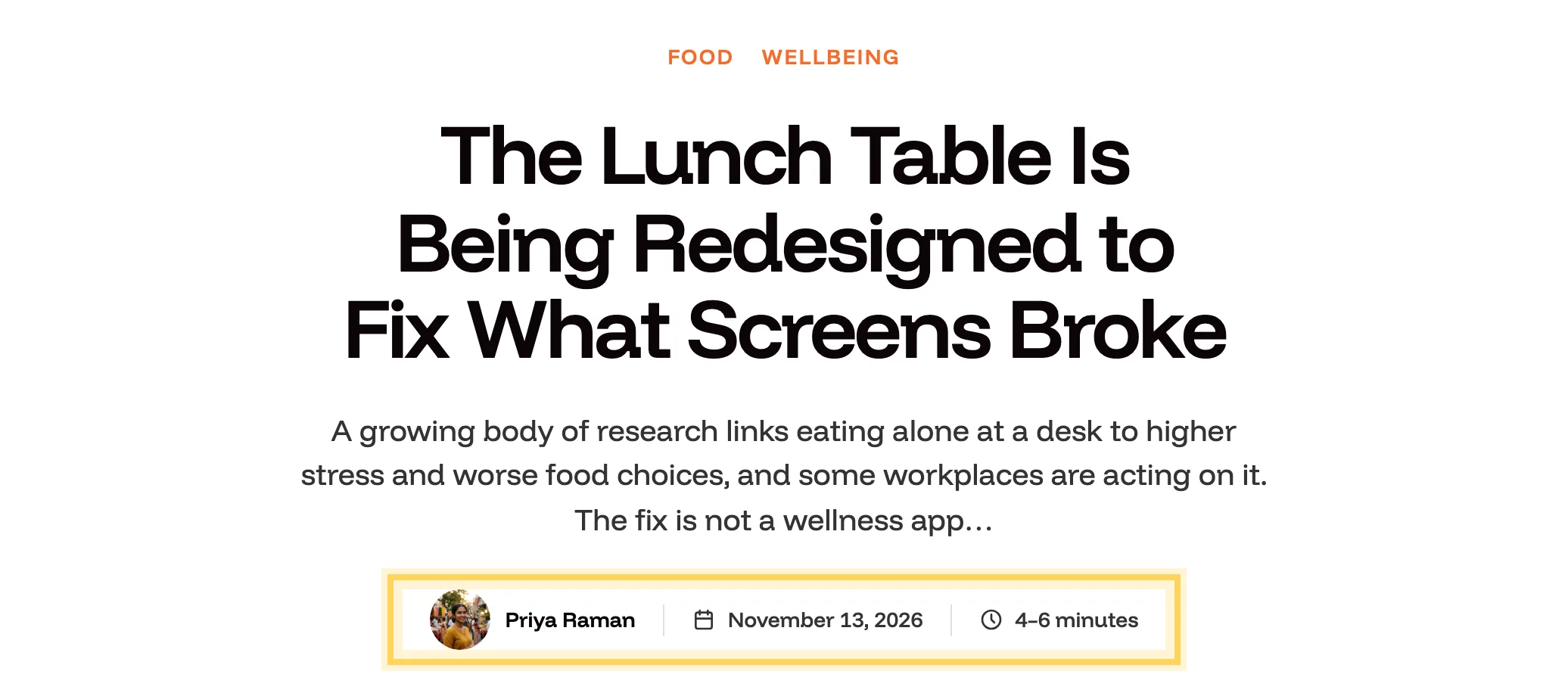
A post page in Grafton opens with a centered header: the post's categories, the title, a short lead and a byline, then the featured image across the page. Under the text come the tags, links to the previous and next posts, related posts and the comments.
#Where each part comes from
Every category of the post, in the brand color. Each one links to its archive.
The post title.
The post's excerpt, cut at 32 words. Write your own in the Excerpt field of the post sidebar for a lead that reads as one thought; without one, the opening of the text is used.
The author's photo and name, the date and the reading time, with thin lines between them. On a phone the author takes a line of their own. With Grafton Pro the photo is the one set on the author's profile; see category pictures, author photos and Featured posts.
Shown wide in a 16:9 frame with large corners. Its caption from the media library shows under it.
The post tags as chips, aligned with the text.
Two cards with the title of the neighboring post.
Three more posts, those sharing a category with this one first, topped up with the latest when there are not enough.
The text column is 760px wide; wide and full-width blocks inside the post can break out of it.
#Choose another header for one post
This is a Pro feature. Grafton Pro adds three post templates. Each keeps the rest of the page and changes only the header.
- Post: Cover header
The featured image fills the header behind the categories, title and lead, moving in parallax.
- Post: Split header
The title, lead and byline beside a tall featured image.
- Post: Text header
A centered title with no featured image, for essays and notes.
Open the post
Edit the post and open the Post tab of the sidebar.
Pick the template
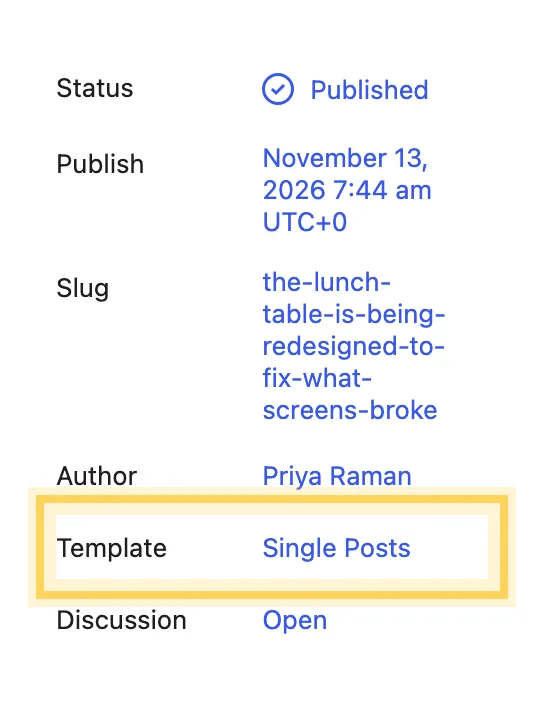
Click the value next to Template and choose one of the headers. Single Posts is the default centered header.
Save
Update the post. Other posts keep their own header.
To change the header of every post at once, edit the Single Posts template in the Site Editor.
Last updated
Was this article helpful?

On this page