
Category pictures, author photos and Featured posts - Grafton
This is a Pro feature. Grafton Pro adds three fields that the magazine sections read: a picture for each category, a photo and a position for each author, and a Featured mark on posts. Fill them once and every section that shows topics, people or featured stories picks them up.
#Give a category its picture
Open the category
Go to PostsCategories and click the category name.
Choose the picture
Under Picture, click Choose Image and pick a landscape photo from the media library. It shows on the category cards.
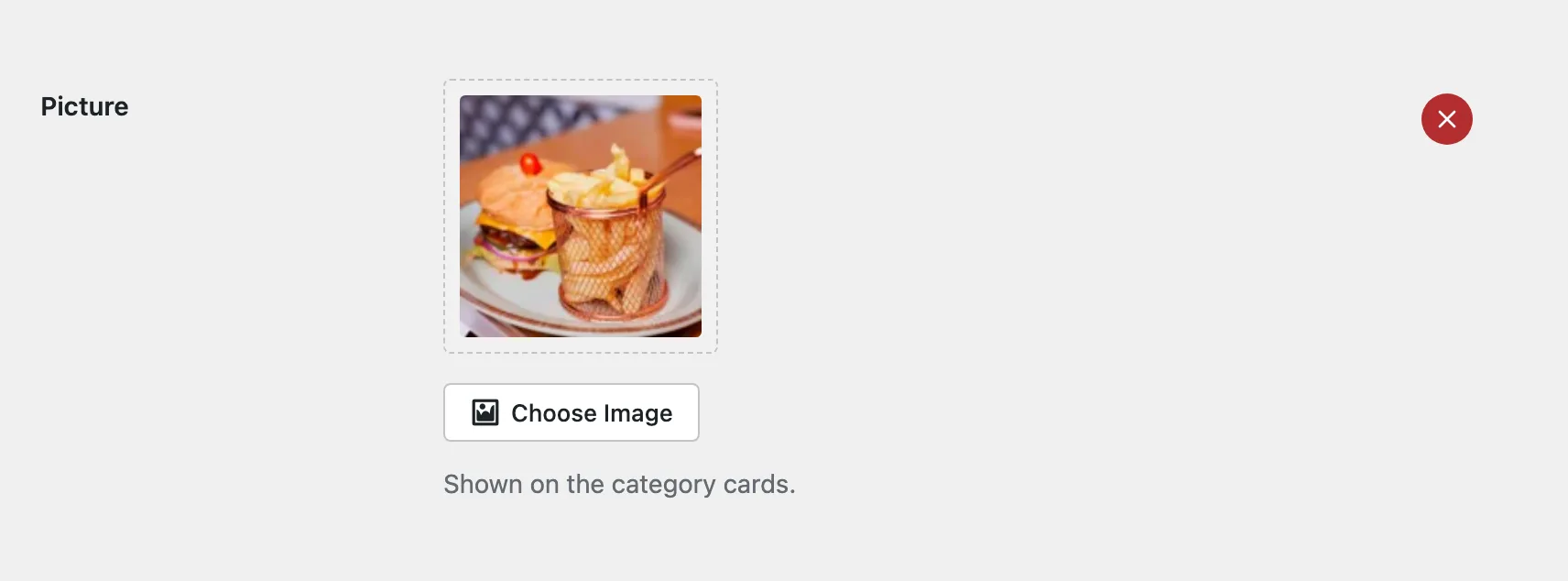
Update
Click Update. The Category cards and All categories sections now show the picture with the category name and its number of posts.
A category without a picture still shows on the cards, on a plain grey tile. The Category row section shows names only, so it needs no pictures.
#Give an author a photo and a position
Open the profile
Go to UsersAll Users and edit the author, or open UsersProfile for yourself.
Set the photo
In Profile photo, choose a square photo. It replaces the Gravatar everywhere WordPress draws this person's avatar, the byline of their posts included. Leave it empty to keep the Gravatar.
Set the position
In Author card, fill Position with a short line such as Travel Editor. It shows under the name on the author cards.
Update the profile
Click Update User. The Authors section and the Authors page show the new photo and position.
#Mark a post as Featured
Open the post
Edit the post and find the Listing box in the sidebar.
Switch Featured on
Turn on Featured.
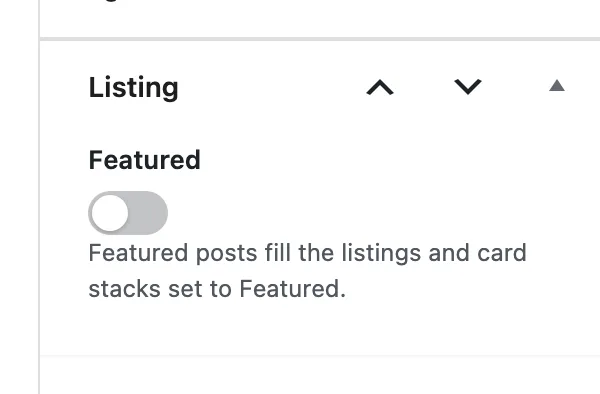
Update the post
The post now appears in Featured articles, in the hero card stack, and in any card stack set to show featured posts.
#How many posts to mark
While no post is marked, the featured sections show your latest posts, so a new site never has empty sections. As soon as you mark one, they show marked posts only.
A page never shows the same post twice. On the home page the hero stack takes the three newest featured posts and Featured articles takes the next three, so mark six to fill both.
Last updated
Was this article helpful?

On this page