
This is the demo import itself, screen by screen, from choosing a demo to the finished site. How the importer works underneath is explained in How demo import works; this page is the procedure.
Take a backup first. There is no undo button for an import in the admin.
An import writes pages, posts, media and settings into your database. On a fresh install that costs nothing to lose, but on a site with anything you care about, the backup is the only way back.
#Running the import
Open Demo Import
Open the admin menu that carries your theme's name and choose Demo Import. The screen opens on Demos, the gallery of complete demo sites.
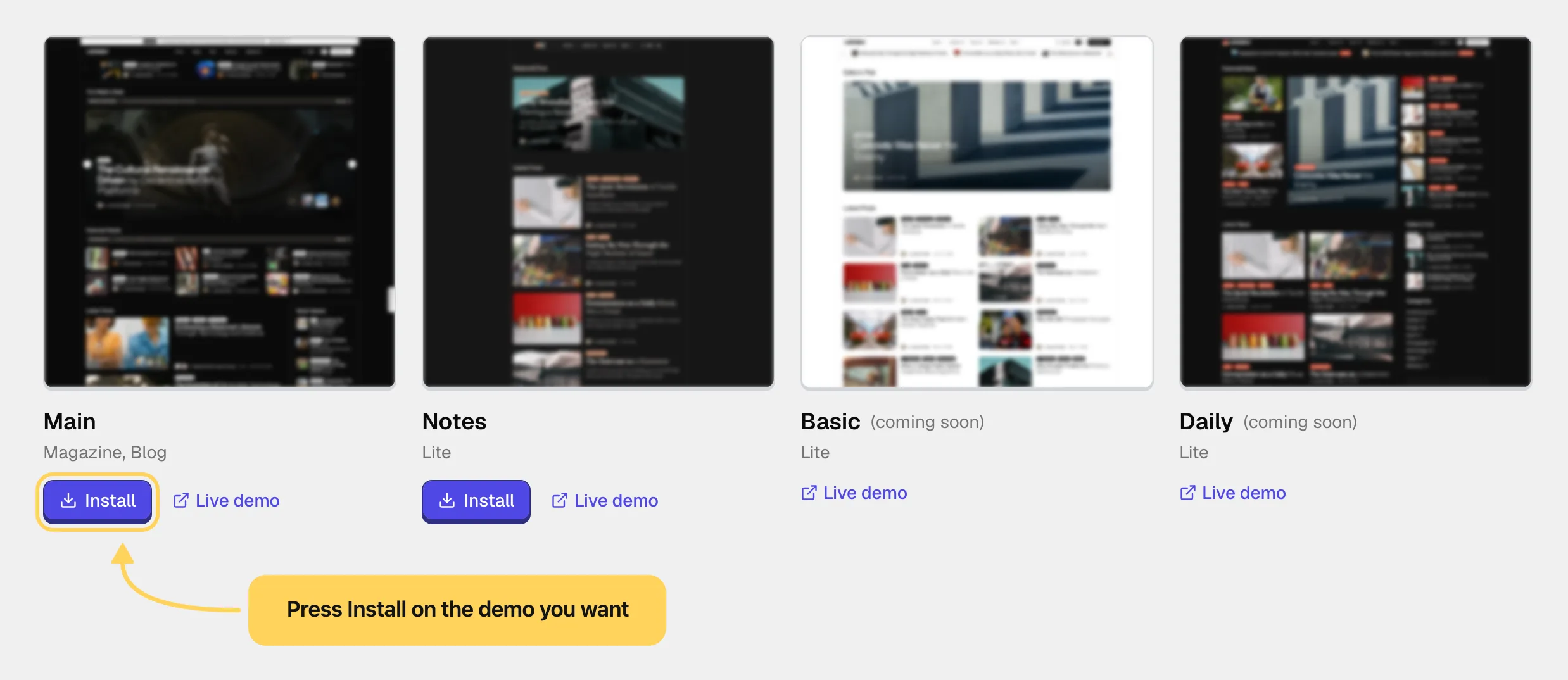
Choose a demo
Each card has a preview and, where one exists, a Live demo button that opens the demo site. What a demo depends on is listed in the import window, after you press Install. Press Install on the one you want. Importing two different demos onto one site mixes their front pages, menus and settings, so pick one.
Let it download
A demo from the licensed catalog shows Downloading demo... for a moment while the package is fetched. Free demos go straight to the next screen.
Check the requirements
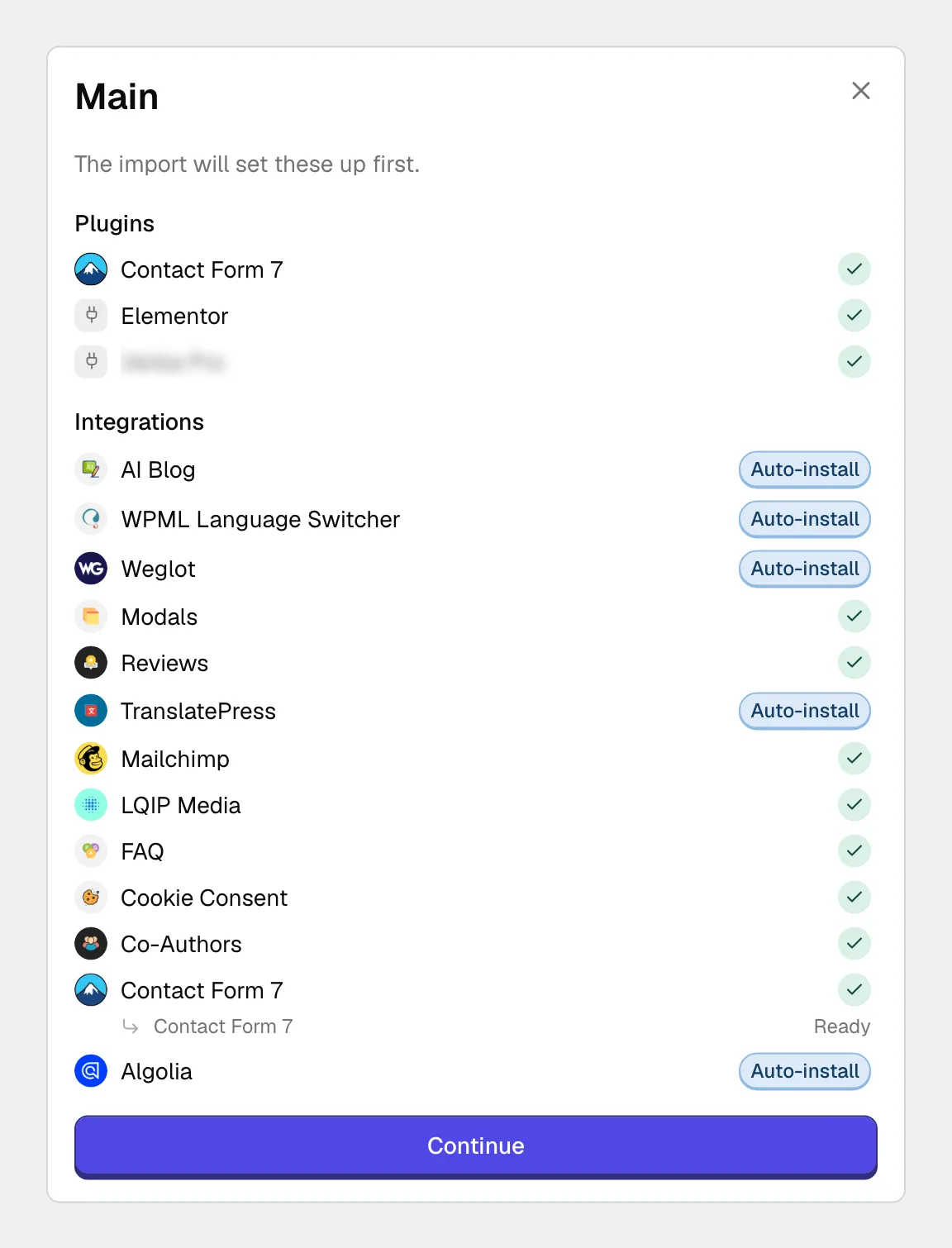
If the demo needs plugins or integrations your site does not have yet, the window lists them under "The import will set these up first." The list is read-only. A tick marks what is already in place, an Auto-install badge marks what the import installs and turns on by itself, and a warning badge marks anything you have to set up yourself, with the reason in the badge. Press Continue to go on. The parts of the demo built on a row with a warning will not work until you set that row up.
Choose the parts
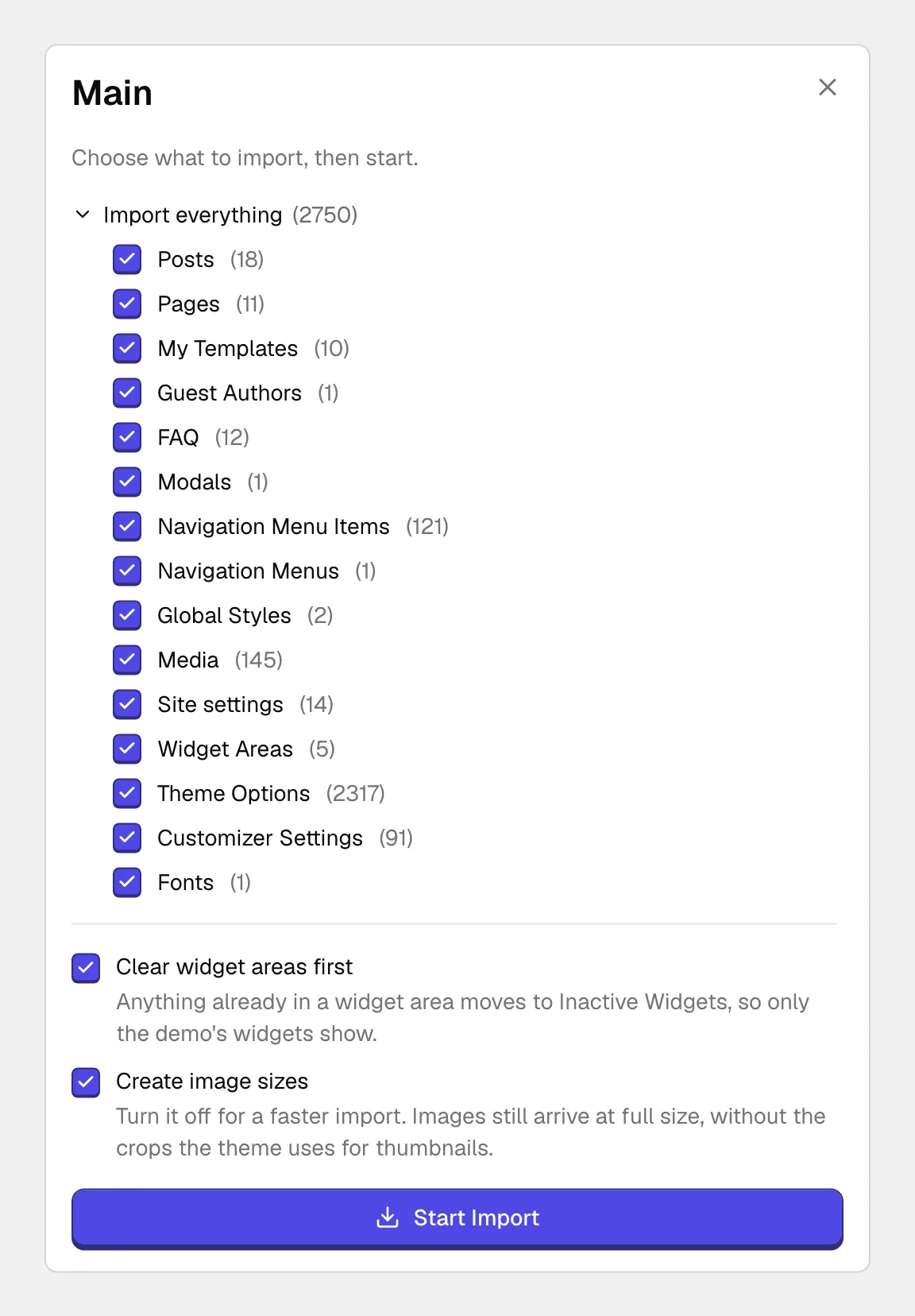
The window says "Choose what to import, then start." Import everything is a collapsed list with every part ticked. Open it to untick what you do not want:
| Part | Leave it ticked when |
|---|---|
| Content, one group per type | you want the demo's pages, posts, menus and templates |
| Media | you want the demo images instead of empty image slots |
| Site settings | you want the demo's front page and reading settings |
| Widget Areas | you want the demo's widgets in the theme's widget areas |
| Theme Options | you want the demo's design and layout settings (Pro) |
| Customizer Settings | you want the demo's Customizer values, logo and menu locations |
| Fonts | you want the fonts the demo uses |
When anything is unticked, the window warns: "Some parts are left out." The demo is built as one piece, so skipping media leaves empty images and skipping content leaves menus pointing nowhere. On a site that already has its own look, untick Theme Options, Customizer Settings, Fonts and Site settings.
Below the list are two options, both on by default. Clear widget areas first moves whatever is already in a widget area to Inactive Widgets, so only the demo's widgets show. Create image sizes makes the cropped sizes the theme uses for thumbnails; turn it off for a faster import, and the images still arrive at full size.
Read the warnings about your server
Before starting, the importer checks the site against the package. This site cannot fit the demo means something like the upload quota is too small, and the start button stays disabled until that is fixed. Some files will be skipped means the import can run, but the named files will not arrive.
Start the import
Press Start Import. The window first shows Checking for existing content... while it looks for posts and pages with the same address as something in the demo.
Decide about content that already exists
If anything matches, the window lists it by type, for example "3 items already exist", and asks what to do. Overwrite replaces your items with the demo's. Keep both imports the demo's items beside yours under new addresses. Cancel goes back without importing. On a site with real content, choose Keep both.
Watch the progress
A progress bar and a checklist of stages follow the run: Required plugins (only when the import installs something), Categories and tags, Images and files, Posts and pages, Links and references, then one row for each settings part you ticked: Site settings, Widgets, Theme options, Customizer and Fonts. Images and files is usually the slowest stage. Keep the tab open until it finishes.
Read the result
Congratulations! Demo installed means everything arrived. Demo installed, with some gaps means the import finished but lost something on the way, such as an image that could not be downloaded, and the line beneath it says what. View website opens the site; Back to admin closes the window, and the demo's card is now marked Imported.
#If the import stopped
The importer works in small batches, and the server saves progress after each one. Your open tab is what sends the next batch, so closing the tab, a lost connection or a sleeping laptop pauses the run where it was. Nothing already imported is lost.
Open Demo Import again
If the run is still recorded as active, the screen shows Import in progress with a Show progress button, which lets you watch the status. Only one import can run at a time, so a second one is refused with "Another import is already in progress."
Wait for the notice to clear
A run with no tab driving it is treated as stopped after a short while, and the notice goes away.
Start the same demo again
Press Install on the same demo and choose the same parts. The existing-content step may now list the items that arrived before the stop; make the same choice you made the first time. The importer picks up the stopped run: items that already arrived are skipped and images already downloaded are reused, so the run continues instead of starting over.
If it stops at the same point every time, the server is usually running out of time or memory on one item. Demo import problems explains what each stopping point means.
#Importing a demo again
Running a finished demo a second time is safe, and you decide what happens to what already exists.
- Pages, posts and menus that match show up in the existing-content step. Choose Overwrite to refresh them in place with no duplicates, or Keep both for a second copy.
- Images the site already downloaded from the demo are reused, not downloaded again.
- Categories and tags with the same slug are reused.
- Widget areas the demo uses are set to the demo's widgets again; widget areas it does not use are left alone.
#Why this importer works differently
Many theme importers take a single export file and run it all at once. This one was built around how imports fail on real hosting:
- You choose parts, so a site can take content without settings, or settings without content.
- A stopped run continues from where it stopped, and a re-run does not have to create duplicates.
- Before anything is written, it tells you about missing plugins, a full upload quota and content that already exists.
- It can import a single page instead of a whole demo.
#When it finishes
Go through the site with fresh eyes: permalinks, menus, the front page, and the placeholder text and images you will replace.
#Common questions
Which demos can I install?
Free demos install with the free companion plugin and no license; see Installing a free demo. Demos built on Pro features need the Pro plugin and an active license, and without them their cards show a disabled Pro button in place of Install.
A license bought directly from us opens every demo in the theme's catalog. An Envato license opens only the demos marked available to Envato, and the cards of the rest say Not included. See What an Envato license covers.
Can I import only some pages of a demo?
Untick content groups to skip whole types, or use the Pages section on the same screen to import one page on its own.
Will the import replace my homepage?
Only if Site settings is ticked, because that part sets the front page. Untick it to keep yours.
How do I undo an import?
Restore the backup you took before starting. The admin has no undo button for an import.
The import failed with an error
Note the message, then press Try again or start the same demo again. A second run continues from what already arrived.
If it fails at the same point twice, go to Demo import problems. If you ask us for help, include the message and the stage it stopped at.
#Still stuck
Open a support ticket and say what you tried and where it stopped. Your product, your domain, a screenshot and the exact message you saw are usually enough to settle it in one reply.
Last updated
