
Theme Options: branding, header, and footer - Exquil
The Site part of Exquil ProTheme Options holds the logo, the header, the footer, and the sections around page content. Theme Options appears once Exquil Pro is installed and its license is active. Nothing here is live: change the values, then save.
Many settings depend on a switch above them and stay hidden while it is off.
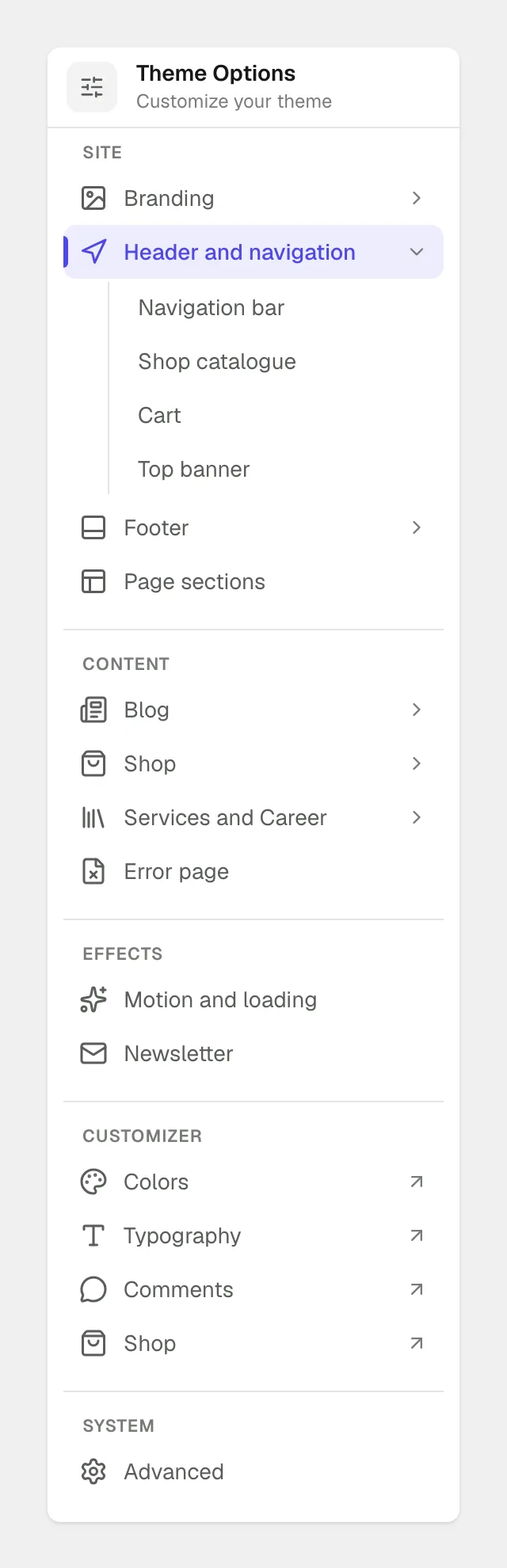
#Branding
Exquil ProTheme OptionsSiteBranding has two tabs.
The logo in the desktop navigation. SVG or PNG with a transparent background works best.
The logo shown over dark backgrounds.
The logo width on desktop, in pixels.
A compact logo for the mobile navigation. Mini logotype dark is its version for dark backgrounds.
Its width, in pixels.
#Header and navigation
Exquil ProTheme OptionsSiteHeader and navigation has four tabs. The menu itself is assigned to the Navigation Menu location at AppearanceMenus.
Navigation bar tab:
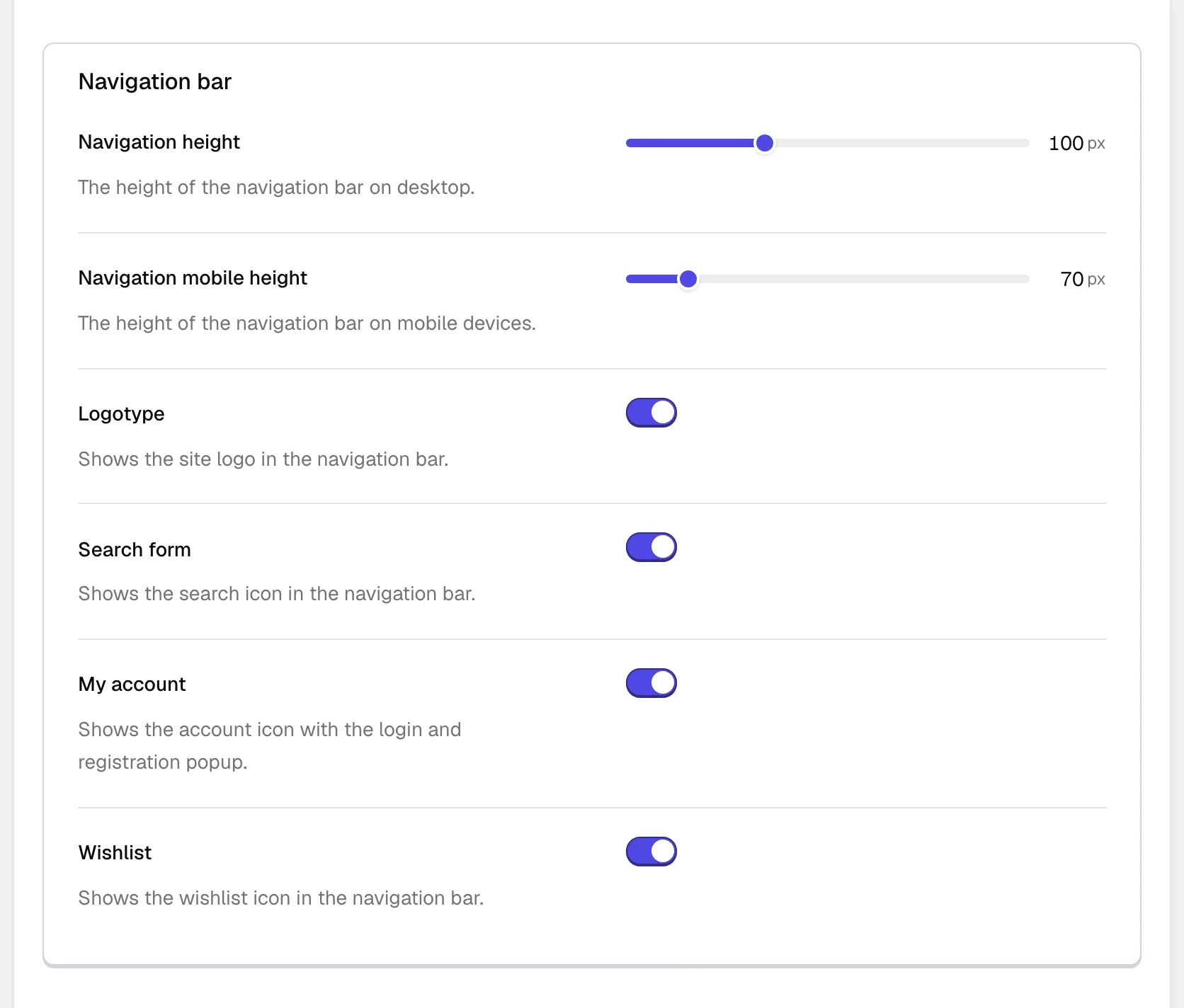
The bar height on desktop, in pixels.
The bar height on mobile.
The logo in the bar.
The search icon.
The account icon with the login and registration popup.
The wishlist icon. Shown while WooCommerce and TI WooCommerce Wishlist are active.
Shop catalogue tab, for the product category megamenu in the main navigation:
Turns the megamenu on.
Loads the product slides when a visitor opens a category, instead of with the page.
Product categories the megamenu lists.
Products shown per category.
Cart tab, shown while WooCommerce is active:
The cart icon in the bar.
Updates the cart contents without a reload.
Sub menu opens a dropdown, Panel a slide-out panel, Default links to the cart page.
Top banner tab: a promotional strip above the navigation, on by default. It has an optional label badge (default text New), the message, and a button with its text and link. Replace the demo message before you go live.
To make one menu item a megamenu or give it a badge, use the menu item options in Options on pages, posts, products, and menu items.
#Footer
Exquil ProTheme OptionsSiteFooter has three tabs.
Parts: switches for the Footer as a whole, the Social bar, the Widgets area (filled from the Footer sidebar widget area), and the Copyright bar, all on by default. Background color is empty by default, which keeps the footer transparent.
Copyright: the copyright line, also used in the mobile menu. HTML links are kept, and {year} becomes the current year. The tab is shown while Copyright bar is on.
Social profiles: your profiles as rows of a title, an icon, and a URL. The list feeds the footer social bar and the Social Icons widget.
#Page sections
Exquil ProTheme OptionsSitePage sections appears while Elementor is active. Before content sections and After content sections each take a list of Elementor templates inserted on every page above or below the content, such as a newsletter strip or a contact block above the footer.
To leave them out on one page, turn off Before content sections or After content sections in that page's options.
Last updated
Was this article helpful?

On this page
